PLMNL0199 REV. J Effective Date: 08/05/21 34 FiberCUT
®
ST Operation Manual
2. To connect quickly to all panels
that are assigned and currently
online, click the Connect All button
( ) in the main toolbar.
3. To disconnect from an individual
panel, click the Disconnect button
( ) in the top left corner of the
desired panel.
To disconnect from all panels,
click the Disconnect All button
( ) in the main toolbar.
5.5.2 Displays
Multiple View contains the same
information as Standard View, only in
a more condensed layout.
See Section 5.4.2 and Section 5.4.3
for a full description of each.
5.6 FiberCUT
®
Monitor Settings
The FiberCUT
®
Monitor software is
available for download. See Section 5.1
for details.
This section lists the settings that
must be specified before
operating FiberCUT
®
Monitor.
Before adjusting any settings:
The software must be installed on
your PC. See Section 5.1 for more
details.
The head and control interface must
be connected properly. See Section 3
for more details.
5.6.1 Unlock Settings
1. Click the Unlock Settings button
( ) in the toolbar.
In the pop up that appears,
enter the password:
cutsetup
When using Multiple View,
Settings buttons ( ) will
appear in both the main toolbar
and on each panel. Use the
main button to access Manage
Connections and Simulated
Inputs, and the individual panel
buttons for all other settings.
5.6.2 Temperature Limit
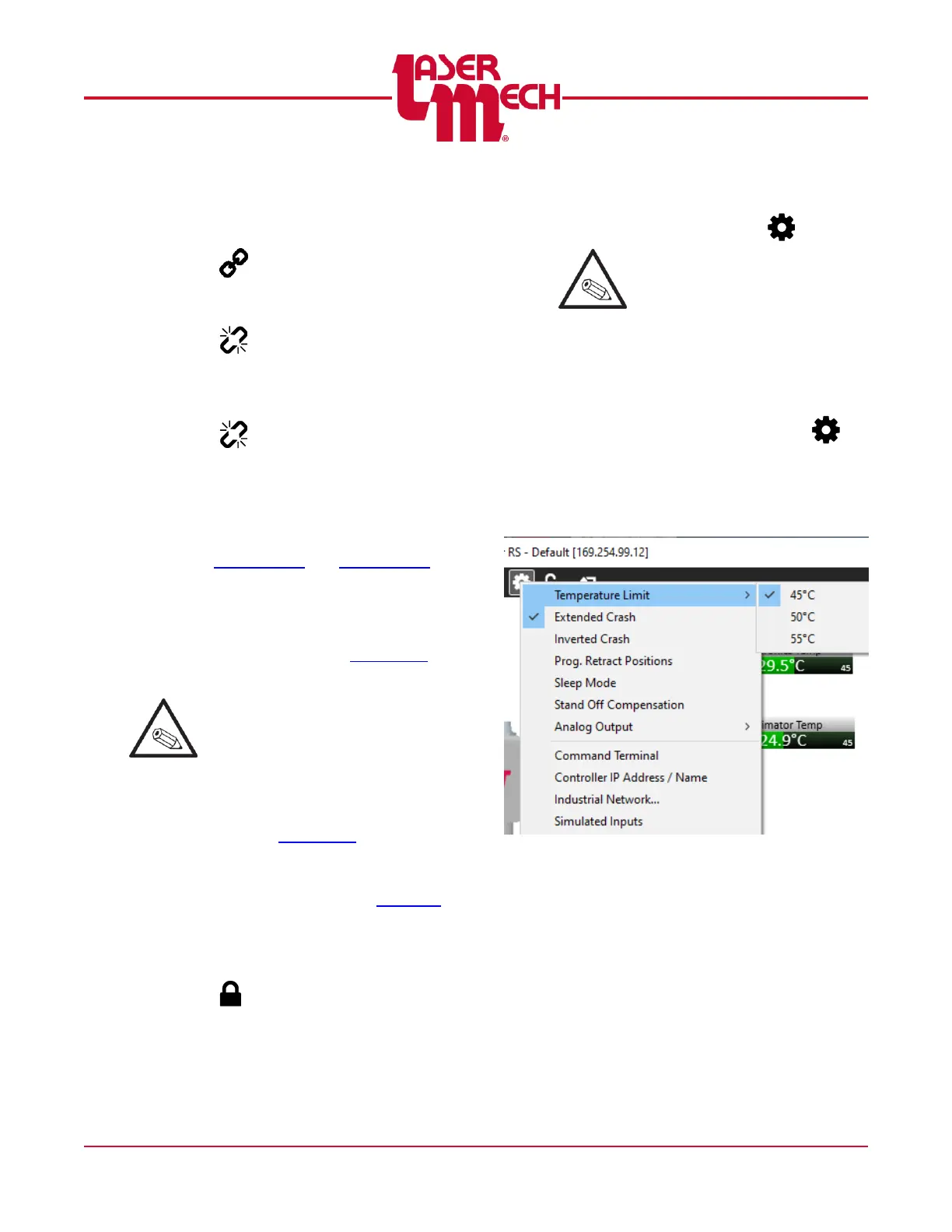
For steps 1 and 2, see Figure 39.
1. Click the Settings button ( ) in
the toolbar and hover over
Temperature Limit.
2. Click 45°C, 50°C or 55°C, as
desired.
Figure 39
3. The value will be stored and the
thermometers will update to show
the new limit.



 To Next Page