Masks that you create from your waveform can be confined to just a
portion of the trace by use of a measure gate. Refer to the Measure Gate
online help topic for more information on how this feature works.
Right-Hand Dialogs
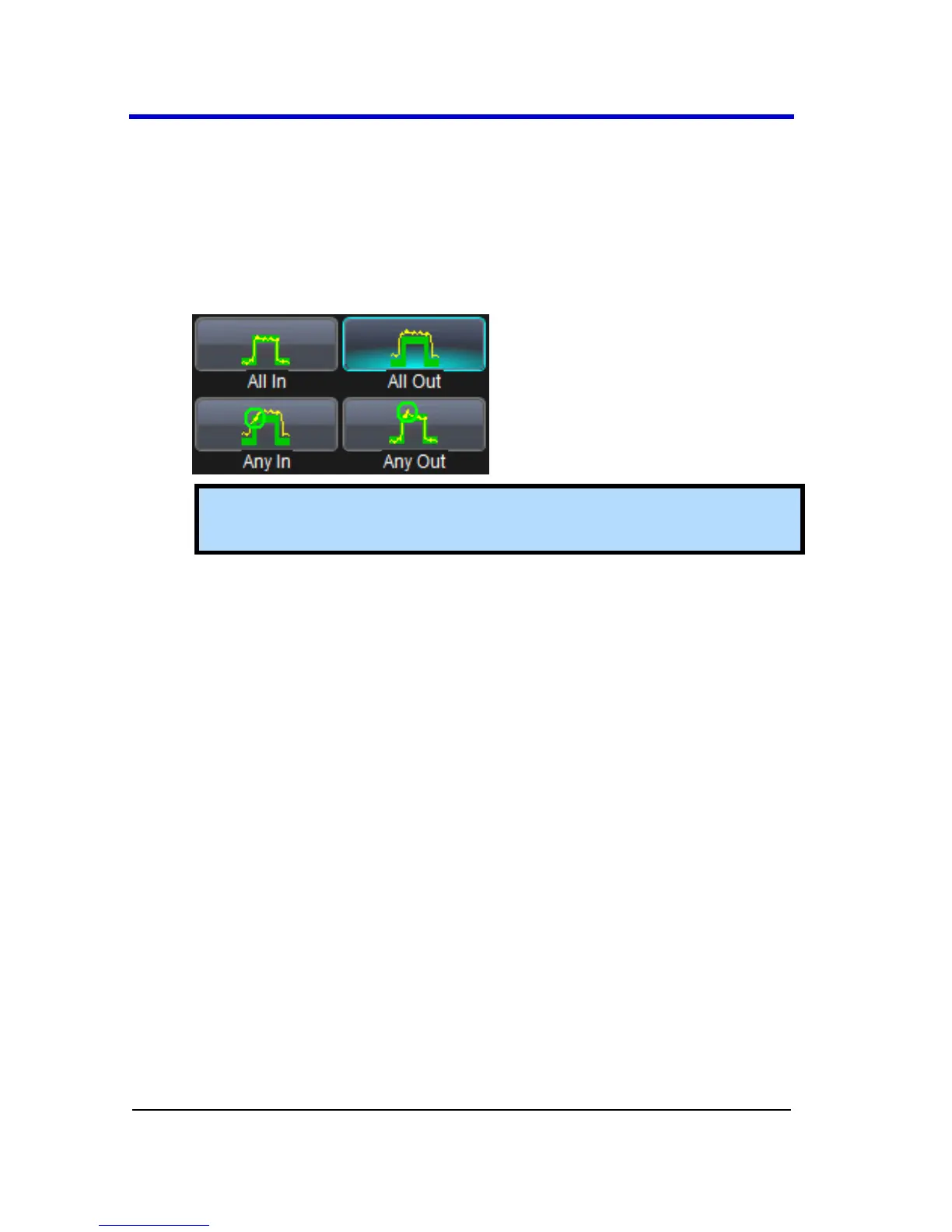
On the Test right-hand dialog, make a selection in the Test is True
when group of buttons (as follows).
Note: The previous selection is for All In and means the test is
False when a single waveform falls outside the mask.
From the Show Markers section of the dialog, choose whether or
not to have mask violations displayed by touching either the Off or
On button, respectively.
When loading a pre-existing mask, use the Load Mask right-hand
dialog. Using the File button, you can then enter the file name or
browse to its location.
When creating a new mask, use the Make Mask right-hand dialog.
Touch the Browse button to create a file name and location for
the mask if you want to save it.
Touch inside the Ver Delta and Hor Delta fields and enter
boundary values, using the pop-up numeric keypad. You can also
use the Make from Trace button to instantly create a mask from a
new waveform.
When creating a new mask, use the Make Mask right-hand dialog.




 To Next Page