Precisely place the label by touching inside the Horizontal Pos.
field and provide a horizontal value, using the pop-up numeric
keypad.
Add another label by touching the Add label button. Delete a label
by selecting the label from the list, and then touching the Remove
label button.
Make labels visible by touching the View labels checkbox.
Dialog Area
The lower portion is where information is shown, selections are made,
and data is input. Typically they are organized into tabular displays,
subtabs, or pop-up dialogs. The dialog area is controlled by Touch Screen
Controls and Front Panel Controls (on page 19).
Touch Screen Controls
Various touch screen user interface controls are provided for easily
entering data. Their functionality is described in this topic and you'll see
them referenced throughout the documentation.
POP-UP SELECTOR CONTROLS
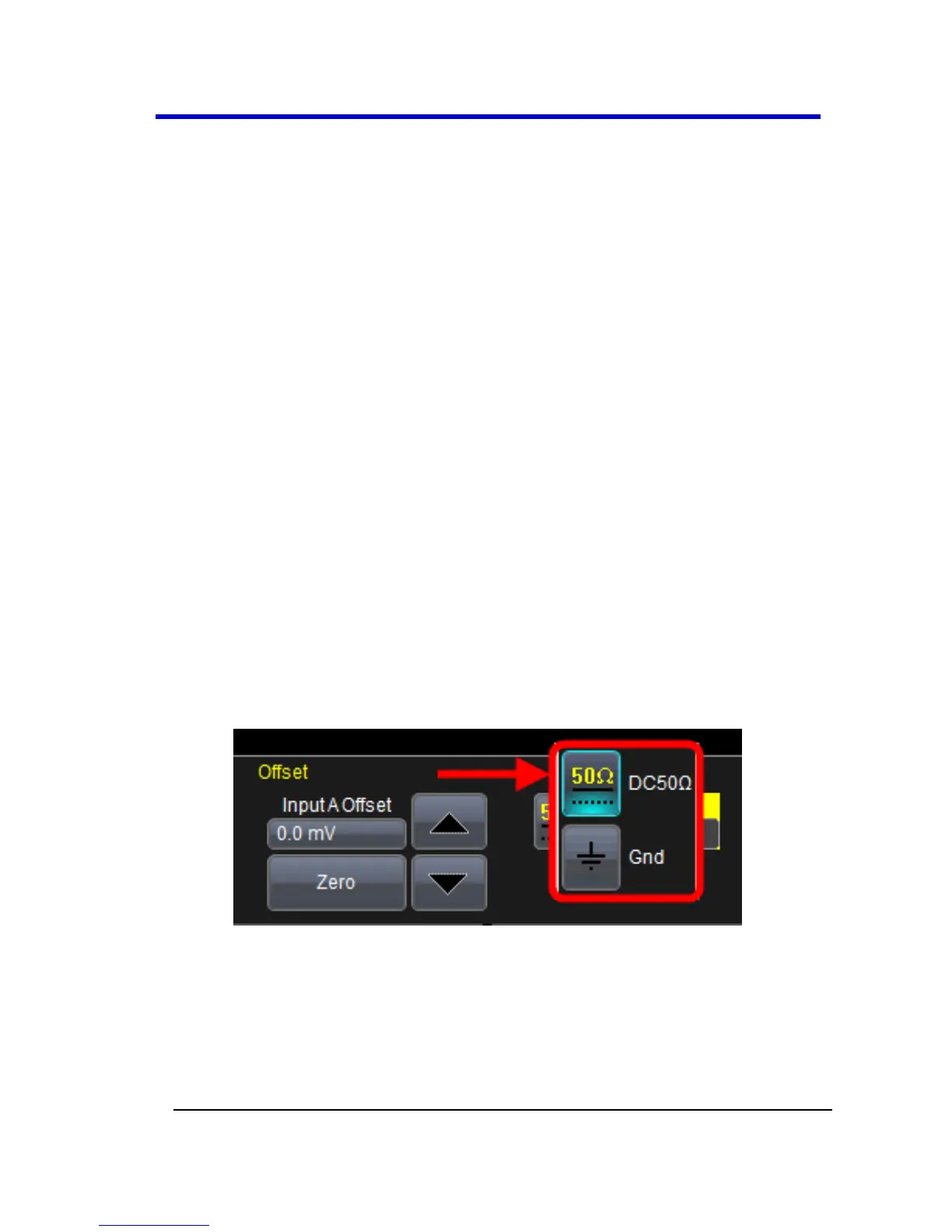
When Pop-Up selector controls are touched, sometimes a very small box
is shown right inside the control - as in the following control for Coupling
on the C1 dialog.
Pop-Up Selector Control for smaller values.
Other times, a larger box is shown after touching a control.




 To Next Page