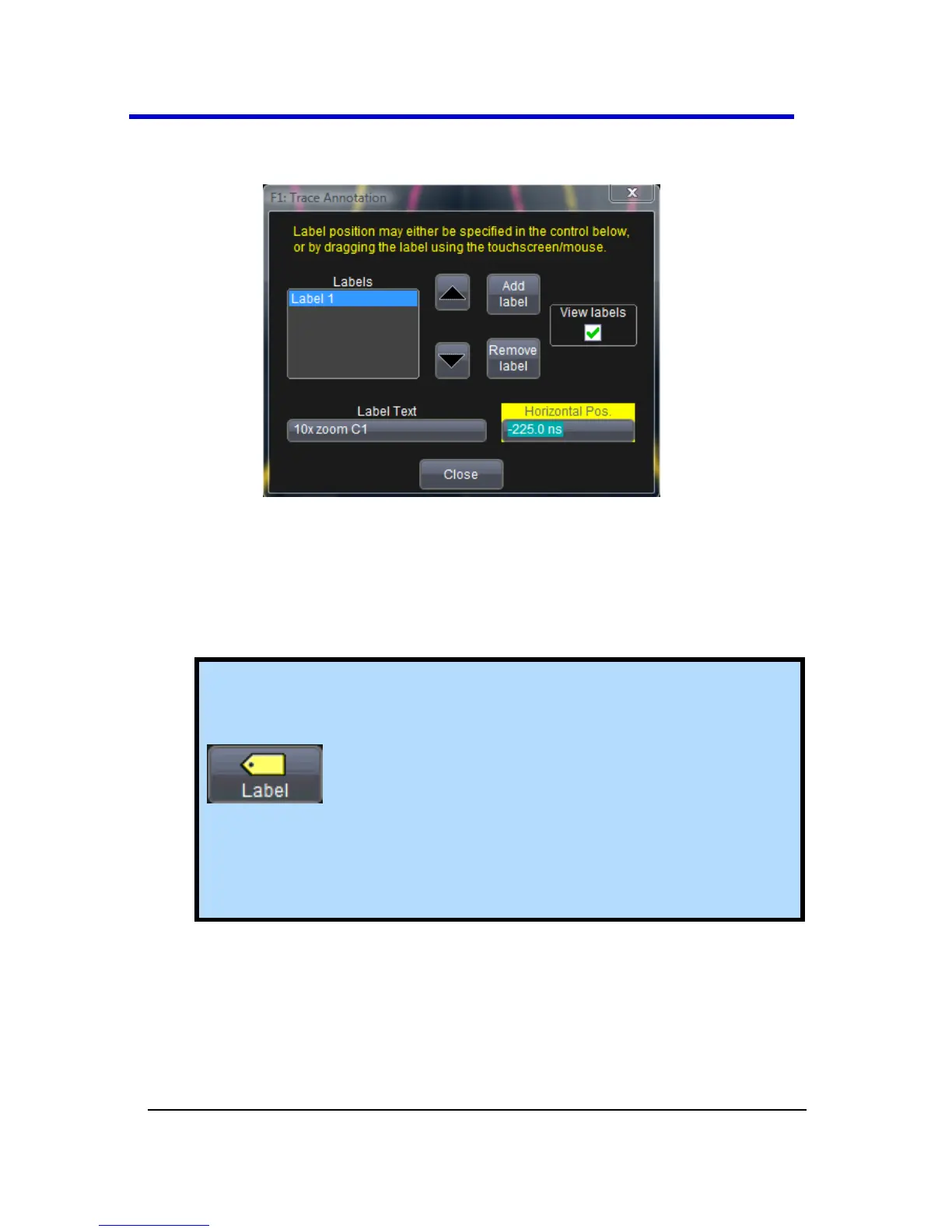
If you are creating a label for the first time for this waveform, Label1 is
displayed as default text when the Add label button is clicked.
From this pop-up you can edit existing annotations, change the label
placement on the waveform, add labels, remove labels, and toggle the
visibility. The following bullets show you how.
If you are modifying an existing label, under Labels touch the label
you want to change.
Note: If the dialog for the trace you want to annotate is
currently displayed, you can touch the label button at the
bottom to display the Trace Annotation setup dialog.
You may place a label anywhere you want on the waveform.
Labels are numbered sequentially according to the order in
which they are added, and not according to their placement on
the waveform.
If you want to change the label's text, touch inside the Label Text
field. A pop-up keyboard appears for you to enter your text. Touch
O.K. on the keyboard when you are done. The edited text
automatically appears in the label on the waveform.




 To Next Page