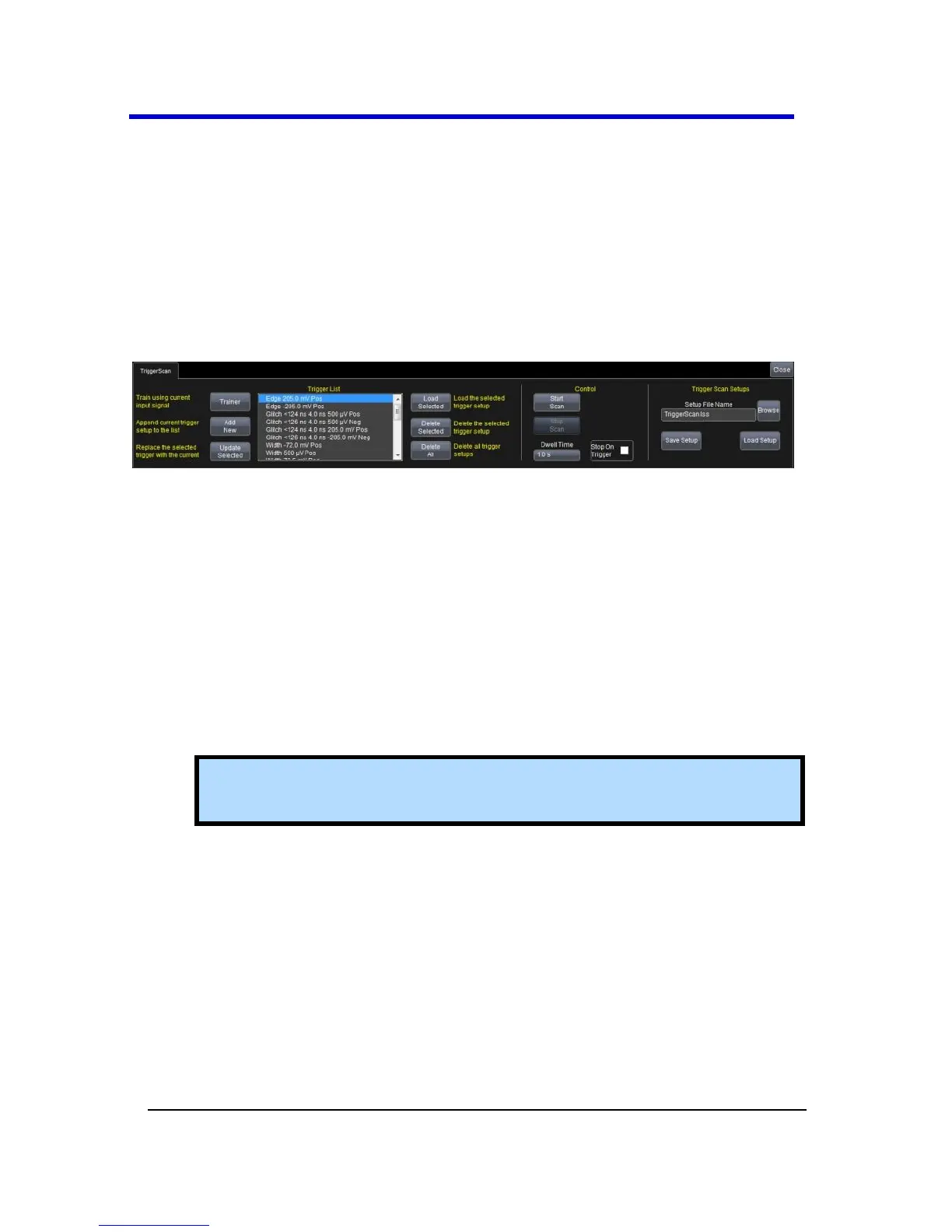
Starting TriggerScan
After you have run the Trainer, the Trigger List displays a list of smart
trigger setups. You can add or remove trigger setups. You can also
update the selected smart trigger setup. Once you have made any
changes to the Trigger List, you are ready to start scanning.
1. Touch Trigger → Trigger Setup... from the menu bar.
2. On the Trigger dialog, click the TriggerScan tab and its
corresponding dialog is shown.
3. If you want to add a new trigger setup, touch the Trigger tab and
set the new trigger as desired on the Trigger dialog. Then, back on
the TriggerScan dialog, touch the Add New button to append the
new trigger to the Trigger List.
4. If you want to replace the selected trigger setup with the current
trigger setup, highlight the setup in the Trigger List and touch the
Update Selected button.
5. If you want to shown a specific trigger setup on the Trigger List,
highlight its corresponding row on the list, and then touch the
Load Selected button.
Note: If you want to delete all trigger setups in the Trigger List,
touch the Delete All button.
6. If you want to delete a trigger setup, highlight the setup in the
Trigger List and touch the Delete Selected button.
7. All trigger setups can be deleted regardless of selections on the
Trigger List with one step by touching the Delete All button.
5. Once you have made any changes to the Trigger List, touch the
Trainer button and then restart the scan by touching the Start
Training button on the Trigger Scan Trainer pop-up. The
oscilloscope automatically sequences through all the trigger
setups.




 To Next Page