Key Function
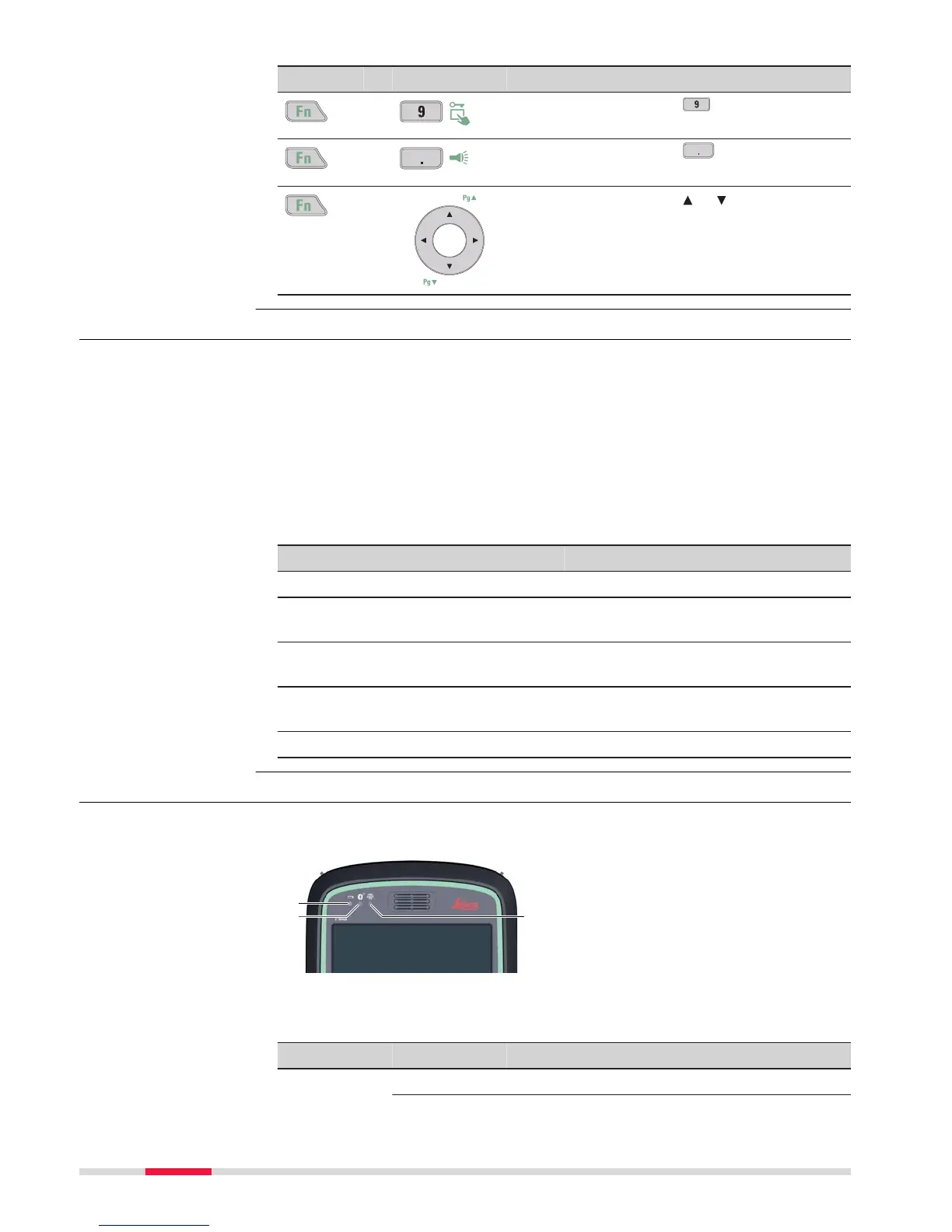
+ Hold Fn while pr
essing
.
Lock/unlo
ck the touch screen.
+
Hold Fn while pr
essing
.
Tur
n the torch on/off.
+ Hold Fn while pr
essing
or .
Switch t
o the previous/next page.
3.2 Operating Principles
The user interface is operated either by the keyboard or by the touch screen
with supplied s
tylus. The workflow is the same for keyboard and touch screen
entry, the only difference lies in the way information is selected and entered.
Operation by keyboard
Information is selected and entered using the keys. Refer to "3.1 Keyboard" for
a detailed description of the keys on the keyboard and their function.
Operation by touch screen
Information is selected and entered on the screen using the supplied stylus.
Operation Description
To select an item Tap on the item.
To start the edit mode in editable
fields
T
ap on the editable field.
To highlight an item or parts of it for
editing
Drag the supplied stylus from the left
to the right.
To accept data entered into an edita-
ble field and exit the edit mode
Tap on the screen outside of the
editable field.
To open a context-sensitive menu Tap on the item and hold for 2 s.
3.3 LED Indicators on CS20
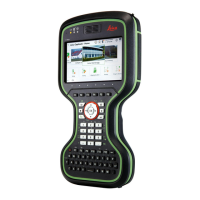
The field controller has Light Emitting Diode indicators. They indicate the basic
field controller status.
a Power LED
b Blue
tooth LED
c Long range TS LED - not avail-
able for CS20 field controller
Description of the LEDs
LED LED Status Status of Field Controller
Power LED off Power is off.
Keyboard and touch
screen
LED in
dicators
28 User Interface



 To Next Page