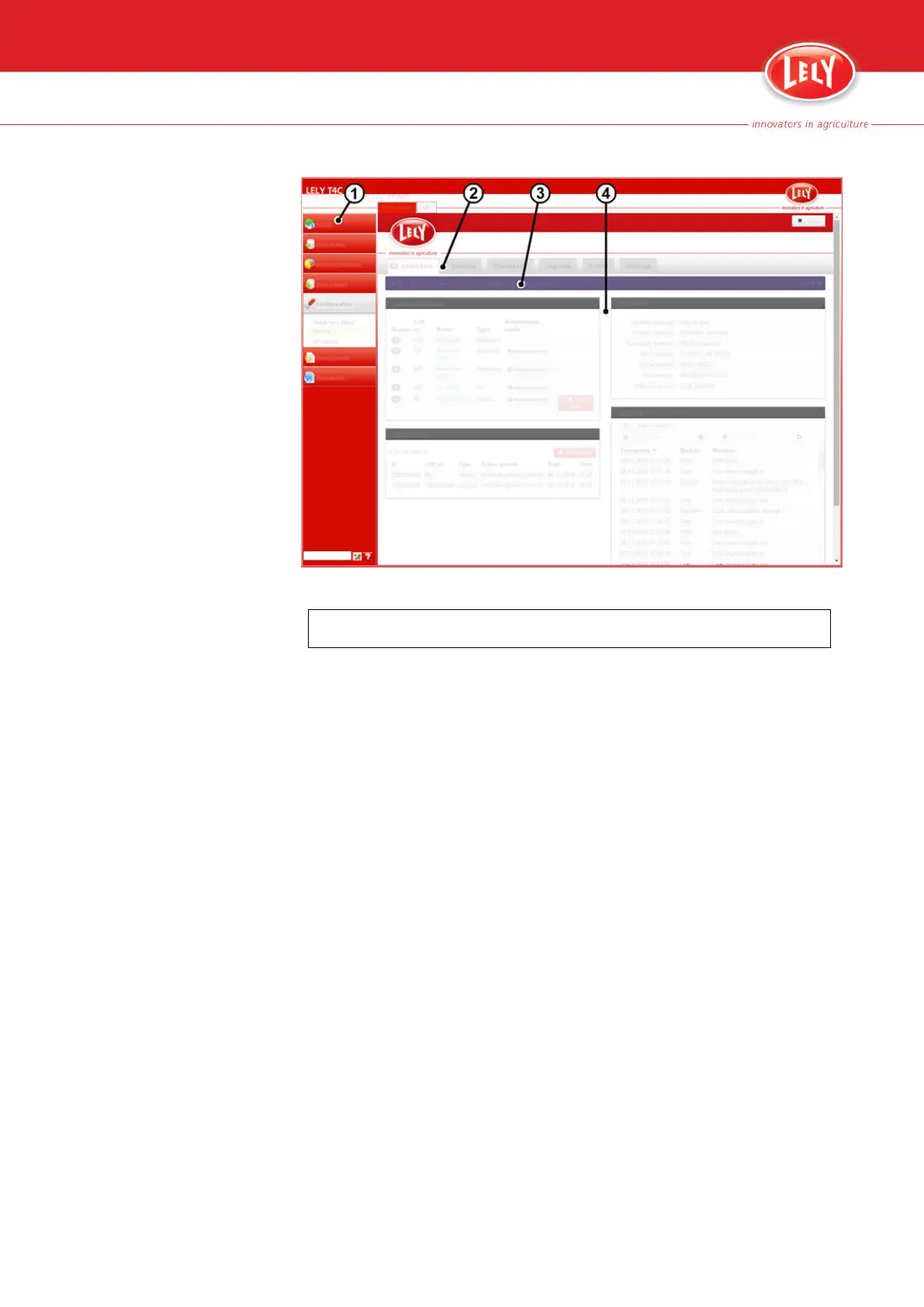
Figure 12. Modalarm web interface
Key:
1. T4C navigation bar - 2. Modalarm tabs - 3. Purple status bar - 4. Information fields
• Tab 'Dashboard':
• Field 'Connected devices': shows the number of active alarms per
connected device.
•
Field 'Active alarms': shows the list of active alarms for all devices.
• Field 'Information': shows the system language (speech files) and the
priority and availability of GSM and/or PSTN. Priority means which
communication channel is used first when an alarm occurs. E.g. if the
phone is not answered through GSM, then the Modalarm tries to call
the same person with the PSTN line.
• Field 'Logbook': shows the list of statuses of the Modalarm. The list
can be filtered by a filter module and/or by date. For example the filter
modules 'GSM' and 'PSTN' show the generated alarm phone calls.
• Tab 'Devices': per device the list of all possible alarms can be viewed. In
this list the calling schedule (day and/or night) per alarm can be set
(except for critical alarms, then the phone call is always generated).
• Tab 'Phonebook': shows the name and the settings of the person(s) that
are set as contact persons for the alarm phone calls. For each contact
person the phone number and the day and/or night calling schedule can
be set. Consequently, if GSM is available, SMS can be selected. Per
contact person the PIN code (to accept the alarm phone calls) can be set.
The sequence of the contact persons shows the priority (who will be
called first). This sequence can be changed (drag and drop).
• Tab 'Logbook': shows the list of statuses of the Modalarm. The list can be
filtered by a filter module and/or by date. For example the filter modules
'GSM' and 'PSTN' show if the alarm phone calls are generated.
Description 4-13
PDF of the English original HTML, 5.1004.8514.0 -


 To Next Page