5.Usingthecursorkeys,movetoSecurity.TheSecuritymenuopens.
6.Usingthecursorkeys,movetoSecurityChip,andpressEnter.TheSecurityChipsubmenuopens.
7.Usingthecursorkeys,movetoanitemyouwanttoset.Whentheitemishighlighted,pressEnter.
8.Setotheritemsthatyouwanttoset.
9.PressF10tosavechangesandexit.
10.PressEnterintheSetupConrmationwindowtoconrmtheexit.
Tosetthesecuritychip,youhavetostartClientSecuritySolution,andfollowtheinstructionsonthescreen.
Note:Tocongurethesecuritychip,youneedtodownloadthelatestversionofClientSecuritySolution
fromtheLenovoWebsite.TodownloadClientSecuritySolution,gotohttp://www.lenovo.com/support.
Thenfollowtheinstructionsonthescreen.
Usingangerprintreader
Dependingontheoptionsyouordered,yourcomputermayhaveanintegratedngerprintreader.By
enrollingyourngerprintandassociatingitwithawindowspassword,youcanlogontothesystemby
swipingyourngeroverthereader,withouttypingapassword.Thusngerprintauthenticationcanreplace
passwordsandenablesimpleandsecureuseraccess.
Enrollingyourngerprint
Tousetheintegratedngerprintreader,beginbyenrollingyourngerprintasfollows.
1.Turnonyourcomputer.
2.StartThinkVantageFingerprintsoftware,referto“AccessingThinkVantageapplications”onpage14.
3.Followtheinstructionsonthescreentoenrollyourngerprint.Fordetails,refertothehelpinformation
systemoftheprogram.
Swipingyourngeroverthereader
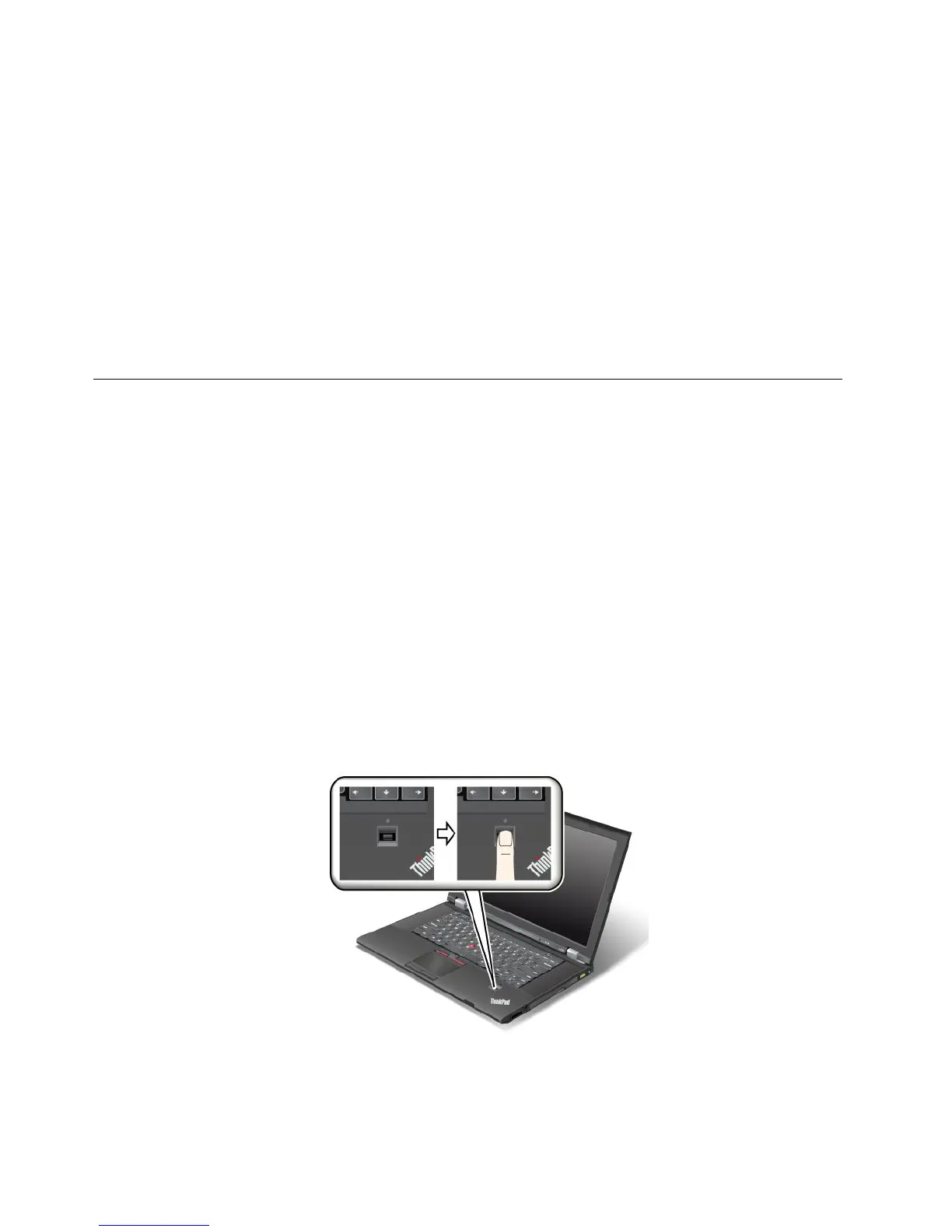
Toswipeyourngeroverthereader,dothefollowing:
1.Placetheballofyournger,thatis,thecentralpartofthengerprint,onthesmallcircleabovethe
reader.Ensurethattheentiretopjointofthengerisonthereader.
54UserGuide









 To Next Page