2 Network activity LED
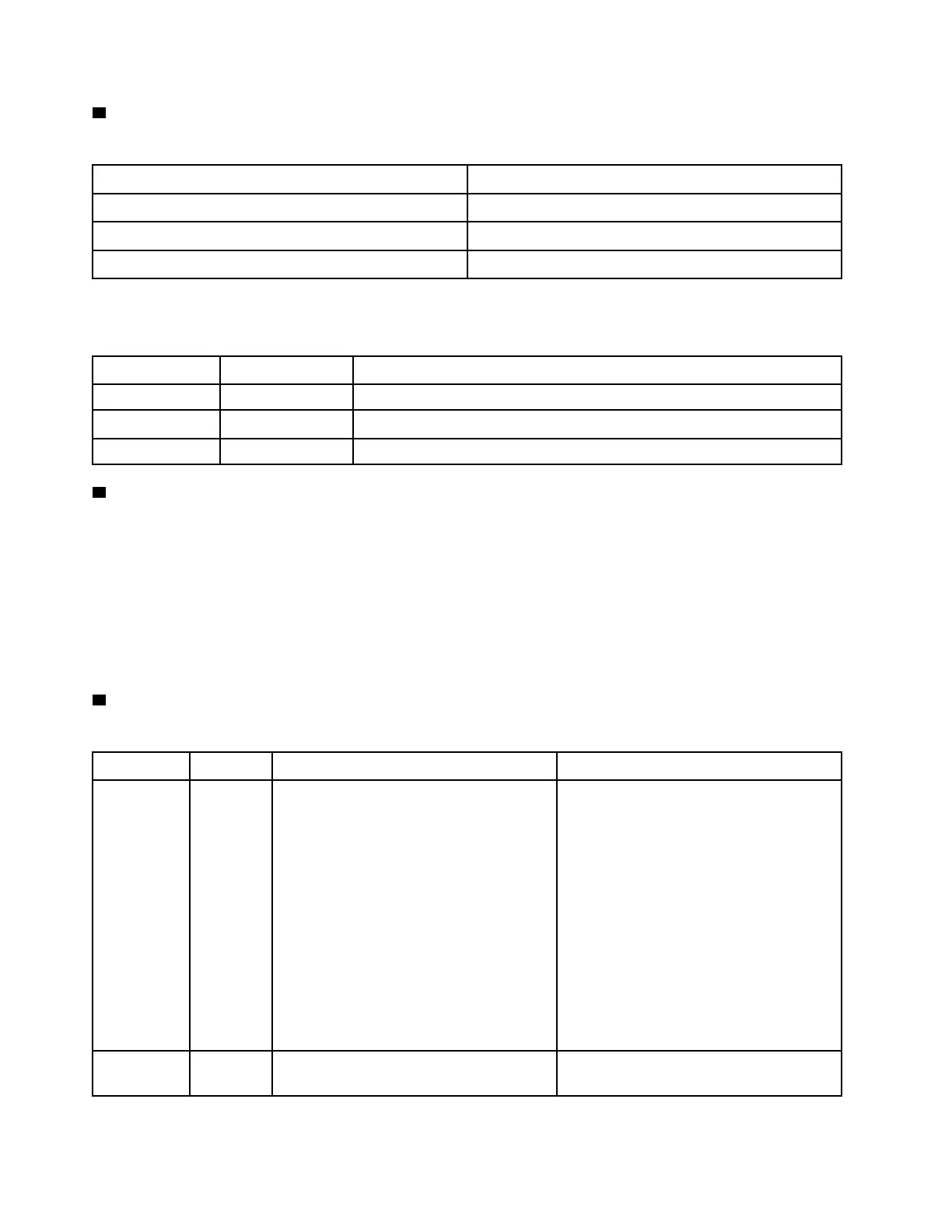
Compatibility of the NIC adapter and the network activity LED.
NIC adapter Network activity LED
LOM adapter Support
ML2 NIC adapter Support
PCIE NIC adapter
Not support
The network activity LED on the operator information panel helps you identify the network connectivity and
activity.
Status Color
Description
On Green
The server is connected to a network.
Blinking
Green
The network is connected and active.
Off None The server is disconnected from the network.
3 System ID button with system ID LED
Use this system ID button and the blue system ID LED to visually locate the server. A system ID LED is also
located on the rear of the server. Each time you press the system ID button, the state of both the system ID
LEDs changes. The LEDs can be changed to on, blinking, or off. You can also use the Lenovo XClarity
Controller or a remote management program to change the state of the system ID LEDs to assist in visually
locating the server among other servers.
If the XClarity Controller USB connector is set to have both the USB 2.0 function and XClarity Controller
management function, you can press the system ID button for three seconds to switch between the two
functions.
4 System error LED
The system error LED helps you to determine if there are any system errors.
Status Color Description Action
On
Yellow An error has been detected on the server.
Causes might include but not limited to the
following errors:
• The temperature of the server reached
the non-critical temperature threshold.
• The voltage of the server reached the
non-critical voltage threshold.
• A fan has been detected to be running at
low speed.
• A hot-swap fan has been removed.
• The power supply has a critical error.
• The power supply is not connected to
the power.
Check the event log to determine the exact
cause of the error.
For information about troubleshooting, see
“Troubleshooting by symptom” on page
156 .
Off
None The server is off or the server is on and is
working correctly.
None.
20 ThinkSystem SR570 Maintenance Manual






 To Next Page