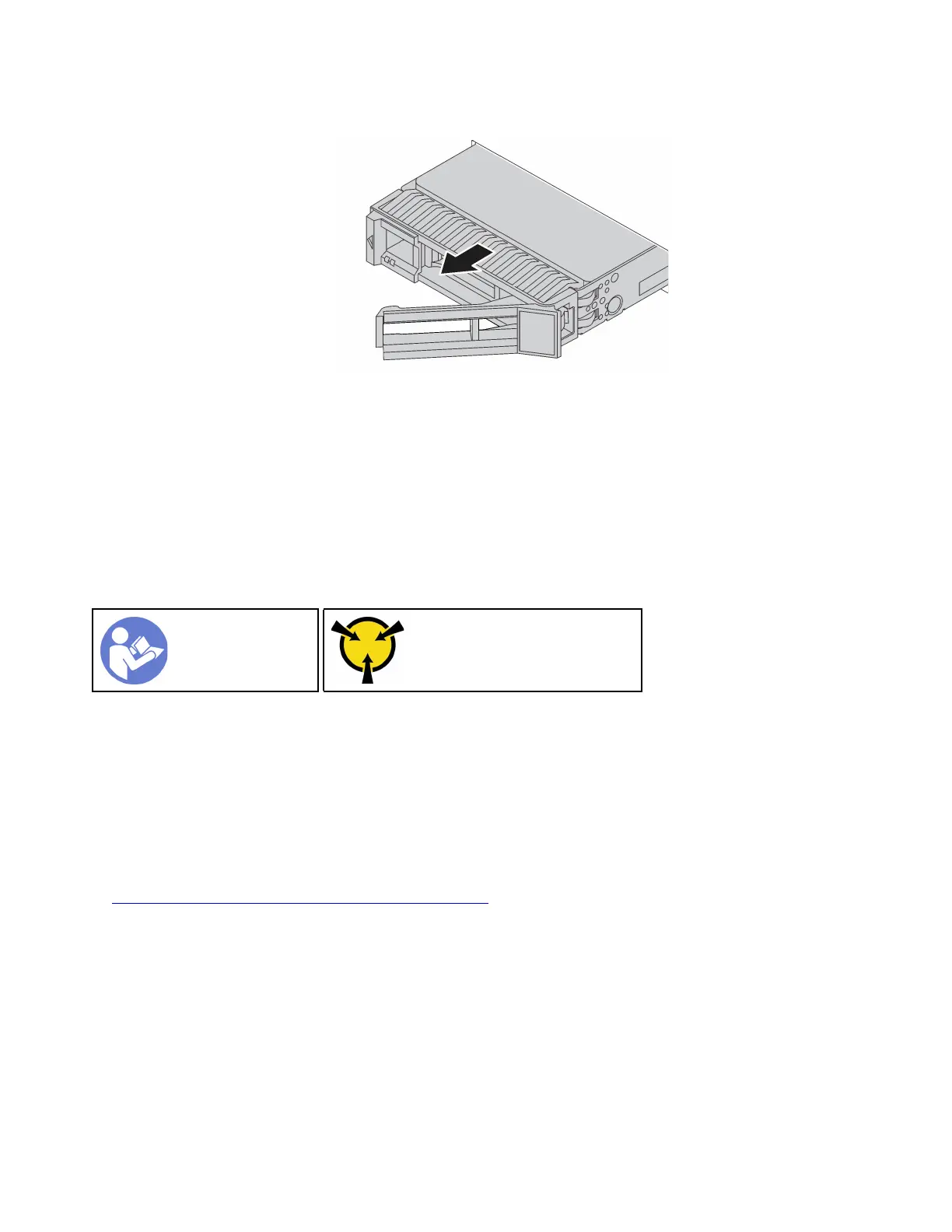
Step 2. Grasp the handle and slide the drive out of the drive bay.
Figure 47. Hot-swap drive removal
After removing a hot-swap drive:
1. Install the drive filler or a new drive to cover the drive bay. See “Install a hot-swap drive” on page 84.
2. If you are instructed to return the old hot-swap drive, follow all packaging instructions and use any
packaging materials that are provided.
Install a hot-swap drive
Use this information to install a hot-swap drive.
“Read the
installation
Guidelines” on
page 49
“ATTENTION:
Static Sensitive Device
Ground package before opening”
on page 52
The following notes describe the type of drives that your server supports and other information that you must
consider when you install a drive.
• Depending on your server models, your server supports the following types of drives:
– SAS/SATA HDD
– SAS/SATA SSD
– NVMe SSD
For a list of supported drives, see:
https://static.lenovo.com/us/en/serverproven/index.shtml
• The drive bays are numbered to indicate the installation order (starting from number “0”). Follow the
installation order when you install a drive. See “Front view” on page 17.
• You can mix drives of different types and different capacities in one system, but not in one RAID array.
The following order is recommended when installing the drives:
– Drive type priority: NVMe SSD, SAS SSD, SATA SSD, SAS HDD, SATA HDD
– Drive capacity priority: the lowest capacity first
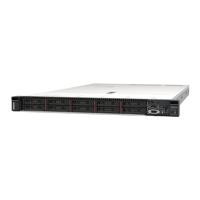
• For server models with ten 2.5-inch drive bays in the front, NVMe drives are supported in drive bays 6–9.
• The drives in a single RAID array must be the same type, same size, and same capacity.
84 ThinkSystem SR570 Maintenance Manual






 To Next Page