Before installing a hot-swap drive:
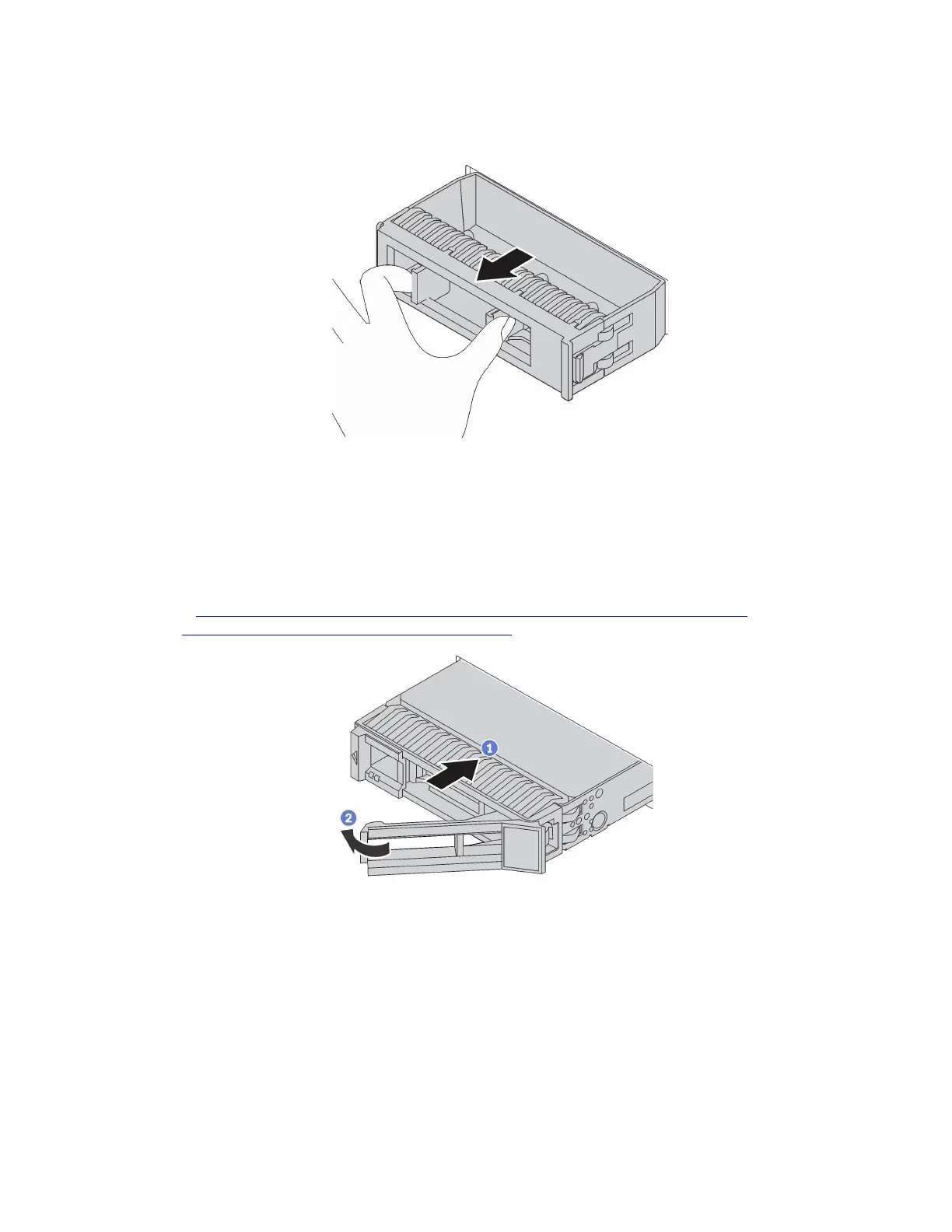
1. Remove the drive filler from the drive bay. Keep the drive filler in a safe place.
Figure 48. Drive filler removal
2. Touch the static-protective package that contains the new drive to any unpainted surface on the outside
of the server. Then, take the new drive out of the package and place it on a static-protective surface.
To install a hot-swap drive, complete the following steps:
Watch the procedure. A video of the installation process is available:
• Youtube:
https://www.youtube.com/playlist?list=PLYV5R7hVcs-CjaaAyvBOOZ749SC-2SK2C
• Youku: http://list.youku.com/albumlist/show/id_51276391
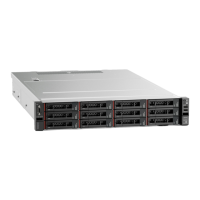
Figure 49. Hot-swap drive installation
Step 1. Ensure that the drive tray handle is in the open position. Slide the drive into the drive bay until it
snaps into position.
Step 2. Close the drive tray handle to lock the drive in place.
Step 3. Check the drive status LED to verify that the drive is operating correctly.
• If the yellow drive status LED is lit continuously, that drive is faulty and must be replaced.
• If the green drive activity LED is flashing, the drive is being accessed.
Step 4. Continue to install additional hot-swap drives if necessary.
Chapter 3. Hardware replacement procedures 85






 To Next Page