23
Advanced Features
OAD Tuning (DTV Mode)
Allows you to download the latest firmware manually through the DTV signal and allows you to accept or refuse the firmware
upgrade service. Please follow the steps below if applicable.
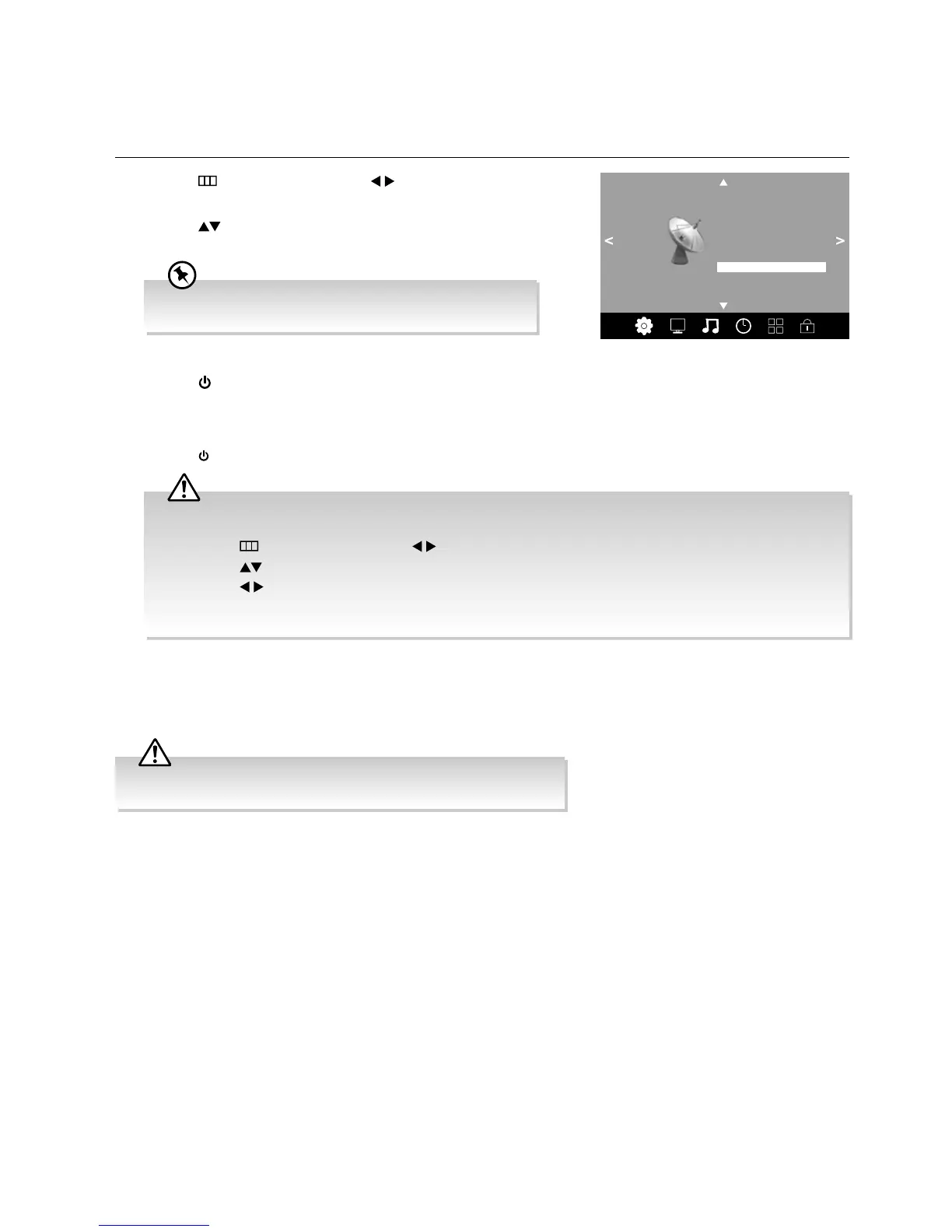
1. Press the
button and then press the buttons to select the
Channel menu.
2. Press the
buttons to select OAD Tuning and then press the OK
button to start.
Software Update (USB) (DTV Mode)
This function is only for servicing purposes. Please call our customer care center on 1300 530 800 for further details.
Please note that programming incorrect software onto the television can
compromise the functions of the television and void the warranty.
If you encounter problems after the software update, we recommend that you restore your TV to the factory default
settings. To do this, follow the steps below:
1. Press the
button and then press the buttons to select the OPTION menu.
2. Press the
buttons to select Restore Factory Default and then press the OK button.
3. Press the
buttons to select Yes to reset the setting.
4. The TV will restore all settings and go to the first time installation. Follow the first time installation steps (refer to
page 8-9 for details).
Channel
Auto Tuning
DTV Manual Tuning
ATV Manual Tuning
Signal Information
Software Update (OAD) Off
OAD Tuning
Software Update (USB)
Channel Edit
Ensure the Software Update(OAD) function is switched to
"ON".
3. When the download is complete, the TV will return to standby mode.
Press the
button on the remote control to switch on the TV, the TV will
automatically upgrade the software.
4. When the update is complete, the TV will return to standby mode again.
5. Press the
button on the remote control to switch on the TV.


 To Next Page