37
Advanced Features
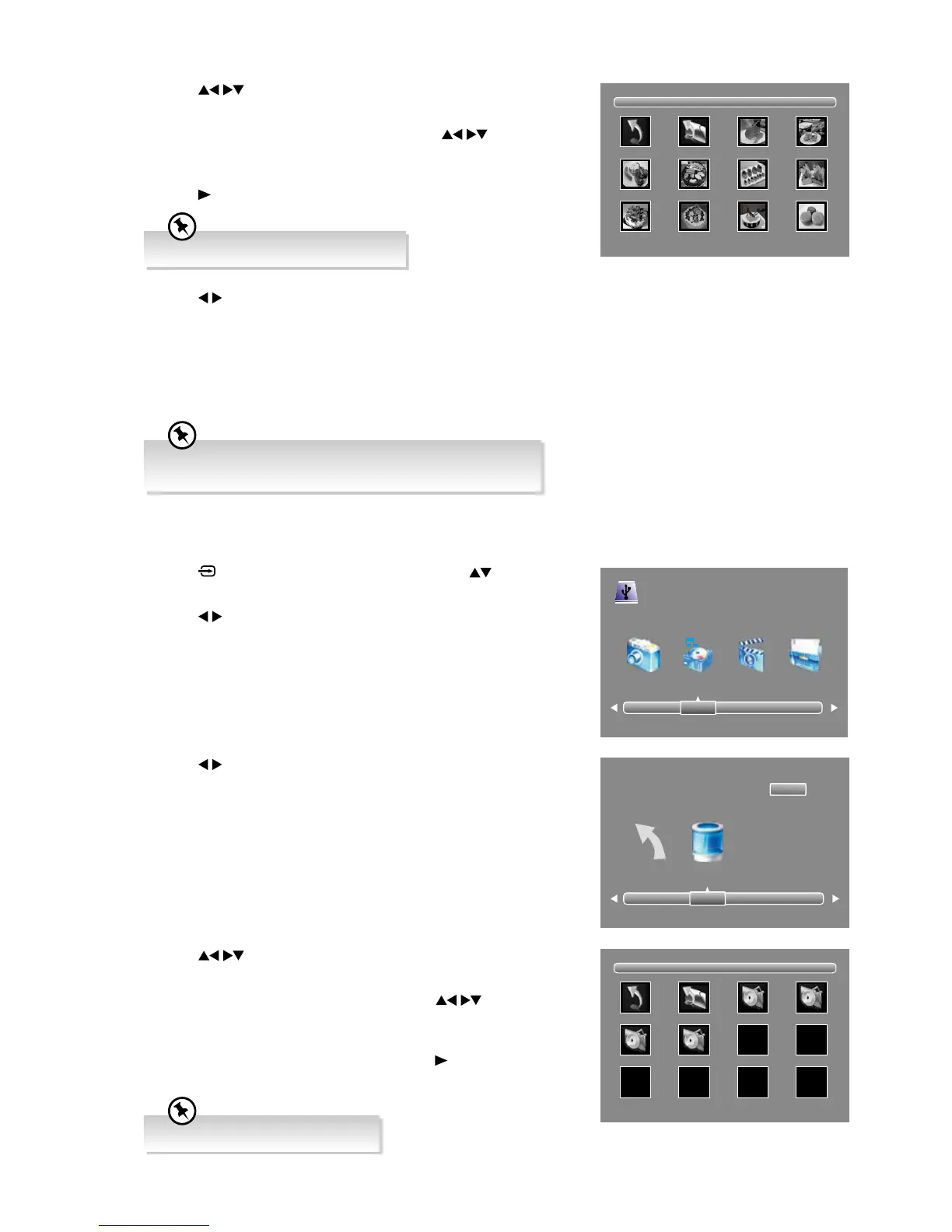
4. Press the buttons to navigate in the music folder and then press
the OK button.
If you want to select the specified music, press the
buttons to
select the music file and then press the OK button. A tick box will be
displayed.
5. The music information will be displayed. Press the
PLAY button to
play.
4. Press the
buttons to navigate in the picture folder and then
press the OK button.
If you want to select the specified photos, press the
buttons to
select the picture file and then press the OK button. A tick box will be
displayed.
5. Press the
PLAY button to view.
3. Press the
buttons to select your storage device and then press the
OK button.
Listening to Music
1. Press the button on the remote control then press the buttons to
select the USB mode and then press the OK button.
2. Press the
buttons to select MUSIC and then press the OK button.
6. Press the
buttons and then press the OK button to select the
function: Pause (Play) / Prev. / Next / Stop / Repeat (Repeat All /
Repeat None / Repeat 1) / Random (Random Off / Random On) /
Music / Playlist / Info / Rotate (clockwise / anticlockwise) / Zoom In
/ Zoom Out / Move View. Press the EXIT button to hidden the function
bar and press the INFO button to display the bar again.
7. Press the EXIT button to return to the previous menu.
Supported file formats: JPG, PNG, BMP.
If this folder also contains music files, you can select a music
track to play at the same time you view your photos.
Return C
1/1
USB 2.0
PHOTO MUSIC MOVIE TEXT
1/1
Return Up Folder IMG_3362.jpg IMG_3363.jpg
IMG_3367.jpg IMG_3368.jpg IMG_3369.jpg IMG_3370.jpg
IMG_3375.jpg IMG_3377.jpg IMG_3380.jpg IMG_3388.jpg
1/1
Return Up Folder ABC.MP3 Numbers.MP3
Hello.MP3 Pretty Boy.MP3
Supported file formats: MP3, MPG.


 To Next Page