31
Advanced Features
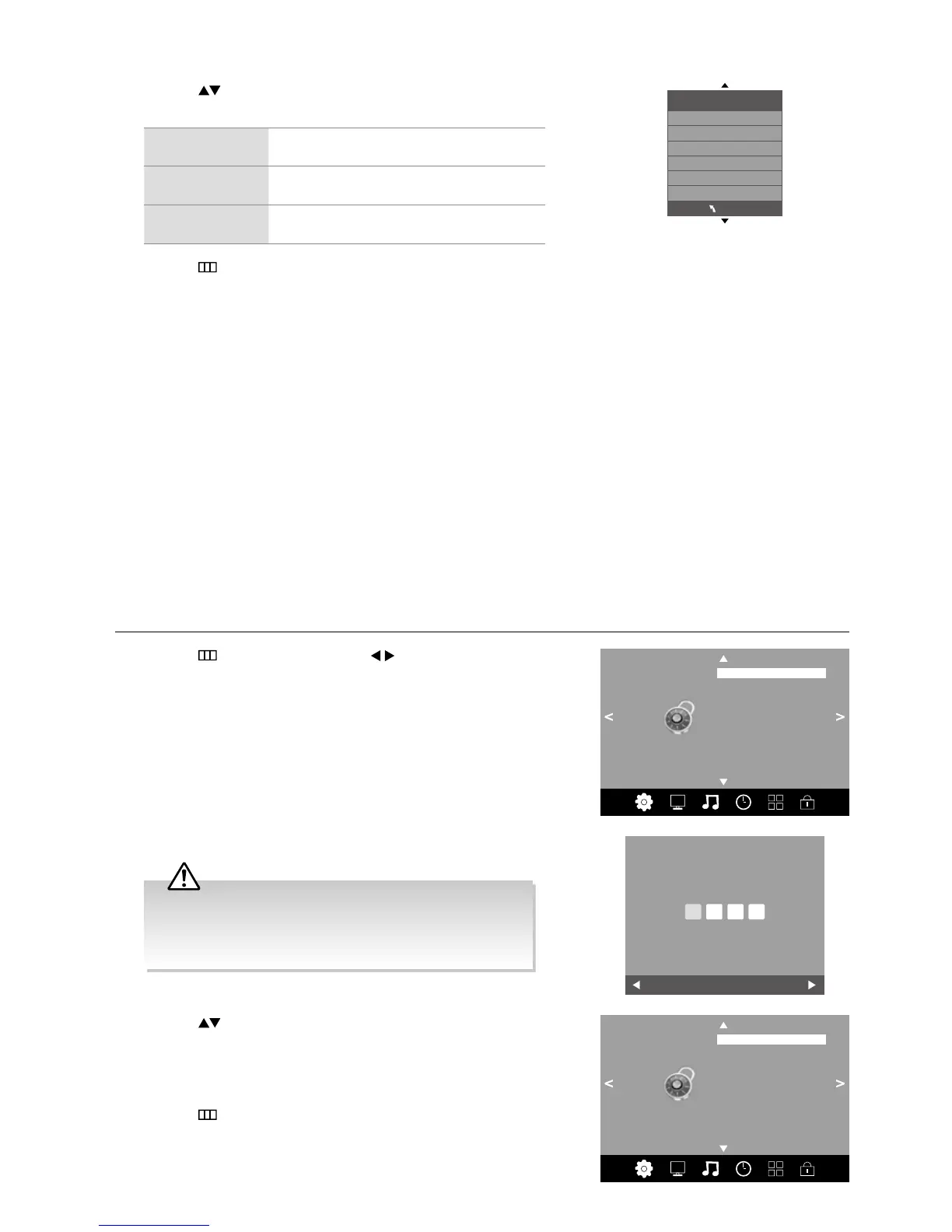
3. Press the buttons to select the following options and then press the
OK button.
EDID 1.4 TV will support 4k2k@30P format video input
from HDMI device.
EDID 2.0 TV will support 4k2k@60P format video input
from HDMI device.
Auto TV will auto support the format video input
from HDMI device.
4. Press the
button to return to the previous menu or the EXIT button to
exit the menu.
Store Mode
Intended for use in retail environment. It should only be selected by retailers who plan to demonstrate the TV.
Lock Setting
To access the LOCK menu, you must enter the password. Enter the default password “0000” for first time use. To change the
password, please refer to the section “Set Password”.
Lock System
The Lock System is designed to prevent accidental re-tuning of the TV / losing of channels and to prevent children from
watching unsuitable programmes.
The Lock System must be set to On for this function to operate. If the Lock System is set to On, a valid password must be
entered when you access Auto Tuning / Manual Tuning / Restore Factory Default.
1. Press the
button and then press the buttons to select the LOCK
menu.
2. Press the OK button to enter Lock System.
EDID Switch
EDID 1.4
EDID 2.0
Auto
MENU
4. Press the buttons to select Lock System and then the OK button to
select On / Off.
If the Lock System is set to On, a valid password must be entered
when you access Auto Tuning / Manual Tuning / Restore Factory
Default.
5. Press the
button to return to the previous menu or the EXIT button to
exit the menu.
LOCK
Lock System
Set Password
Block Channel
Parental Guidance
LOCK
Lock System Off
Set Password
Block Channel
Parental Guidance
3. Use the 0-9 buttons to input a 4-digit password to enter the LOCK menu.
Clear
Cancel
Please enter password
• The default password is “0000”.
• If you change the password, be sure to remember the new
password! If you forget the new password, enter the master
password“9527”.



 To Next Page