Connect ID 32-46 - 12 -
Operating instructions
General information on menu operation
The operation can be divided basically into two areas: The operation of
dropdown lists (e.g. station list, favourites list, EPG etc.) and the menu
operation (TV menu etc.) for configuring your TV set.
➠ If any questions arise during the operation of your TV set, an appro-
priate info screen can be accessed to help you by pressing the INFO
button (see also info display on page 15).
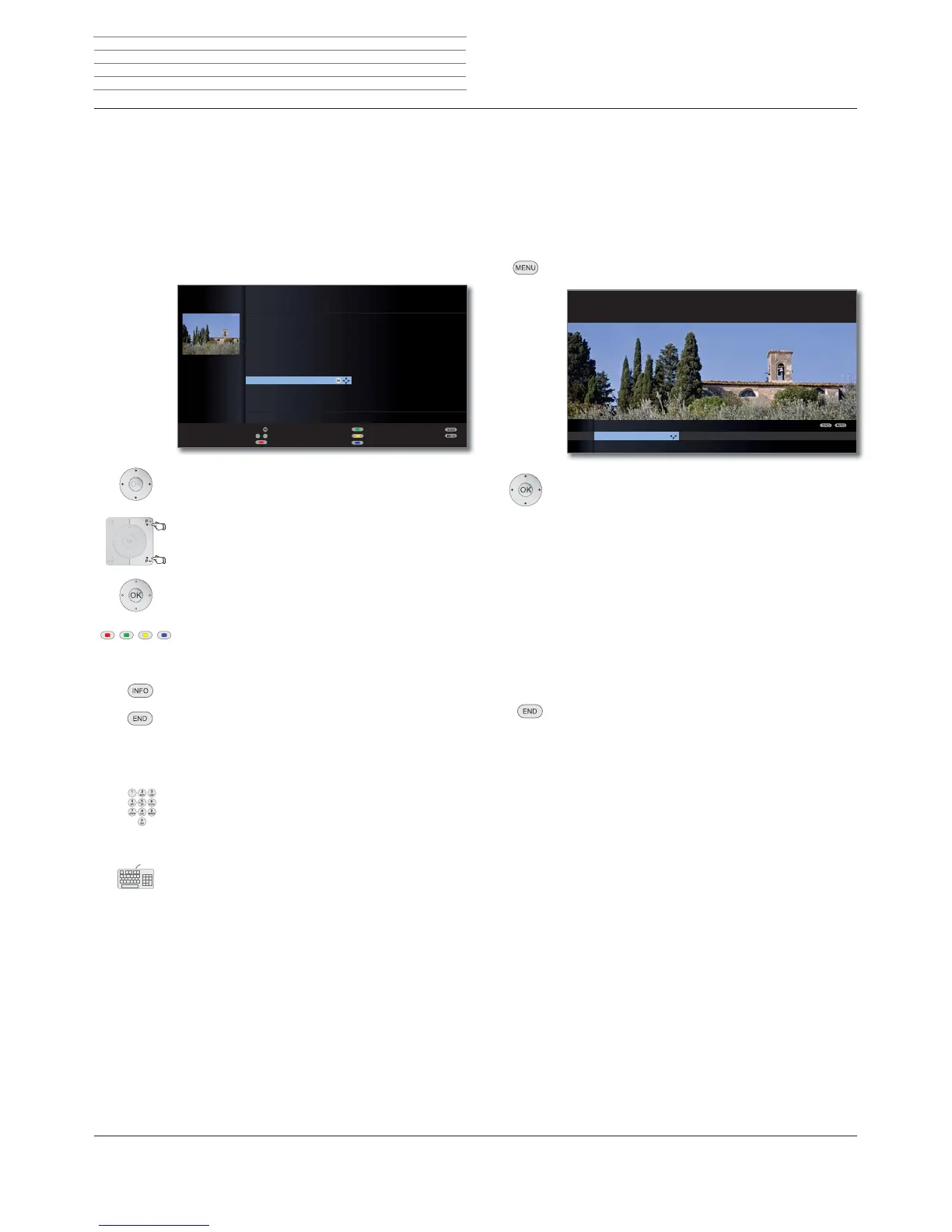
Selection list (example: Station list)
You move the cursor by pressing the ring (up,
down, left, right).
P+/P– If more selection options are available than will
fit on one screen page page ܬ is displayed. You
can scroll the pages with P+/P–.
OK The OK button calls the selection or confirms the
setting.
With the coloured buttons you can select different op-
tions depending on the application. The assignment of
the coloured keys is shown at the bottom of the screen.
INFO: Additional information about the screen page.
END: Close/exit dropdown list.
Inputs with the numeric buttons
Letters have to be entered for specific functions. When
using the remote control, press the numeric buttons just
as on a mobile phone keypad (0-9) until the desired
symbol is displayed. The available letters are printed on
the individual numeric buttons.
See page 135 for a detailed overview of the available
characters.
OK
a
z
-
P+
P–
STATION LIST
21:00-21:45 Urlaubsparadies - Toskana
HDMI3
HDMI2
HDMI1
PC IN
AVS
AV
0 VIDEO
'DV(UVWH۽
=')۽
:'5.¸OQ ۽
%D\HULVFKHV)6 ۽
KUIHUQVHKHQ ۽
3KRHQL[ ۽
%5DOSKD۽
VDW۽
(LQV([WUD۽
(LQV)HVWLYDO۽
(LQV3OXV۽
=')LQIRNDQDO ۽
=')GRNXNDQDO ۽
=')WKHDWHUNDQ ۽
DUWH۽
.LND۽
OK
Scan stations
Change stations
Sort alphabetically
Switch to ...
Select station
Favourites3DJHܬ
Menu operation (example: TV menu)
Menus for the individual modes (TV, Radio, PIP, EPG, Teletext, Media-
Portal and DR archive/Video archive
(1
) are called with the MENU button.
Other menus can be opened with other buttons on the remote control.
The menus are displayed at the bottom of the screen. At the top you get
additional information about the selected menu item (see info display
on page 15).
➠ In normal TV mode, without other displays.
MENU: Call TV menu.
Select Picture,
go to the menu line below.
Select Brightness,
go to the menu line below.
Set Brightness.
Return to the Brightness menu line
to make other picture settings.
Select more ... ,
OK call more ... functions.
Select Auto format,
go to the menu line below.
Select on / off.
END: Exit settings and close all on-screen displays.
Menu structure
You can find a diagram of the menu structure in the overview diagrams,
page 16 and after.
Sound Recording Connections Settings G
PICTURE
Here you can adjust among other things: Contrast, colour, brightness,
picture adjustment, sharpness, picture format.
TV MENU
Picture
Picture adjustment ...
Operating convenience



 To Next Page