Troubleshooting: software and firmware updates
Selecting Firmware update flashes a black screen then goes back to the main screen.
Make sure the Mark 7® console is powered on and the USB cable is connected between the
tablet and console.
Upgrading the firmware takes longer than 5 seconds or freezes.
If the firmware installation hangs up, power off the tablet, power off the console then power back
on both the tablet and console are try again
Selecting Software and or firmware update says “Insert TF Card” or no “firmware file on
card”
Make sure the .hex file and .apk file copied correctly on the SD card. If the file extension or file
name changed this error message will be displayed.
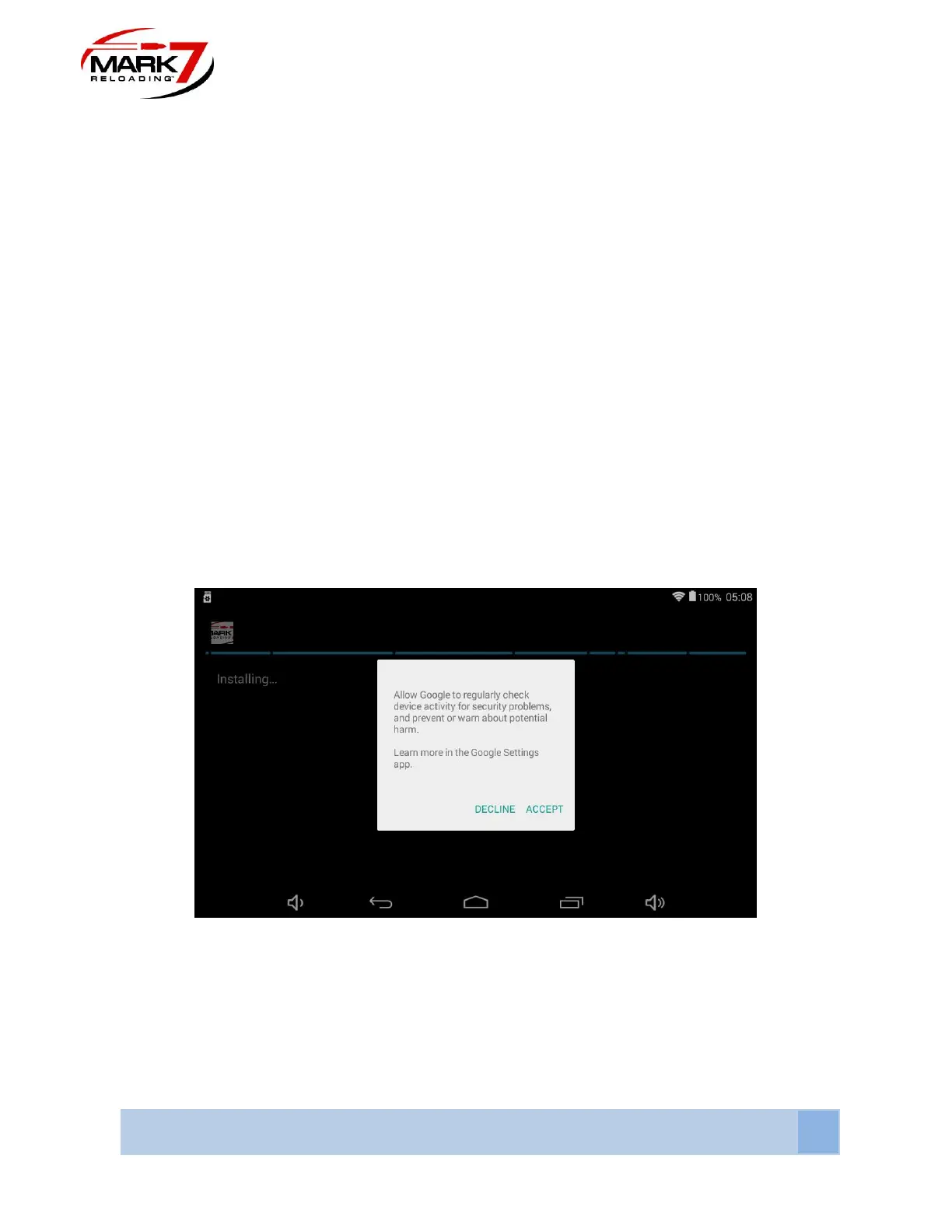
The following Google notification box displays during the software update
Figure 56: Google notification
If you have enabled Wi-Fi on your tablet the above message will appear. Select Accept and
continue with the installation. Note: enabling wifi is not necessary for machine operation or for
software updates.


 To Next Page