Software and Firmware Update Instructions
1. Download the latest software/firmware from the support section of our website.
Installation instructions specific to the update will be included in the downloaded file.
These are general update instructions.
1. Unzip the downloaded file and make sure your file manager doesn’t change the name of
the zipped files or file extensions. This sometimes happens if the same file is
downloaded twice or multiple times. Confirm the downloaded files read exactly as
shown below:
Firmware: __Mark7_mot.hex
Software: Mark7Reloader.apk and Firmup.apk*
*May only be included in some update packages
2. Inset the Micro SD card into the SD card adapter that was provided with the Mark 7®
Autodrive and load the downloaded .hex and .apk file(s) onto the SD card via a SD card
reader.
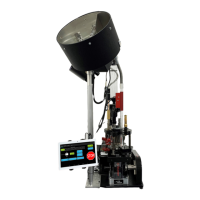
3. Remove the micro SD card from the SD adapter and insert it into the back of the tablet.
Make sure the SD is inserted in the orientation shown below with the text facing out.
Figure 53: Orientation of Micro SD card
4. Power on the tablet and the Mark 7® console and clear shell plate; make sure all system
cables are fully connected as in normal operation.
5. Select SOFTWARE UPDATE on the main screen then press INSTALL and DONE after
the installation is finished. Depending on the software release there may be more than


 To Next Page