30 Matrox Extio 3 Series – User Guide
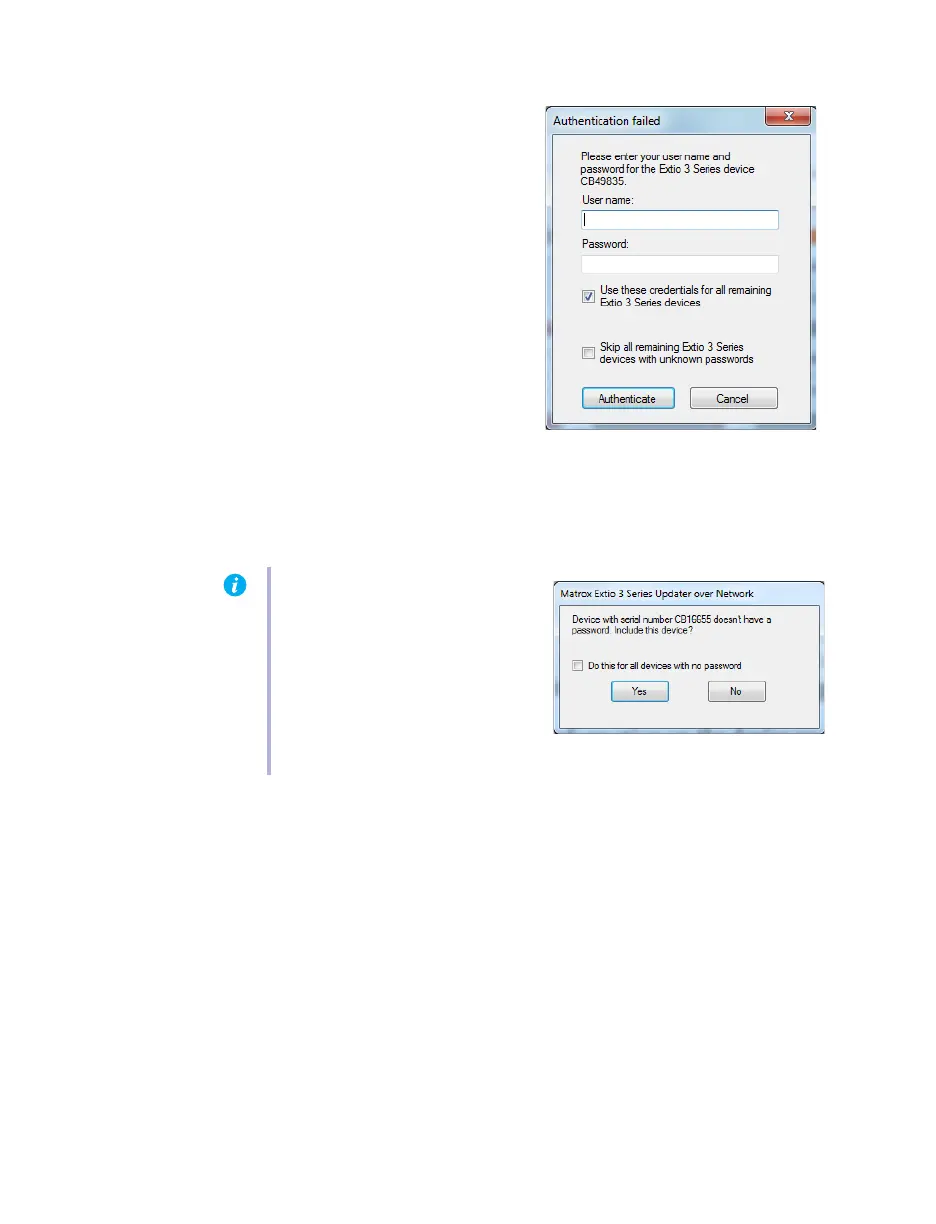
4 Authenticate the devices found
If you provided a password for your Extio 3
Series devices, you may be prompted to
authenticate the devices found. If you’re
prompted, enter your
User name
and
Password
for the Extio 3 Series devices
found.
If you’re updating multiple Extio
devices, enable the
Use these
credentials for all remaining Extio 3
Series devices
check box.
If you don’t know the password of some
of the Extio devices on your network,
enable
Skip all remaining Extio 3 Series
devices with unknown passwords
.
Enabling this option ignores the Extio devices that don’t use any of the passwords already
entered. Any skipped devices won’t be available for update.
When you’re done, click
Authenticate
.
5 Select the devices to update
Select the devices you want to update. Devices with an older firmware version are
automatically selected.
6 Enable the update options
To reset device settings, including the IP address, while updating the firmware, enable
Reset
configuration
.
Note:
If a configuration reset of the
Extio device was performed, the
device password was also reset. The
device will be detected as having no
password. In this case, you’ll be
prompted to add that device to the
list of devices to update. When
prompted, click
Yes
.



 To Next Page