Matrox Extio 3 Series – User Guide 41
Rebooting or resetting your Extio 3
device
This section describes how to
reboot
or perform a
configuration reset
of your Extio 3 card or unit.
When to reboot or reset your device
Software reboot
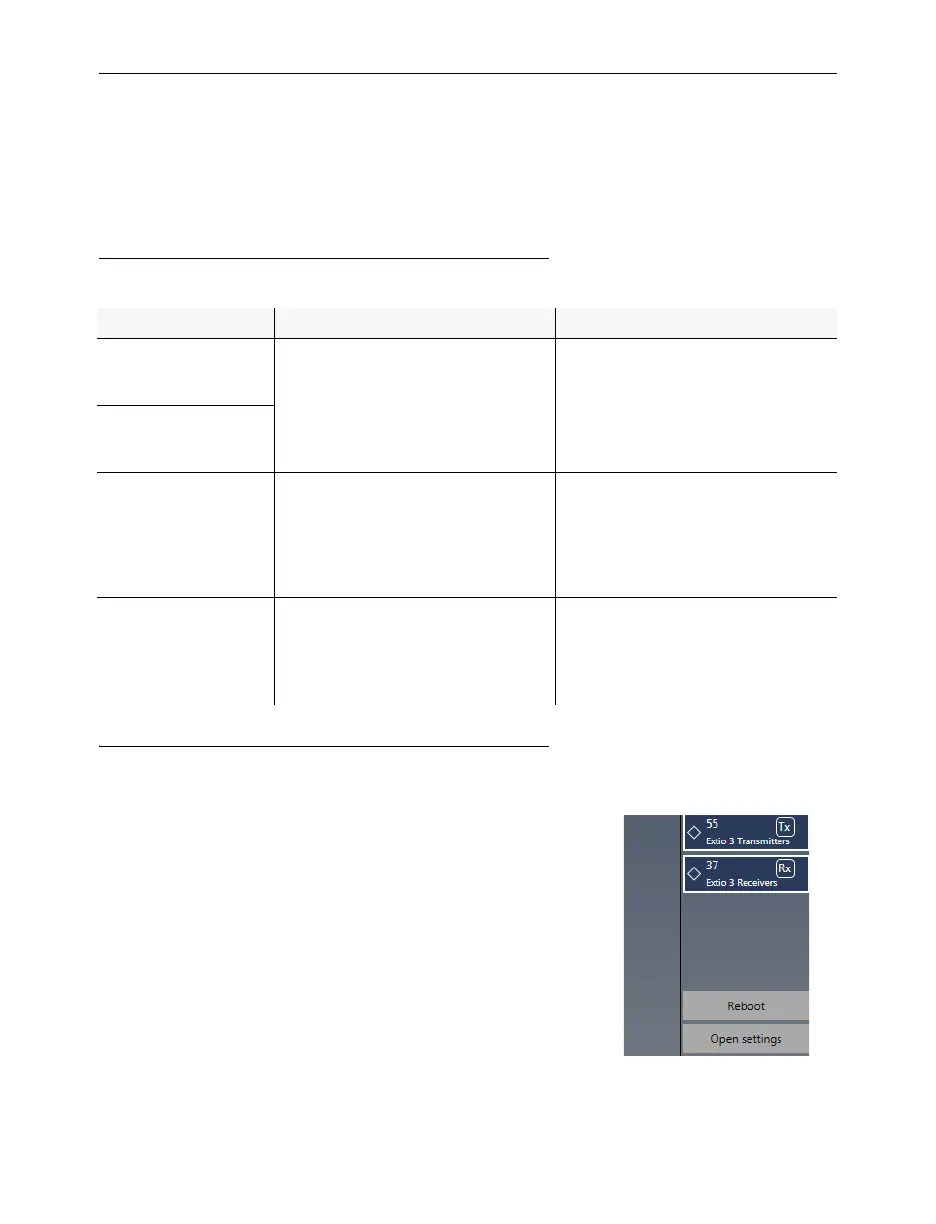
Extio Central Manager
From the Extio Central Manager main interface, click the
Reboot
button to reboot your device.
For more information on Extio Central Manager software,
see your Extio Central Manager user guide.
What to do... When to do it... What the result is...
Software reboot
(Extio Central
Manager)
Your Extio device has encountered
an error (red device tile).
Keeps all of your device settings,
including the IP configuration and
password.
Software reboot
(OSD – Point-to-point
mode only)
Hardware reboot
Your Extio device is listed as
unresponsive (yellow device tile).
Extio Central Manager software is
unresponsive, and you can’t
perform an Extio Central Manager
software reboot.
Keeps all of your device settings,
including the IP configuration and
password.
Configuration reset
Your Extio device is still listed as
unresponsive (yellow device tile)
after a hardware reboot.
You’re changing the operation
mode of your Extio device.
Resets all of your device settings,
including the IP configuration and
password.



 To Next Page