175 Version 1.0
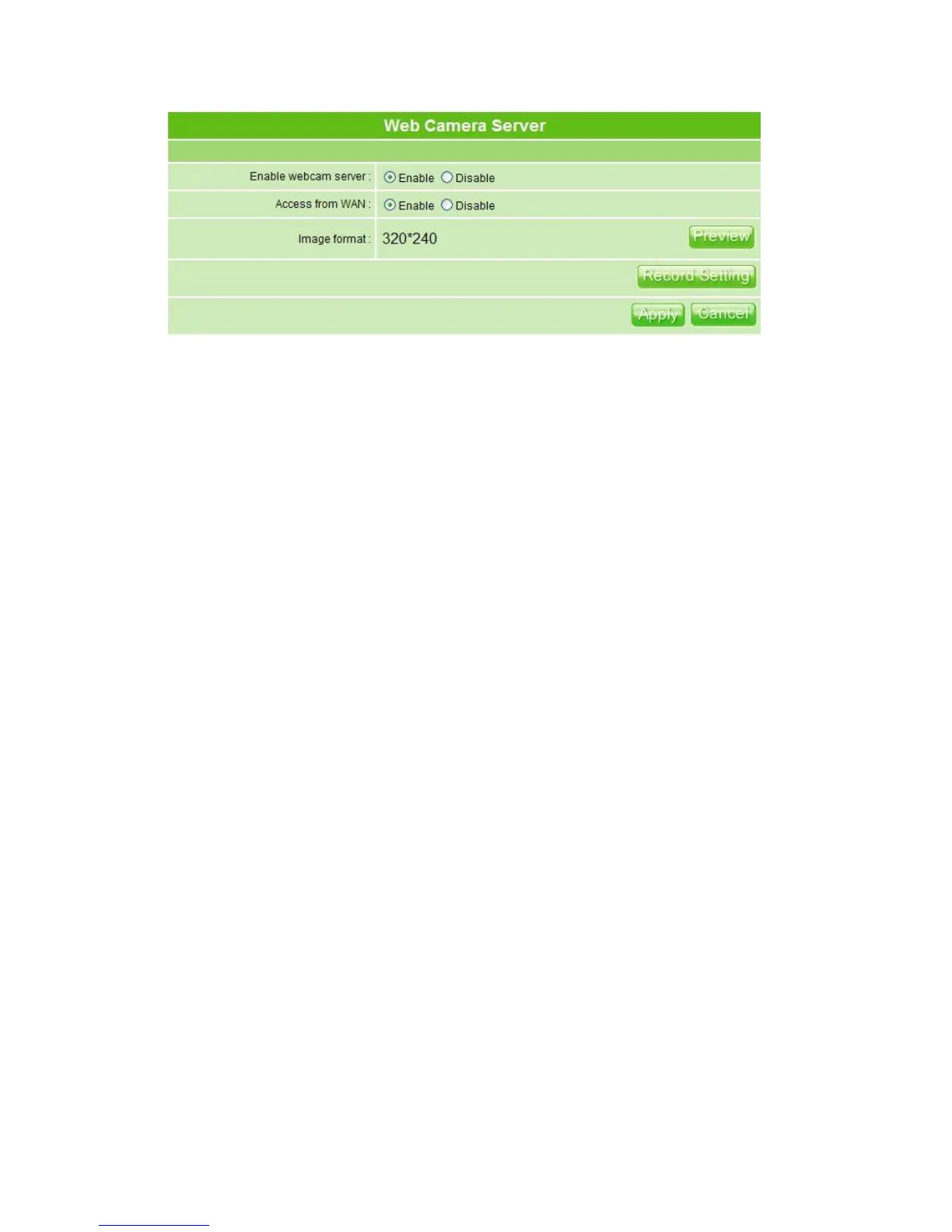
5.4.3.2 Web Camera Server Advanced Configuration
Click Record Setting, and the screen below appears.
1. Enable save image: If you want to save the image from webcam, please check on
enable.
2. Save image interval: For saving image, you can set the save interval time, the default
value is 5 seconds.
3. Save Location: Set the save location for webcam image, you may save into USB
HDD or remote FTP; if select save to remote FTP, please continue following remote
FTP setting.
4. USB HDD Directory: The section provides option of which folder should be used for
saving webcam image.
5. Remote FTP URL: Input the FTP URL for saving webcam image.
6. Remote FTP port: Input the FTP port number under URL to save image.
7. Remote FTP user: Enter the user’s name you like and it will be used to save the
webcam image into the FTP server.
8. Remote FTP password: Put in a password for validation while accessing.
9. Remote FTP Directory: To provide option of which folder should be used for saving
webcam image.
10. Back: Click on Back button for returning to Webcam Basic Setup screen.
11. Apply & Cancel
Click Apply to continue or Cancel to clear the settings on this page.


 To Next Page