Mega 105WR Router - Manual
Page 64 of 82
4.5.32 Firmware Upgrade
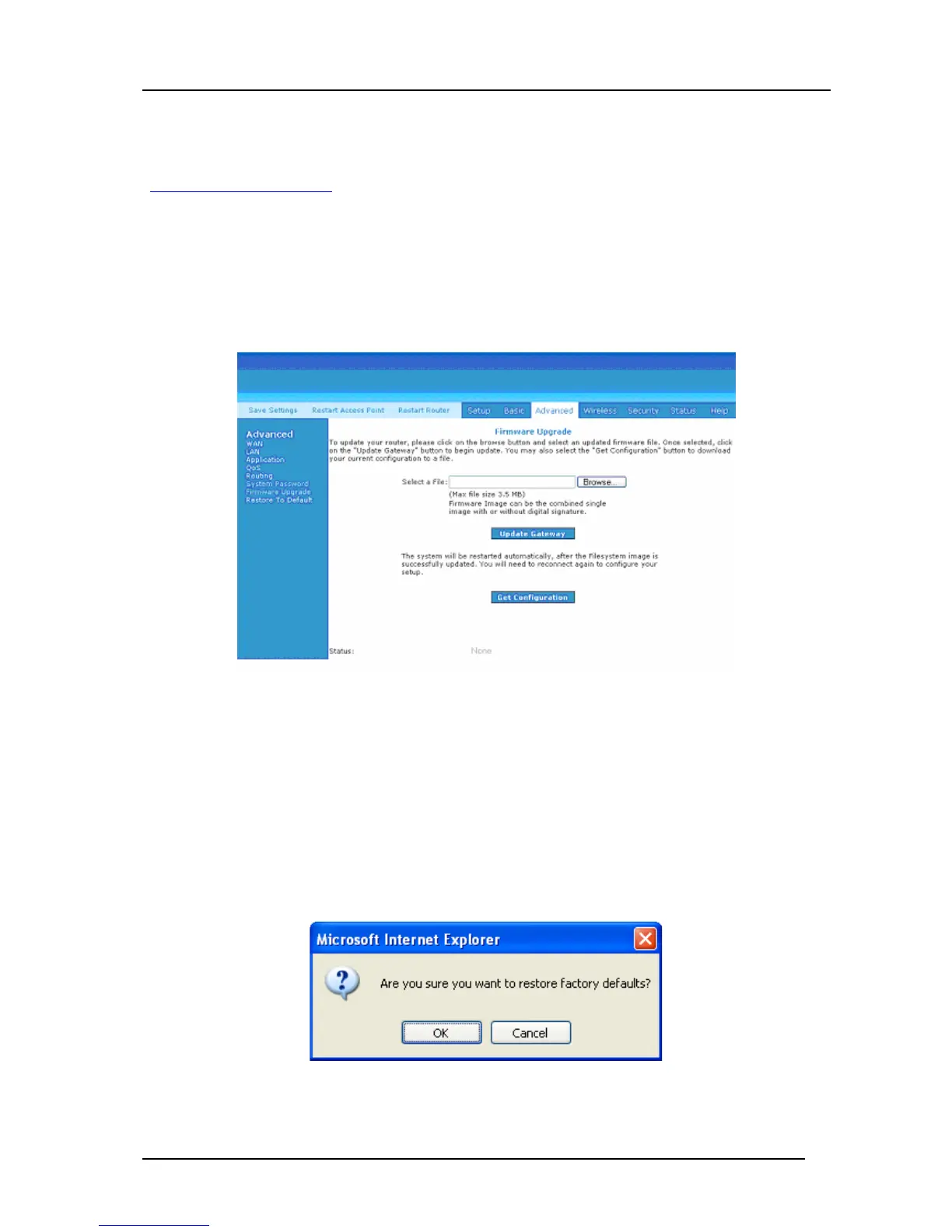
It is possible for the user to upgrade the Mega 105WR’s firmware should an upgrade become
available. If there is an upgrade for this router, it will be found on the 2C Telecoms website
(www.telkomphones.co.za
) it is important that you do not use any other firmware to attempt to
upgrade this router, since this may well cause the unit to fail! To upgrade the firmware, first
download the latest version to your PC, click on Firmware Upgrade, click Browse, find the
firmware file to download. Make sure this is the correct file. Click on Update Gateway. Once
the upgrade is complete the Mega 105WR will reboot. You will need to log back onto the Mega
105WR after the firmware upgrade is completed. The firmware upgrade should take about 5
minutes to complete. Note: Do not remove power from the Mega 105WR during the
firmware upgrade procedure! See Figure 4-53.
Figure 4-53: Firmware Upgrade
4.5.33 Restore to Default
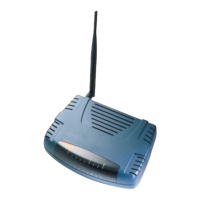
The restore to factory defaults feature will reset the Mega 105WR to its factory default
configuration. A prompt as the one shown in Figure 4-54 will pop-up. You may need to
reset the Mega 105WR to its factory default if you lose the ability to interface router via
the web interface for any reason (or following a software upgrade). To reset the router,
simply press and hold the reset button for at least 10 seconds. After about 30 ~ 40 seconds
the ADSL Router will be operational again.
Figure 4-54: Restore to Default prompt


 To Next Page