MM-IM User Guide
75
Firmware Upgrade
Note: Downgrading of firmware on a MM-IM using these methods is not supported and
is done at the user’s risk.
Local
Pre-requisites
The MM-IM firmware upgrade is provided in the form of a DOS batch file that uses FTP to
transfer files to the MM-IM.
To download a new version of firmware to the MM-IM you will need:
■ The new firmware
■ An IP connection to the MM-IM
■ A power supply for the MM-IM
■ The root password if it is not the default (see page 70)
Upgrade Procedure
Set DIP switch 2 to the “on” position. Ensure DIP switch 1 is off. Turn on the power to the
MM-IM (or reset it) and connect the Ethernet cable to LAN1.
The IP address of the MM-IM will be 192.168.1.1, subnet mask 255.255.255.0. Your PC
will need to have an IP address in the same subnet in order to communicate with the MM-
IM. This can be done using a crossover cable if required.
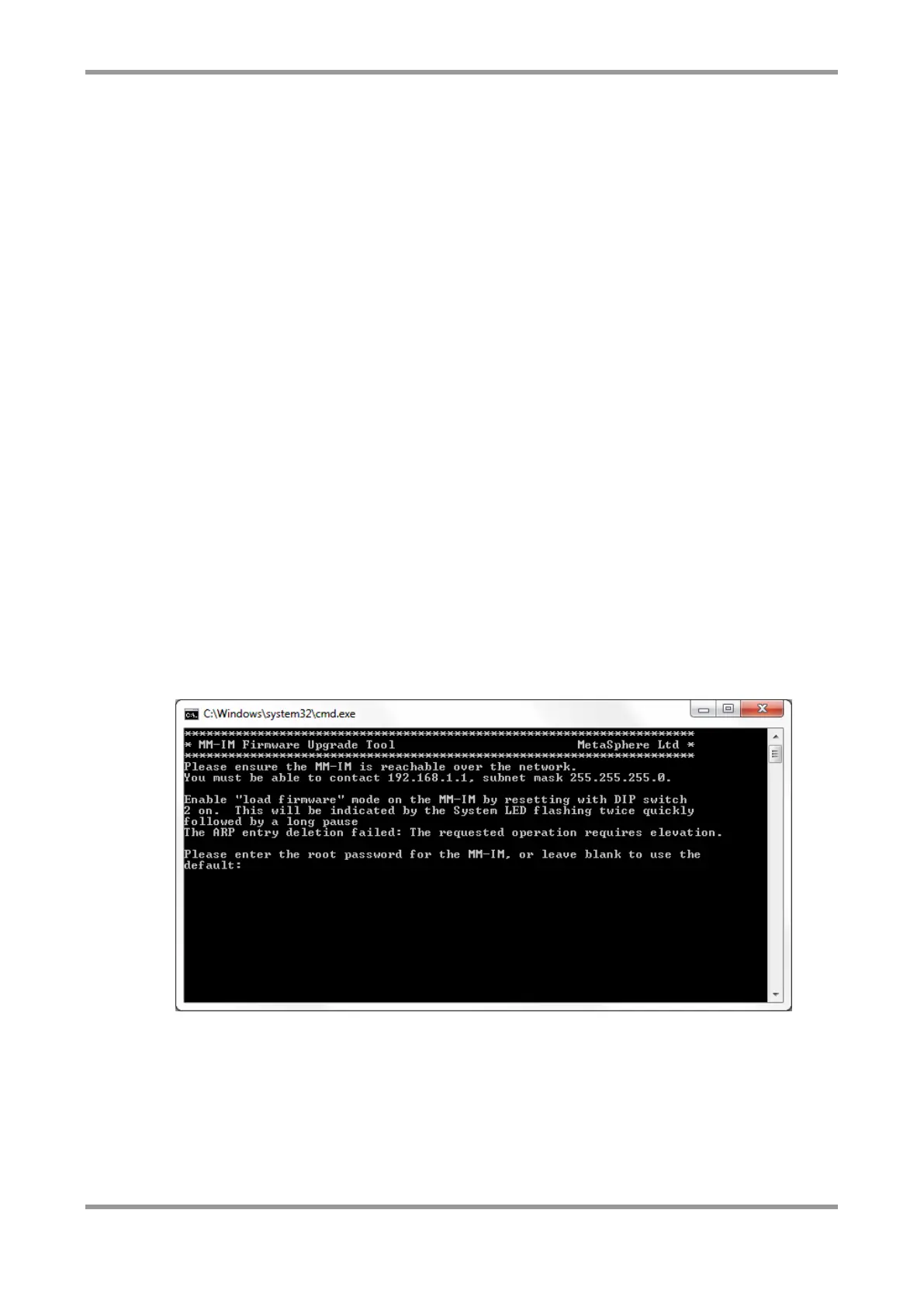
Ensure the System LED is flashing twice quickly followed by a short pause. Then run the
batch file provided.
Follow the instructions to enter the root password and press any key to continue when prompted.
Provided the file transfer was successful, switch DIP 2 back to the “off” position. This will
cause the MM-IM to shut down cleanly and automatically reboot with the new firmware.
Do not press the reset button as this forces a reset and will not shut down cleanly and may
corrupt the file system. DO NOT REMOVE POWER OR RESET THE MM-IM before setting
switch 2 back to the off position and waiting for the Status LED to flash slowly. Any power
interruption during firmware upgrade can lead to memory corruption.



 To Next Page