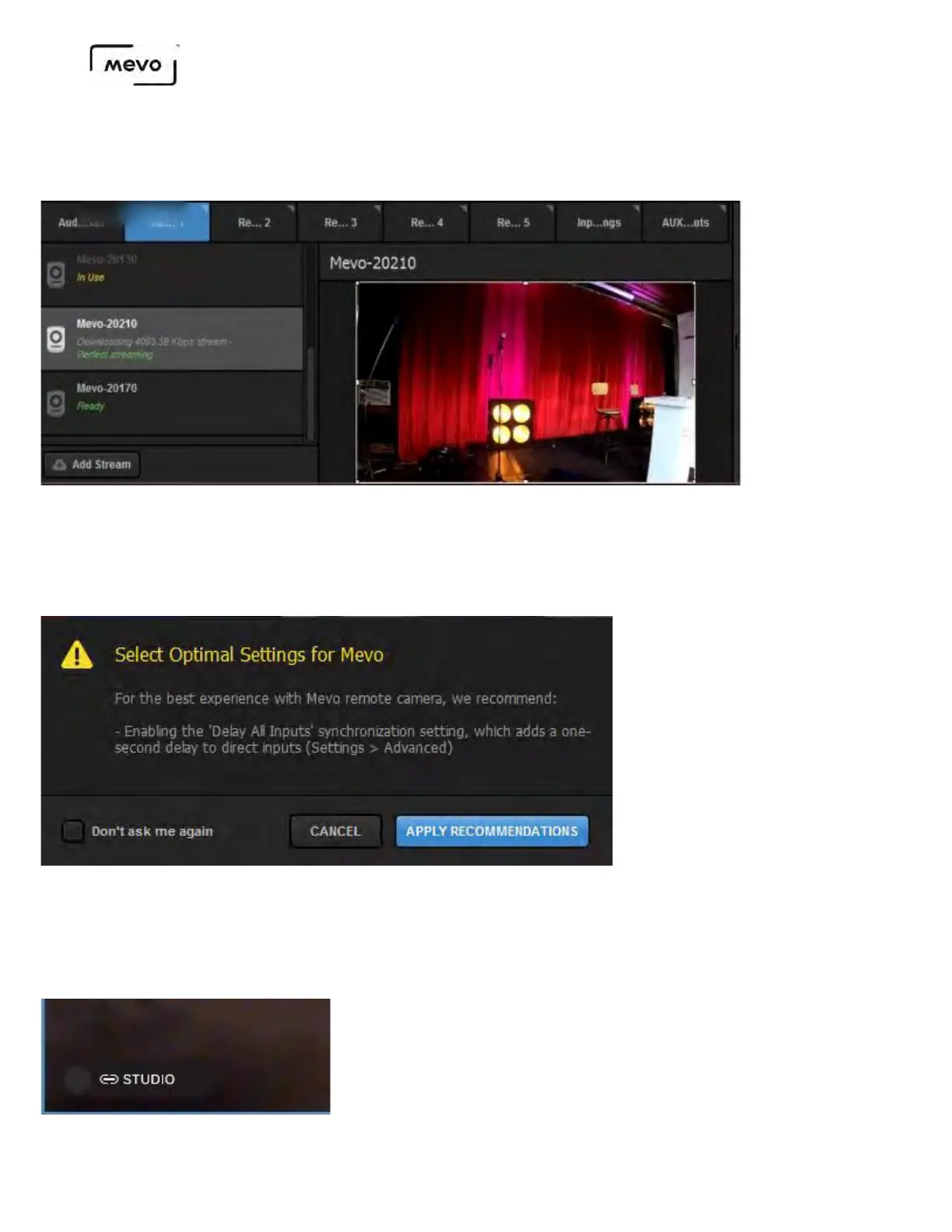
Your camera will appear at a Remote Camera option in Studio. Select it to see your camera's output in
Studio.
The below message may prompt you to change some settings in Studio to improve the experience with
Mevo remote camera. Clicking Apply Recommendations will set all direct inputs to be delayed by one
second, syncing them with Mevo and any other remote camera sources.
In the Mevo app, you will notice the bottom left corner now shows a dark gray button indicating it is
linked to Studio but is not currently in Preview or Program. If you tap this button, the option to push it to
Preview (PRV) or Program (PGM) will appear.
Mevo Start User Manual
Page 117


 To Next Page