Presenting a Slideshow with Mevo
Version 1.12 of the Mevo app supports the ability to import a slideshow as a PDF and present each slide
seamlessly either as a fullscreen or over-the-shoulder graphic.
To access this feature, you must have a Vimeo Producer or Vimeo Premium plan; learn how to subscribe
here. You will also need a supported microSD card inserted into your Mevo camera.
Slideshows must be in PDF format and accessible from your mobile device's native Files application.
This means the PDF can either be downloaded and stored into the Files app directly, or you can
configure the Files app to also display documents stored in iCloud, Google Drive, Dropbox, Adobe
Acrobat, or other file storing apps (provided those apps are also installed).
Mevo can support a maximum of 50 slides per PDF. You cannot edit the document once it is
uploaded to Mevo, so be sure your presentation is complete prior to your event.
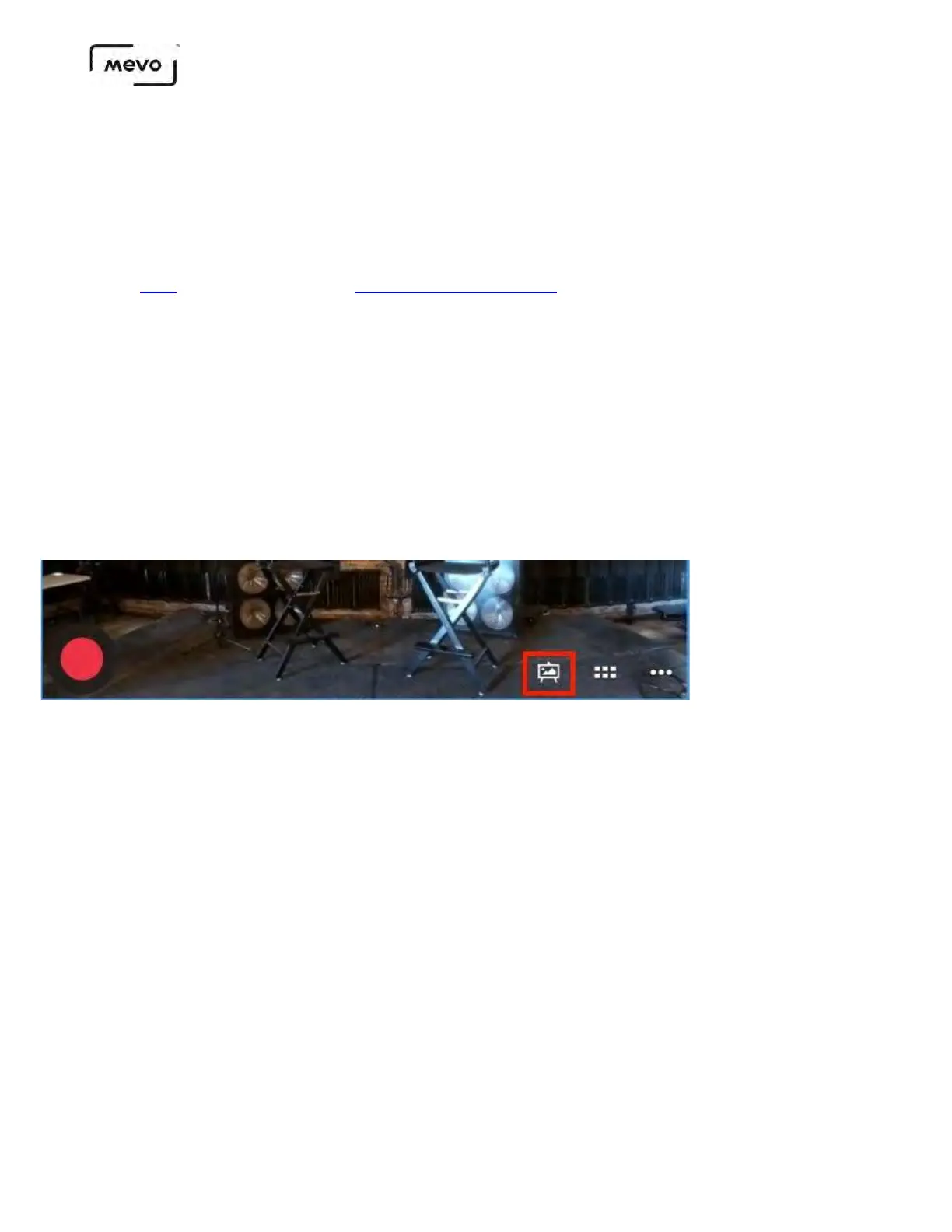
To load the presentation, tap the graphics icon in the lower right corner of the production screen.
Slideshows can be done via fullscreen or over-the-shoulder (OTS) graphics. Choose the overlay type
you prefer (this example will use fullscreen).
Mevo Start User Manual
Page 148


 To Next Page