Connect To Mevo Start in Hotspot / 4G-LTE Mode
If you do not have a local Wi-Fi network, you can connect your Mevo camera to the Mevo app through
the camera's Hotspot mode, then stream over your mobile device's 4G-LTE connection.
Live streaming can use a lot of data, so be careful if you have a limited data plan or you could be charged
overages.
After powering on the camera, you should notice the front indicator is pulsing blue. This means that
the Mevo Wi-Fi hotspot is ready to connect.
There are slight distinctions in this process between iOS and Android devices.
iOS Device
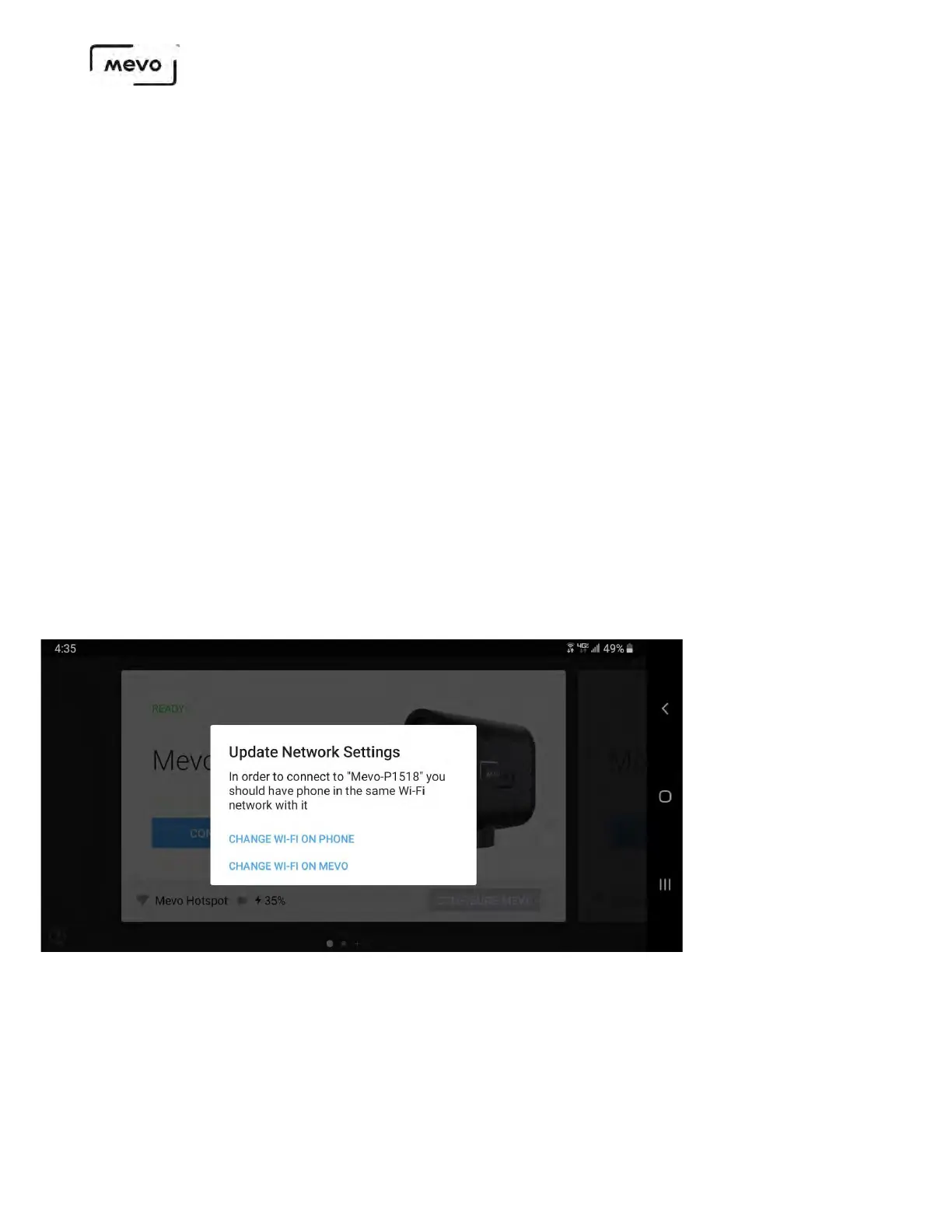
When you open the app, you will see a connection card directing you to either Configure iPhone or
Configure Mevo.
Tap Configure iPhone, which will open the iOS Settings menu.
Navigate to the Wi-Fi menu in your iOS settings. Your device will search for nearby networks. After a
moment, you should see a network named Mevo-#####. Tap it to connect your device to your
Mevo.
Mevo Start User Manual
Page 36


 To Next Page