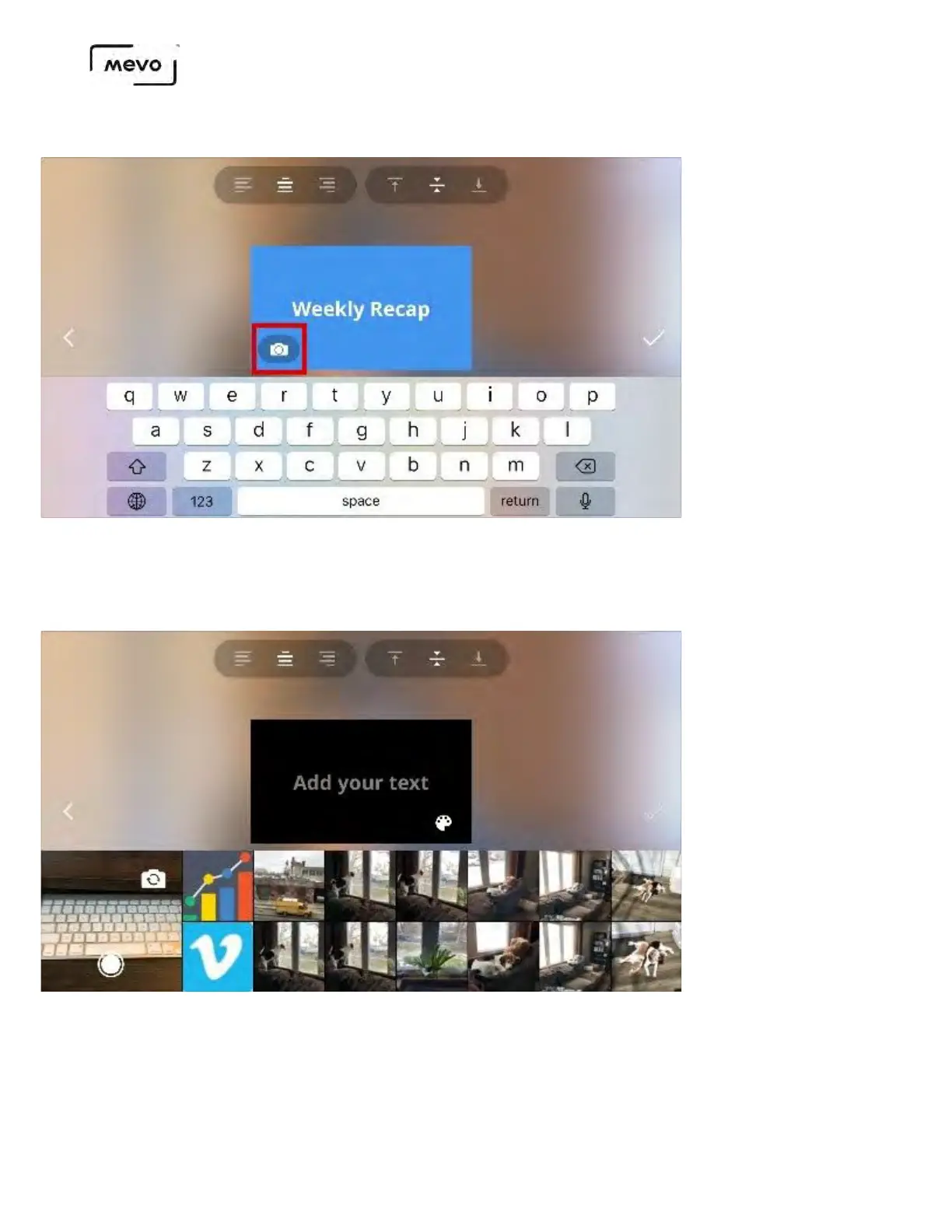
If you want to include an image, tap the camera icon in the OTS preview image. You will need to allow
access to your camera and photo library on your mobile device.
Your photo gallery will appear below. Take a photo with your camera or choose which photo you wish to
use. It will need to fit the full 16:9 rectangle so you may need crop your image or edit it before adding it.
You can add text to your image by tapping Add your text. You can change the text color to black or
white by navigating back to the color palette and selecting black or white on the far right side. The
below example has aligned the text center-bottom and changed it to black.
Mevo Start User Manual
Page 140


 To Next Page