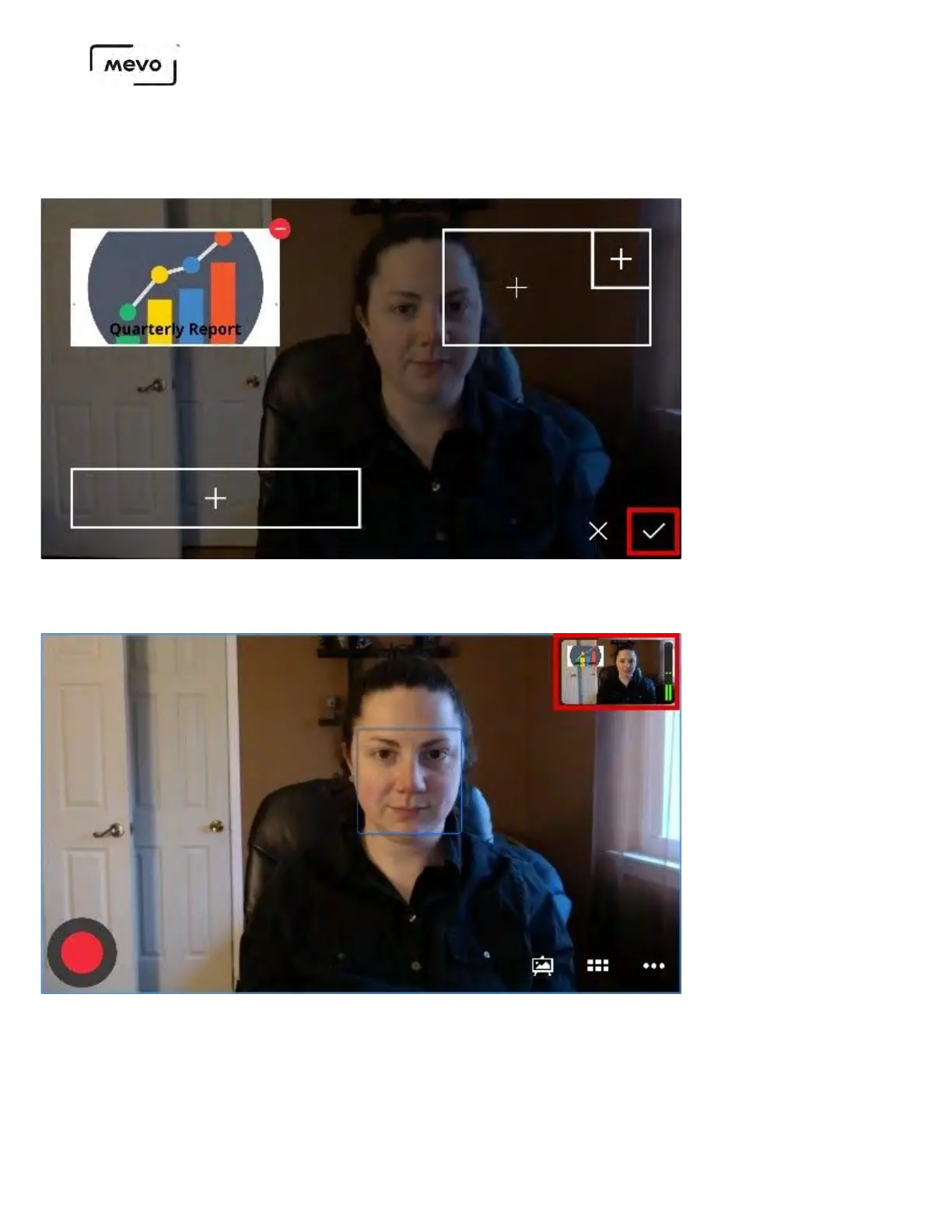
The overlay preview screen will show your graphic in the OTS box. You can switch it to the other side by
tapping the opposite OTS box. To confirm pushing it to your output, tap the checkbox in the lower right
corner.
You will notice the OTS does not appear in your live edit view, but you can see it in the output
monitor, which confirms that your viewers can see it.
To remove the OTS overlay, tap the canvas icon again. Tap the red delete icon on the OTS overlay,
then tap the checkmark to confirm removing it from your output.
Mevo Start User Manual
Page 142


 To Next Page