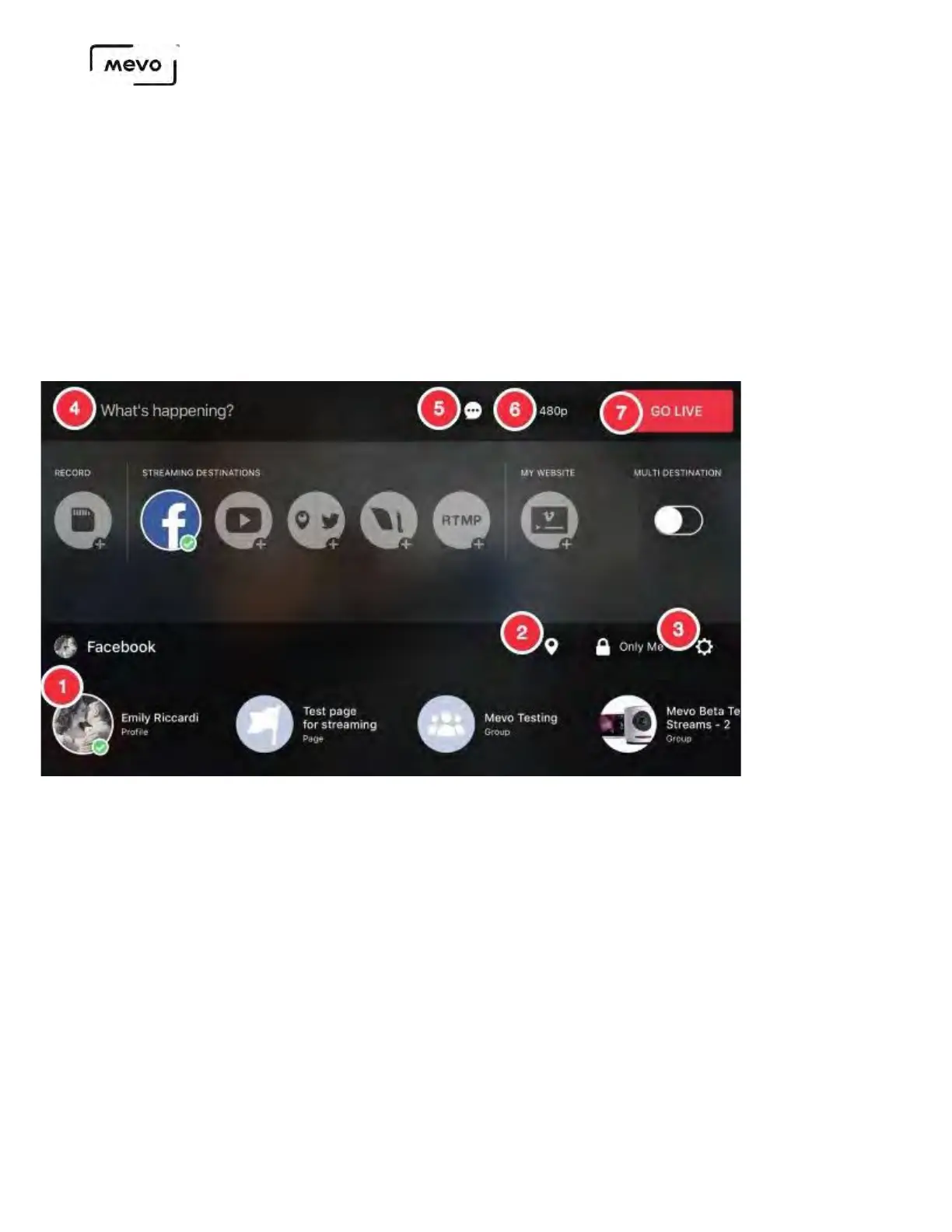
1. Choose your Facebook destination along the bottom of the screen; either your Profile,
Scheduled Live posts, Pages, and Groups.
2. You may tag your location and set your audience option on the lower right side. Please note that the
audience can only be adjusted when streaming to your Profile.
3. The gearwheel will open a new page that allows you to toggle Facebook chat on and off and
toggle Continue Streaming on and off. You can also log out of your account.
4. Give your stream a title.
5. You can also toggle chat on and off here.
6. Choose you streaming quality up to 720p.
7. Tap Go Live in the upper right corner to start streaming.
When you go live, the LED ring on the camera will spin red briefly. After this, your stream will begin.
Tap the icon on the bottom left corner to see more information about your stream, including viewer
count, battery percentage, bitrate, and a timer.
Tap the information bar again to collapse it.
If you tap a specific statistic, such as viewer count or bitrate, that statistic will still appear next to the red
dot when you collapse the information bar. In the below example, the timer is selected.
Mevo Start User Manual
Page 65


 To Next Page