22
A
CCESSING THE EX CONTROLLER DEPLOYMENT TOOL
CHAPTER 4 SOFTWARE INSTALLATION
If there is no DHCP server available on the network, then you must manually assign a static IP address
to the Deployment Tool. For more information, see Appendix A: Assigning a Static IP Address to the EX
Controller Deployment Tool Manually.
WARNING: Make sure that you turn on and connect only one EX Controller to the network. If you connect
more than one EX Controller to the network, then you might not know which controller you are connected
to.
To access the Deployment Tool:
1. Enable NetBIOS over TCP/IPv4 on your deployment PC.
2. Ensure that the PC and the EX Controller are connected to the same subnet.
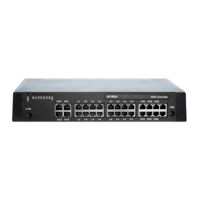
3. Connect an RJ45 Ethernet cable from any one of the ETH2 - ETH5 ports of the EX Controller to the
Layer2 switch on the network.
4. Turn on the EX Controller.
The Power LED will be flashing when the unit performs a DHCP server query. It will become solid once
it successfully gets an IP address from the DHCP server. At this point, you can use the domain name
(exdeploy.local or exdeploy) to access the Deployment Tool.
5. Enter http://exdeploy in the address bar of your web browser (recommended Mozilla Firefox and
Google Chrome) to access the Deployment Tool.
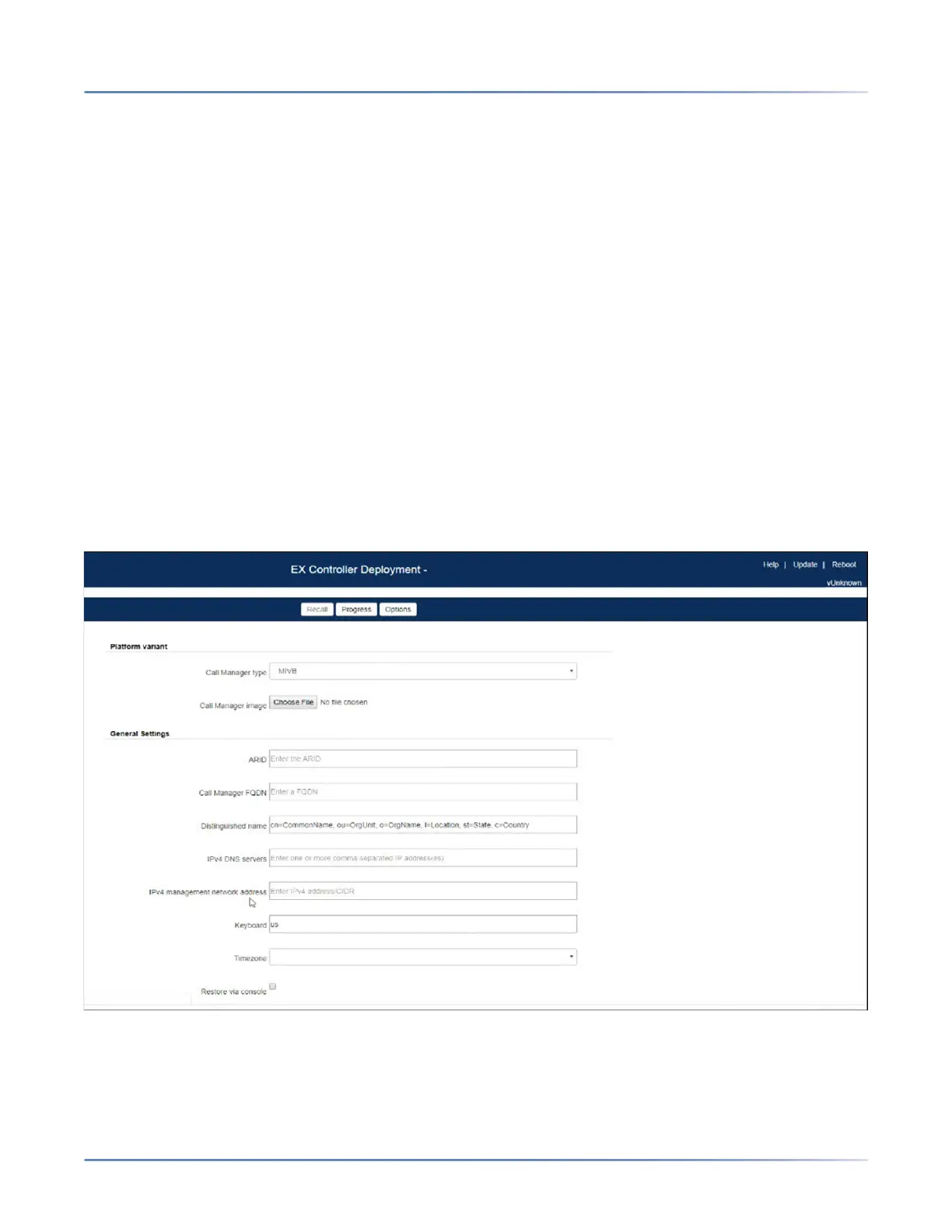
The EX Controller Deployment Tool home page is displayed.
6. Continue with Updating the EX Controller Deployment Tool.
咨询订购:400-010-8885、 Support@mitel.com.cn



 To Next Page