56
R
ESET/DEFAULT BUTTON
CHAPTER 6 TROUBLESHOOTING
7. Log in to the Server Manager and reset the password to synchronize the user account passwords with
the Server Manager password.
8. Enable SNMP v1 and v2 from Server Manager (Configuration > SNMP).
Factory Reset
Depending on the DGW firmware version running on the EX Controller, the factory reset defaults the
controller’s IP scheme and deletes the persistent configuration parameters of the unit, including:
• MiVoice Business virtual machine and its database
1
• MiVB.img and MiVB.cfg files
1
• User files stored in the File service
• Certificates, except for the factory installed ones
• Log files of the File service
1
A factory reset on EX Controllers running DGW firmware lower than 45.1.1870 does not fully restore to
its default settings, that is, the MiVoice Business virtual machine, database, MiVB.img and MiVB.cfg files
are left undeleted in the controller. However, with EX Controllers running DGW firmware 45.1.1870, a
factory reset restores the controller to its default settings. Therefore, it is recommended to upgrade to the
DGW firmware 45.1.1870 by upgrading the MiVoice Business EX software to the version 9.0.3.15_2 using
Server Manager.
Factory reset must be performed on an EX Controller unit that is isolated from the network with access to
a DHCP server. If the unit cannot find a DHCP server, it sends requests indefinitely.
NOTE: Restoring factory default settings erases the deployment parameters.
To perform a factory reset of the EX Controller running DGW firmware version 45.1.1870 or higher:
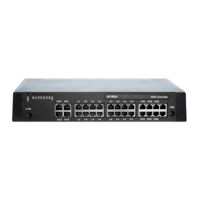
1. On a controller that is powered on, insert a small unbent paper clip into the hole of the
Reset/Default button located at the front of the unit.
2. Press and hold the Reset/Default button for 12 to 16 seconds until all the LEDs are steadily on. The
controller unit reboots with the default IP address 192.168.0.10 accessible through ETH2-ETH5 of the
EX Controller.
3. Continue with Accessing the EX Controller Deployment Tool.
To perform a factory reset of the EX Controller running DGW firmware version lower than
45.1.1870:
1. On a controller that is powered on, insert a small unbent paper clip into the hole of the
Reset/Default button located at the front of the unit.
2. Press and hold the Reset/Default button for 12 to 16 seconds until all the LEDs are steadily on. The
controller unit reboots with the default IP address 192.168.0.10 accessible through ETH2-ETH5 of the
EX Controller.
3. Assign a static IP address to your PC using the following IP scheme:
– IP address: 192.168.0.100
– Subnet mask: 255.255.255.0
– Gateway IP address: 192.168.0.1
4. Connect an RJ45 Ethernet cable from the PC’s Ethernet interface to any one of the ports ETH2 - ETH5
of the EX Controller.
咨询订购:400-010-8885、 Support@mitel.com.cn



 To Next Page