135
M
OBILELINK PCLINK FOR 6940 IP PHONE
• After your PC is paired with the 6940 IP Phone, the PC device appears in the list of paired devices on
the Mitel 6940 IP Phone. If there is no device currently paired with the Mobile/PC Line key, the device
will connect automatically.
IMPORTANT: ENSURE THE 6940 IP PHONE IS NOT THE DEFAULT AUDIO DEVICE ON THE PC.
For Windows 10 left-click on the sound ICON in the windows tray and select an audio device other
than the Mitel 6940 IP Phone.
• After pairing, You can switch audio between wired handset, speaker, analog headset, and USB
headset
NOTE: You cannot switch the audio to a 6940 Cordless Handset.
• You can toggle between PC audio and IP Phone.
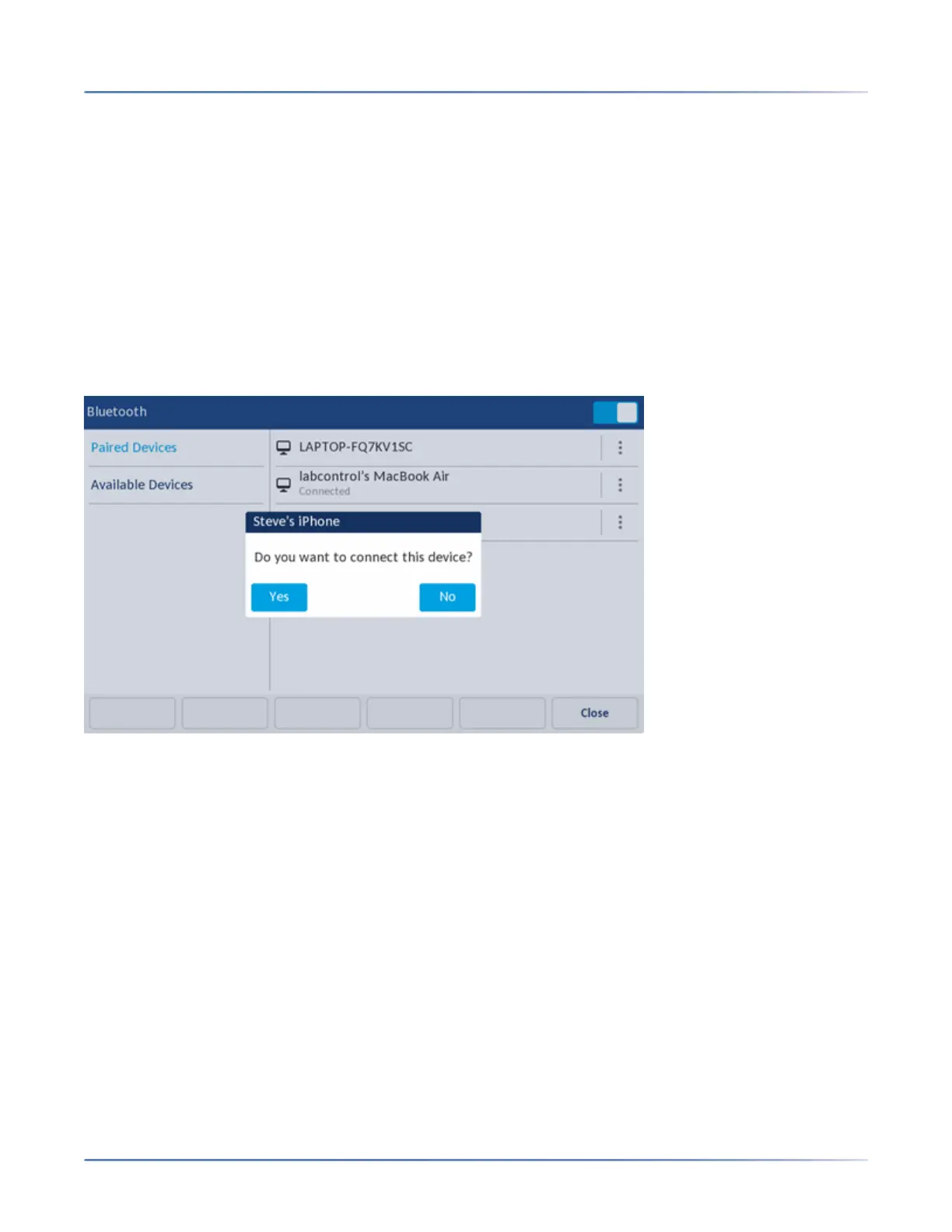
• Currently only one device type (Mobile or PC) can be connected at a time. If there is already a PC or
MAC connected to the IP Phone, and a mobile phone is the newly paired device, the following
messages appear:
– Pressing Yes will disconnect the PC or MAC and connect the mobile phone and associate it to the
Mobile/PC Line key.
– Pressing No will result in the mobile phone not being connected, although the mobile phone remains
in the list of paired devices. The user can, at any time, manually switch which device is connected
and associated with the Mobile/PC Line key by selecting the device in the list of paired devices. A
confirmation dialog, similar to one of those shown in the next two screen captures appear
(depending on the currently connected device type).





 To Next Page