27
C
USTOMIZING YOUR PHONE BLUETOOTH
4. Tap the checkbox beside the respective call forward mode you want to use to enable the call forward
mode.
5. Tap the Save softkey to save your changes.
NOTE:
a. When Call Forward Always is enabled, it takes precedence over all other types of call
forwarding.
b. If Call Forward Always is enabled, then the Call Forward Always icon is displayed on the
Screen Saver.
c. If both Call Forward Always and DND are enabled, then the DND icon is displayed on the
Screen Saver.
Bluetooth
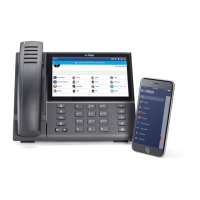
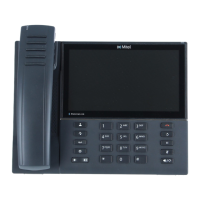
The Mitel MiVoice 6940 IP phone supports MobileLink, a feature that provides seamless mobile integra-
tion using Bluetooth wireless technology.
NOTE: For more information on how to use the MobileLink features, see“MobileLink”.
The phone also supports the use of Bluetooth devices such as, the Mitel Cordless Bluetooth Handset, the
Mitel S720 Bluetooth Speakerphone, or a Bluetooth headset as an alternate audio device. Using the
Bluetooth settings menu, you can enable and disable Bluetooth functionality on your phone as required.
You can also pair, connect, and unpair a Bluetooth device as applicable.
NOTE:
1. The specific operation of third-party Bluetooth devices can vary somewhat by manufacturer and
model. Ensure your Bluetooth device has been upgraded to its latest firmware revision. Refer to the
documentation accompanying the Bluetooth device for details on operation, alerting tones, LEDs, and
charging. Note that all Bluetooth devices will drop any call in progress if the maximum range is
exceeded.
2. Only one Bluetooth device of each profile (i.e. handset, headset, speakerphone, and mobile phone)
can be connected at one time. Connecting to a new device of the same profile will automatically result





 To Next Page