26
C
USTOMIZING YOUR PHONE CALL FORWARD
NOTE:
1. A Call Forward Always programmable key can be created that allows you quickly enable Always
mode without having to enter the Call Forward settings menu. For more information on the Call
Forward Always programmable key, see “Call Forward Always”.
2. If voicemail is enabled, call forwarding numbers may already be defined by your System Adminis-
trator.
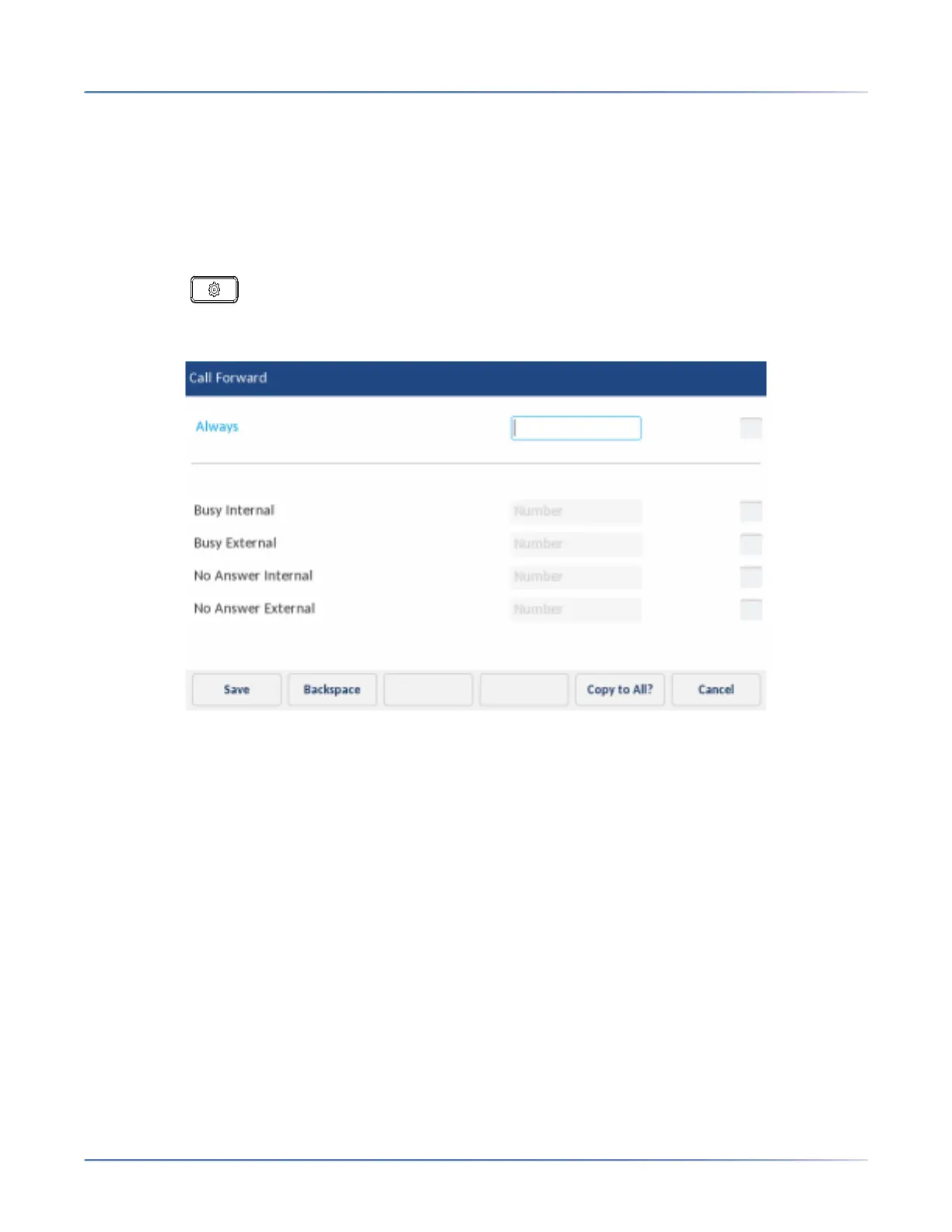
To configure call forward settings:
1. Press the (Settings) key on the phone to enter the Settings menu.
2. Tap the Call Forward icon.
3. Tap the applicable Number input fields and enter forwarding numbers using the dialpad keys for any
of the following states:
– Always:
Immediately forwards all incoming calls to the specified number.
– Busy Internal:
Immediately forwards internal phone calls if your line is busy.
– Busy External:
Immediately forwards external phone calls if your line is busy.
– No Answer Internal:
Forwards internal phone calls after several rings if you don’t answer.
– No Answer External:
Forwards external phone calls after several rings if you don’t answer.
NOTE: Tapping the Copy to All? softkey copies the call forward number of the call forward mode in focus
to every call forward mode. For example, if the cursor is on the Busy Internal field and the field has a
phone number entered, tapping the Copy to All? softkey assigns the same phone number to all the other
modes as well.





 To Next Page