Planning and Installation Guide Mitel SIP-DECT Multi-Cell for MiVoice Connect
22
3. We recommend the base station be mounted an angle on concrete, wood, or plaster
pillars and walls for optimal radio coverage. Do not mount the base units upside down
because it significantly reduces radio coverage.
4. Mount the base unit as high as possible to clear all nearby objects (for example: office
cubicles and cabinets). If necessary, extend coverage to remote offices or halls with
fewer telephony users by installing base stations.
5. When you fasten the base stations to the pillar or wall, ensure that the screws do not
touch the PC board in the unit. Secondly, avoid all contact with any high voltage lines.
6. Plug in and power on the base station.
7. Install the base station. See section 5 of
SIP-DECT OM System Manual
Administration Guide.
BASE STATION – RESET FEATURE
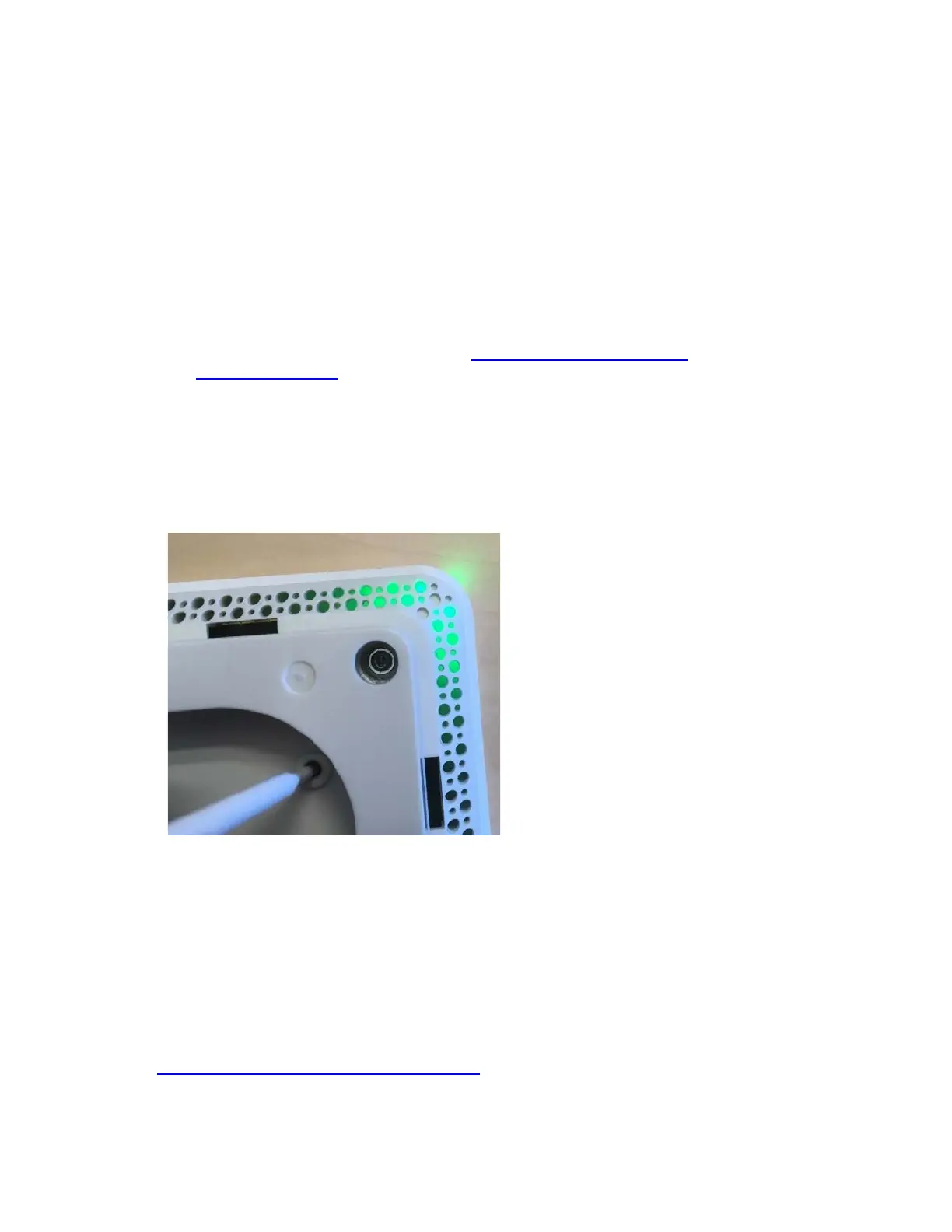
To reset the base station unit back to factory settings, use a hex wrench, ballpoint pen, or
a similar object and press the configuration button on the back of the unit to make the RFP
the OMM RFP. The LED starts flashing green to indicate that the button is pressed. You
can also reset the base station from OMM.
CONFIGURE COMMUNICATIONS PLATFORM
NOTE: Most DECT 600 systems are pre-configured before they are delivered to a
customer site. If that is the case for your deployment, you can skip this section because
the users have already been added to the MiVoice Connect system. We will be
choosing Mitel DECT 612 phone as an example.
To enable users to use the DECT 612 phone in MiVoice Connect, you must first add
the users to the system so that handsets can be assigned to the users. You can add
users through the Mitel Connect Director Portal. See the Configuring Users section of
MiVoice Connect System Administration Guide
to add users.
Note the DID, extension, and voicemail PIN for each user because you will need this
information when you assign handsets to users.


 To Next Page