Mitel SIP-DECT Multi-Cell for MiVoice Connect Planning and Installation Guide
35
CONNECTING DECT PHONE TO BASE STATION
The Mitel 600 series DECT Phones can download and upgrade their firmware via
DECT over the air. See the Download Over Air section of the
SIP-DECT OM
System Manual, Administration Guide, Release 8.1.
1. To subscribe new Mitel 600 DECT phones, open the DECT phone System >
Subscriptions menu.
2. Select New system and enter the Authentication code provided in your System
Settings (for example, 123456).
3. The DECT phone prompts you to enter a PARK or to proceed with the subscription
without a PARK.
4. Set the PARK if several DECT systems are around, otherwise the DECT phone tries
to subscribe to the first available DECT system.
UPDATE FIRMWARE
Most Mitel 600 series DECT phones have the latest firmware and are pre-configured
before they are delivered to a customer site. If that is the case for your deployment, you
can skip this section.
NOTE: See the DECT phone’s firmware section of the
SIP-DECT OM System Manual,
Administration Guide, Release 8.1 guide if you need to update the firmware.
VERIFY FIRMWARE UPDATE
The firmware upgrade is confirmed by the FWU Progress status in the second and
first right column on the handset extension list or repeater list. The “FWU info”
column contains the software version and the “FWU Progress” column contains the
status. When the status is “Complete”, the device’s firmware has been upgraded.
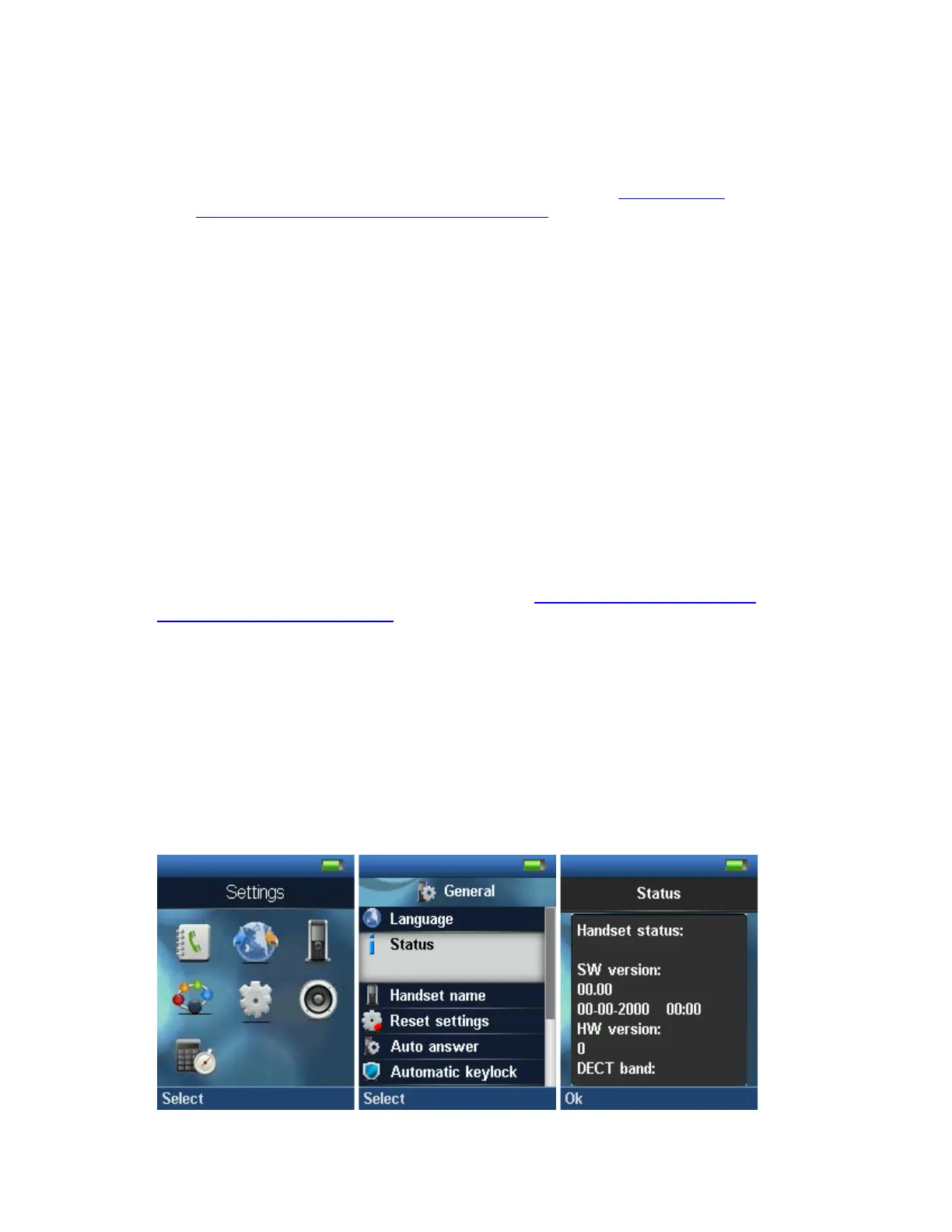
Alternatively, the handset firmware can be verified from the Handset Menu by
navigating to Settings > Scroll down to Status this will list information regarding
Base station and Handset firmware versions.


 To Next Page