Planning and Installation Guide Mitel SIP-DECT Multi-Cell for MiVoice Connect
30
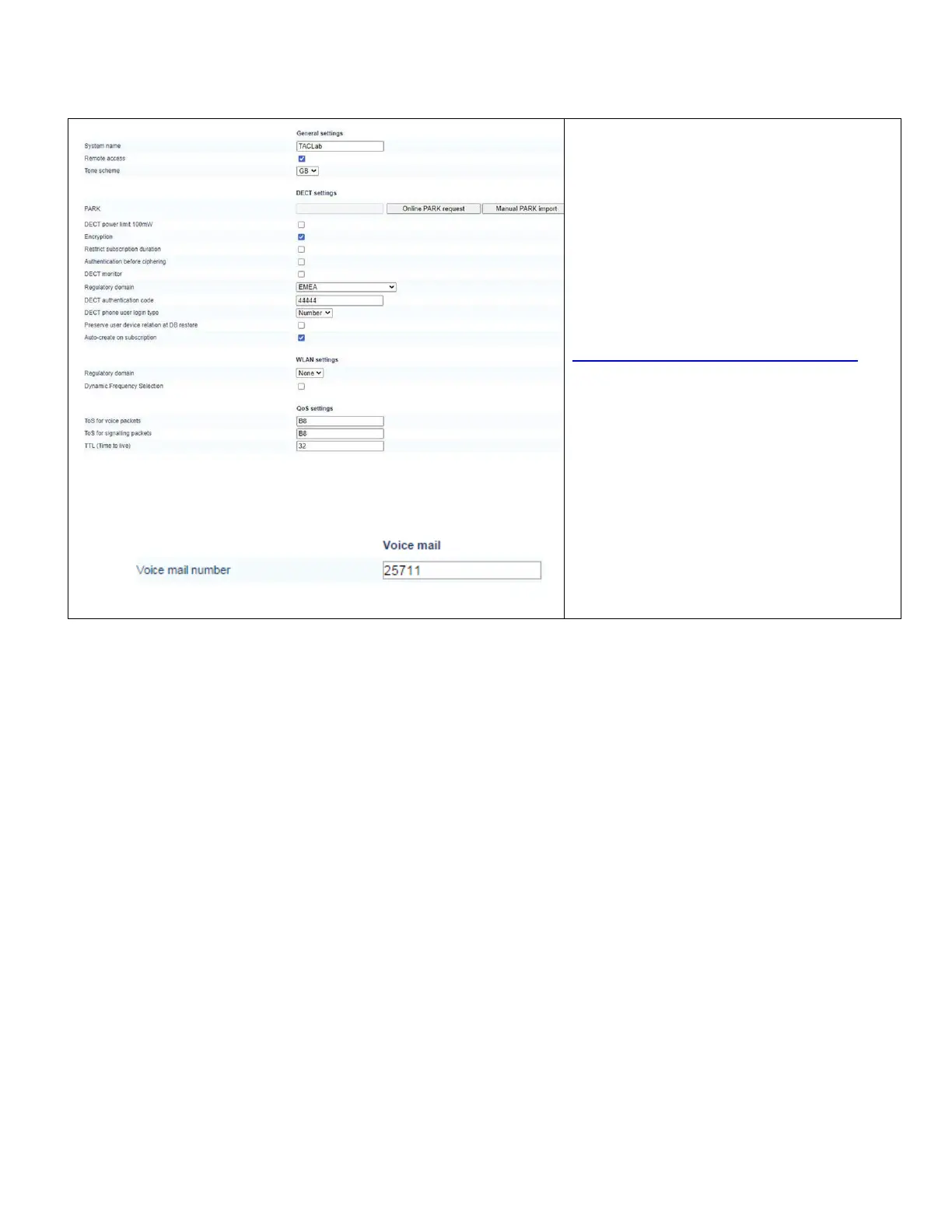
System name: Customer Name
Remote access: Allow SSH access
Tone Scheme: Scheme to simulate call control tones
(country-dependent).
PARK: The system needs a PARK code to operate. The
PARK code is pre-filled if you have valid license file that
includes a PARK. If not, click Online PARK request to
obtain a PARK code. You must have an internet
connection to access the online PARK service. If no
internet connection is available, you can download a
PARK request file from the OMM (PARK service URL is
https://parkmanager.mitel.com/pm/parks/fetch.xhtml
) and
upload it to the PARK server from a computer that is
connected to the Internet. You can then import the file into
the OMM by clicking Manual PARK Import.
Regulatory domain: DECT regulatory domain applicable
to your local region.
DECT authentication code: Define as template for the
subscription of new DECT phones.
Voice mail number: Your system voicemail number. A
Mitel 600 phone will then offer the voice box in the
Handset menu.
CONFIGURING BASE STATIONS
Creating a New Base Station
To create base stations (formerly referred to as Radio Fixed Parts):
1. Log into the OMM.
2. Click Base Stations.
3. When you click on the Start button below the “Capturing unconfigured DECT base
stations” caption, the OMM lists all DECT base stations trying to connect.
4. Click New to configure a new base station.


 To Next Page