Mitel SIP-DECT Multi-Cell for MiVoice Connect Planning and Installation Guide
27
SETTING UP CONFERENCING FOR SIP-DECT MULTI-CELL
SYSTEM ON MIVOICE CONNECT
In order to use conferencing, from the SIP-DECT phones on MiVoice Connect, you
need to enable conferencing. If you do not you will be unable to conference calls
from the SIP-DECT phones.
You will need to setup a unique extension on the MiVoice Connect system under
Users in the Mitel Connect Director GUI for the conference, so this will use an
extension license on the system. To set up conferencing:
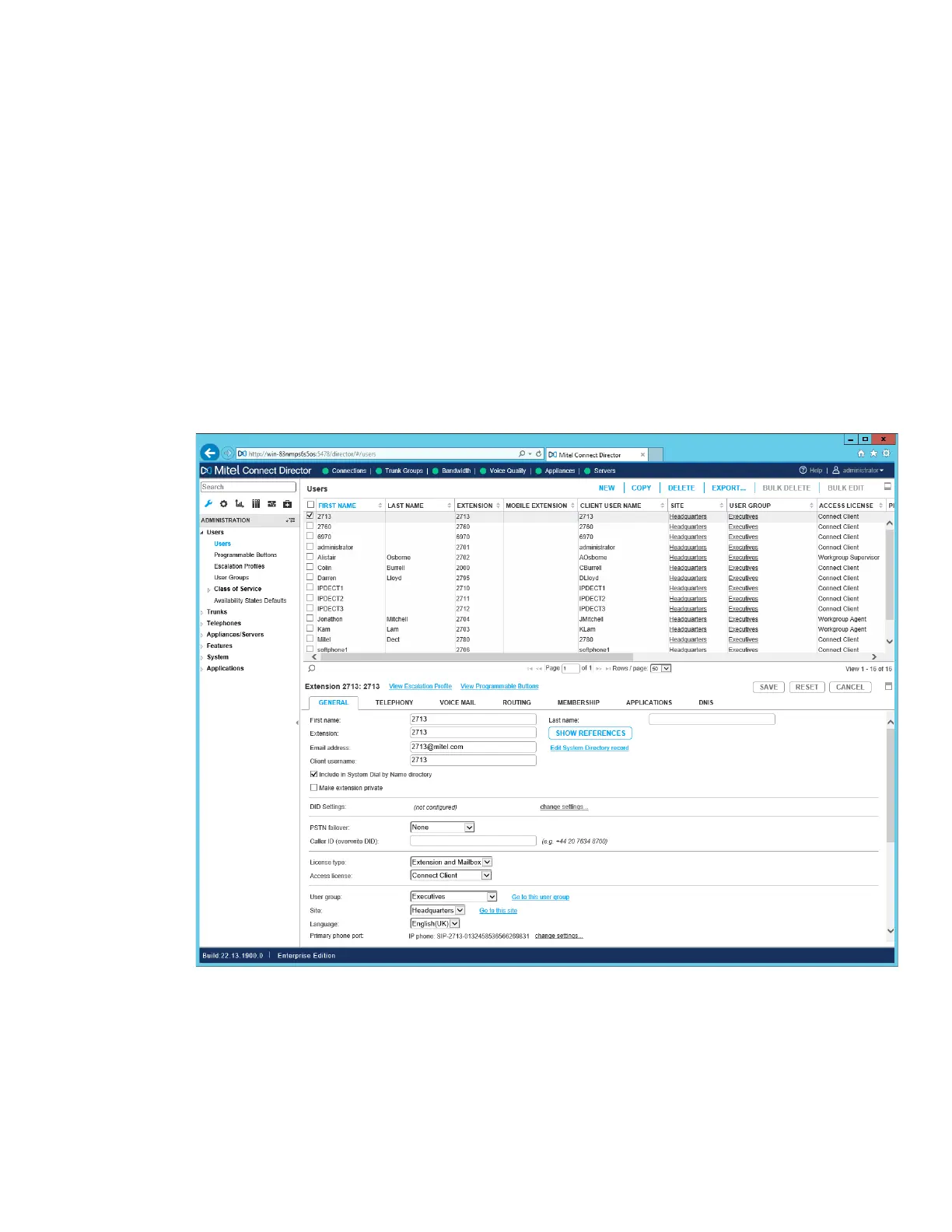
1. Log in to the Mitel Connect Director GUI navigate to Administration > Users > New
> General and create a user with a unique extension that is not used on the system,
set a username and SIP password.
Note: You only need to setup one extension for the SIP-DECT conference even if
multiple conference calls
2. Log in to the OMP GUI and do the following:
• Navigate to DECT Base Station > Device List.
• Select your device, click Configure and select the Conference Channels
check box


 To Next Page