3.3.3 The First Image in MxControlCenter
Installing MxControlCenter
If you have an MxControlCenter installation CD, insert it into your com-
puter drive.
If this is not the case or if you would like to update to a newer version, you
can download the latest MSI or ZIP file from the MOBOTIX website. The latest
version is available at www.mobotix.com> Support> Software Downloads in
the MxControlCenter section.
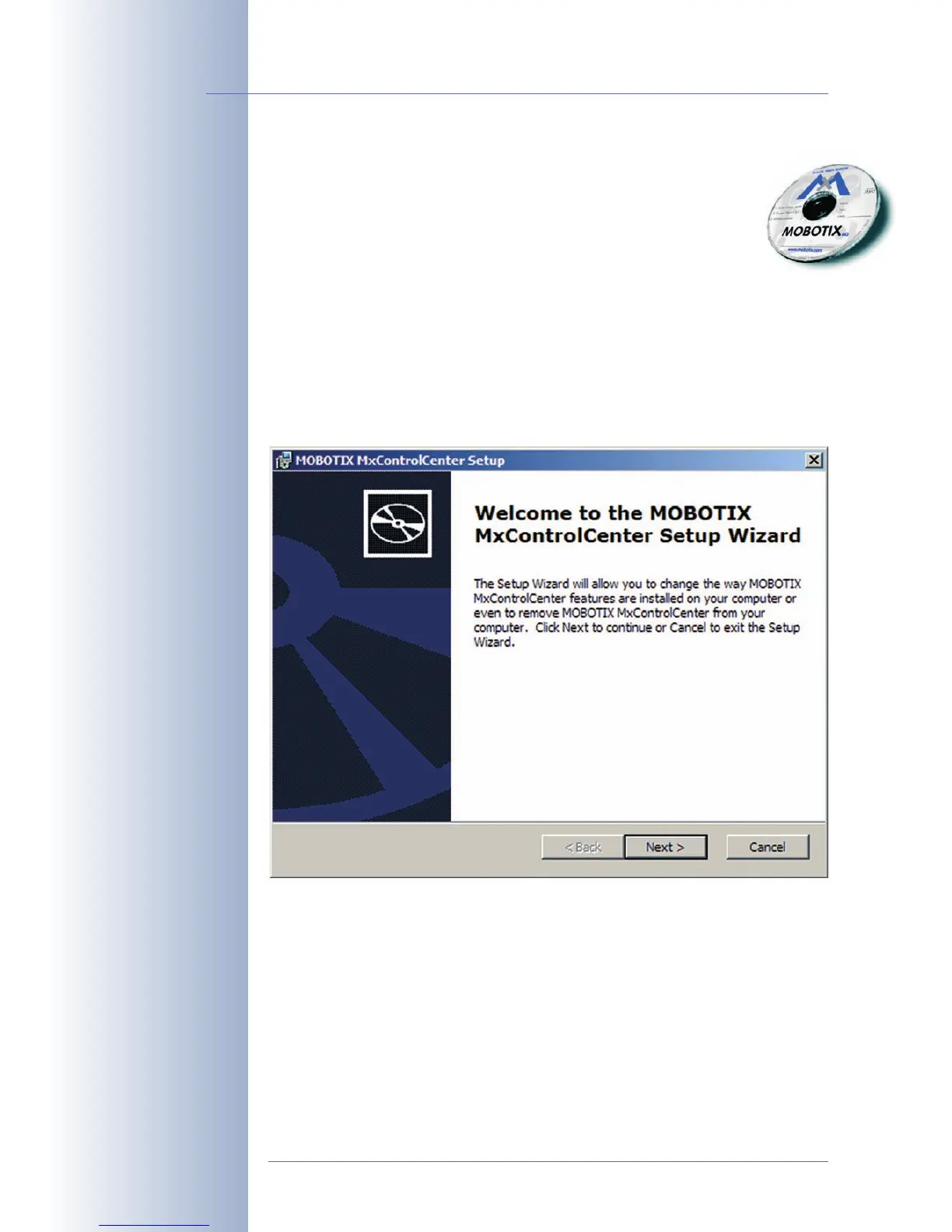
If you are using the installation CD, the installation process starts automatically and
leads you through the necessary steps. In case you have downloaded the Installer,
simply double-click the MSI file to start the installation process.
The installer automatically creates shortcuts for the most important programs on
your desktop.
Using MxControlCenter for the First Time
Double-click on the shortcut created by the installer (see the previous section
Installing MxControlCenter
) or on the program file itself to start MxControlCenter.
© MOBOTIX AG • Security-Vision-Systems • Made in Germany
www.mobotix.com • sales@mobotix.com
98/132
D12 Camera Manual Part 1
Download MxControlCen-
ter free of charge from
www.mobotix.com
Automatic installation of
MxControlCenter with
Windows Installer (MSI)


 To Next Page