macOS
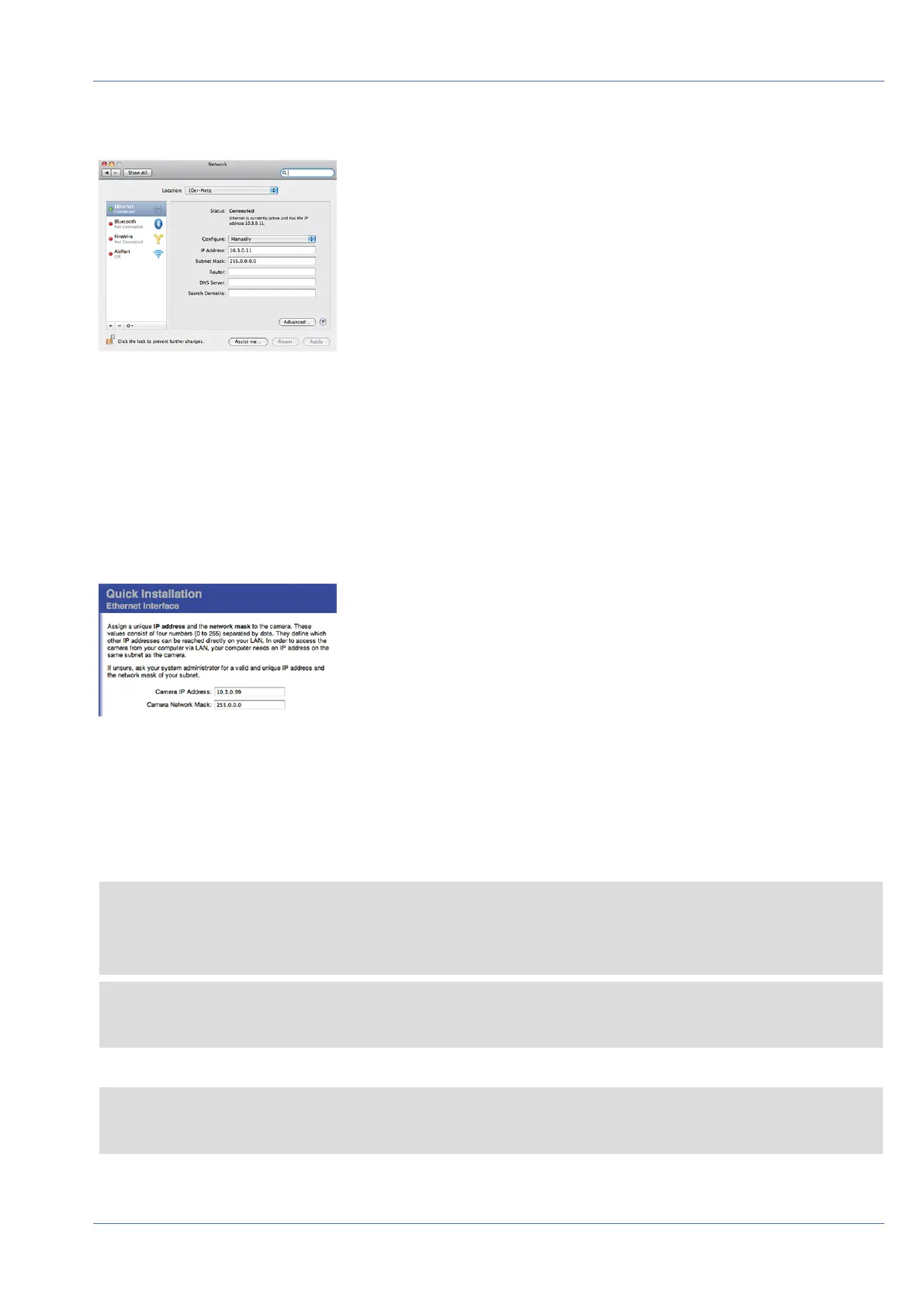
Fig. 77: Network settings on macOS machines
1. Open System Settings> Network.
2. Click on Ethernet and in the Configuration field, select the Manual list entry and enter an IP address in
the 10.x.x.x IP address range (e.g., 10.16.0.11).
3. Click on Apply to apply the settings.
MOBOTIX Camera in the Browser
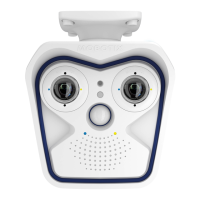
Fig. 78: Network settings in the web interface of the camera
1. Use a web browser to access the web interface of the MOBOTIX camera and enter the factory IP address
(e.g. 10.16.0.99).
2. Click on the Admin Menu button in the user interface of the camera. The Quick Installation automatically
starts after entering the access credentials of the admin user.
NOTE! Factory access credentials:
User name: admin
Password: meinsm
NOTE! You can also run the Quick Installation later on (Admin Menu> Network Configuration> Quick
Installation; see Reference Manual).
3. Enter the network parameters of the camera in the course of the quick installation.
NOTE! You can also change the network parameters later on by running Admin Menu> Network
Configuration> Quick Installation.
4. Reboot the camera to apply the network settings.
Operating the Camera
Network Settings
94 / 110


 To Next Page