Chapter 6—Using the Software
128 MultiVOIP® Voice/Fax over IP Gateways
Downloading Factory Defaults
1. The MultiVOIP Configuration program must be off when invoking the Download Factory Defaults command.
If it is on, the command does not work.
2. To use the Download Factory Defaults command, go to Start | Programs | MultiVOIP x.xx. | Download
Factory Defaults.
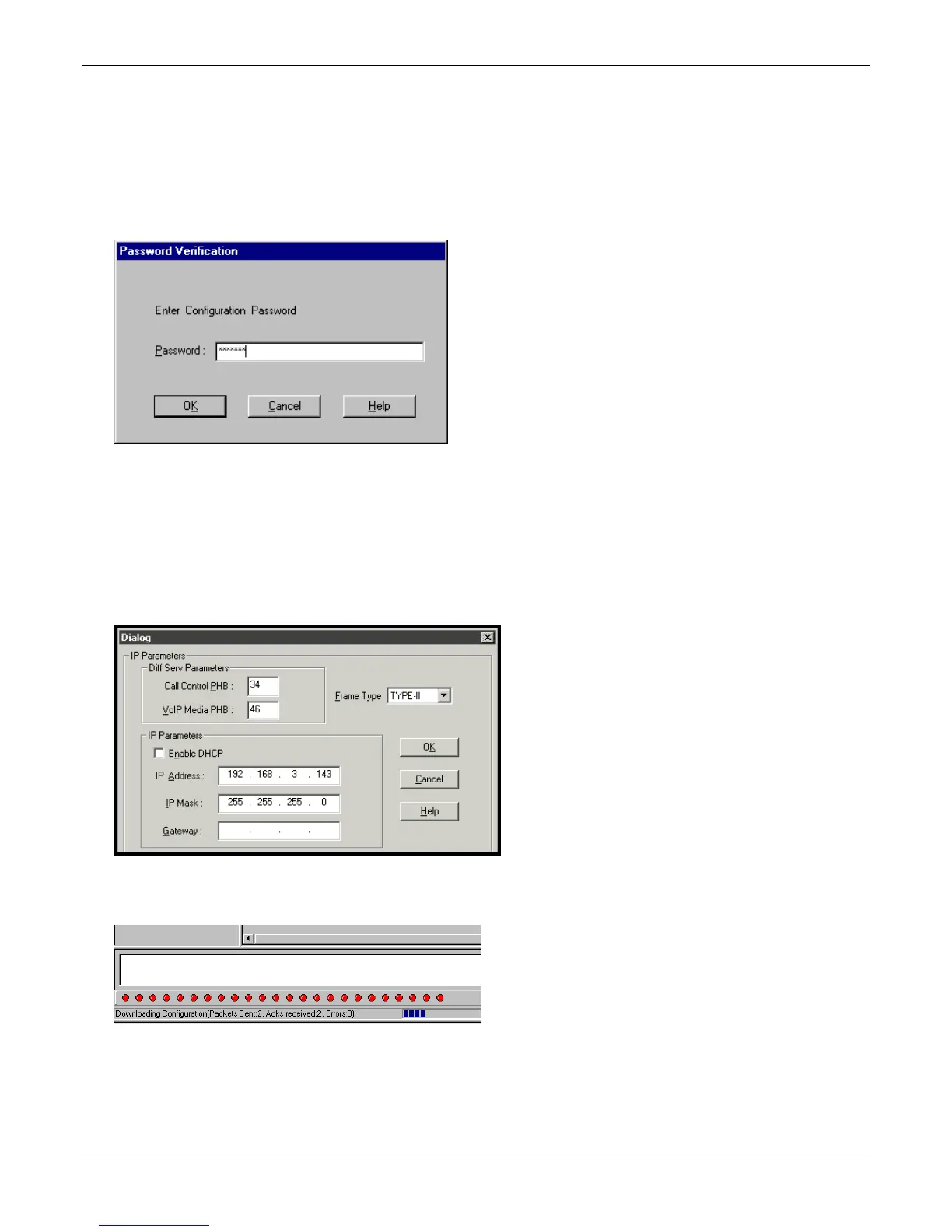
3. If a password is established, the Password Verification dialog box opens.
Type the password and click OK.
4. The MVP x.xx - Firmware screen appears saying “MultiVOIP [model number] is up. Reboot to Download
Firmware?”
Click OK to download the factory defaults.
The “Boot” LED on the MultiVOIP lights up and remain lit during the file transfer process.
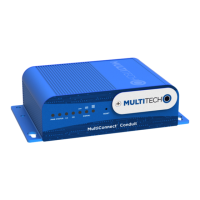
5. After the PC gets a response from the MultiVOIP, the Dialog – IP Parameters window opens.
Verify that the correct IP parameters appear. If not, adjust the values. Then click OK.
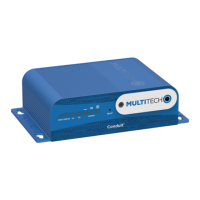
6. Progress bars appear at the bottom of the window during the data transfer.
The MultiVOIP’s “Boot” LED turns off at the end of the transfer.
The Download Factory Defaults procedure is complete.


 To Next Page