1
2
Advanced scan functions
Advanced scan functions 2-9
Broadcasting (Broadcast)
You can transmit to multiple destinations with a single operation. You do not need to
scan the document repeatedly for each individual destination.
NOTE
•USB memory cannot be included into the broadcast destinations.
•If you want to specify destinations using the one-touch key, set the “Broadcast”
setting to ON before using the one-touch key. Specifying destinations using other
than the one-touch key, the “Broadcast” setting will be turned ON automatically
when you specify multiple destinations.
•The number of destinations that can be transmitted to for a single broadcast is
indicated below.
Destinations Number
Address book destinations and groups 1,000
Manually entered e-mail addresses 30
Shared folders 300
FTP servers 20
Using other than the one-touch key
1
Load the document.
2
Press the mode change key to change to scan mode.
3
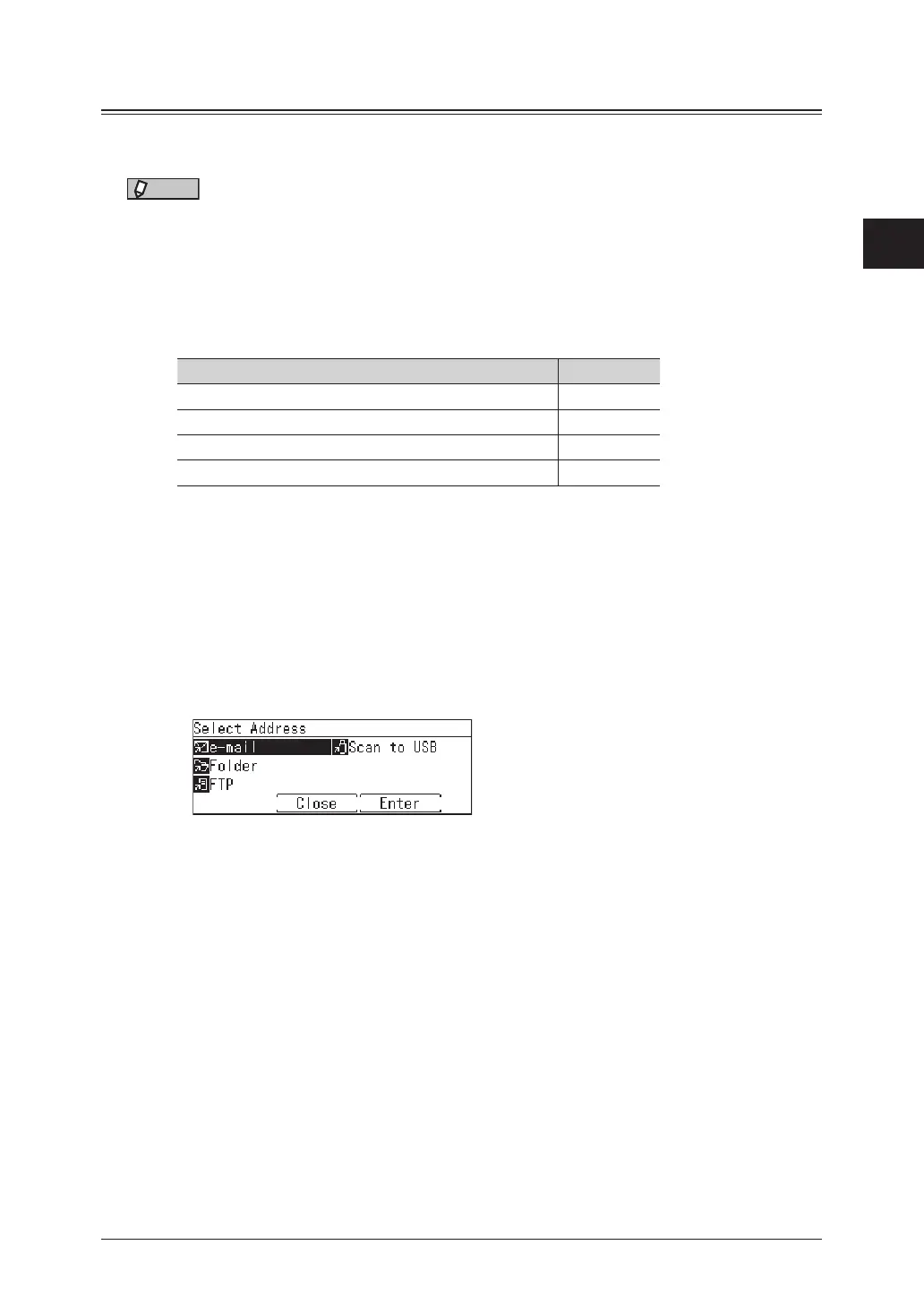
Press [Select Address].
4
Specify the destination.
For details on specifying the destinations, see the following pages.
•To specify an e-mail, see “Scanning to e-mail address” (page 1-2).
•To specify a folder, see “Scanning to shared PC folders” (page 1-4).
•To specify a FTP, see “Scanning to FTP servers” (page 1-7).
5
Repeat step 4 to specify all the destinations.
You can confirm or delete the specified destinations. For details, see “Checking specified
destinations” (page 5-9).
6
Press <Start>.
•If you loaded the document in the automatic document feeder, this concludes the procedure.
•If you loaded the document on the document glass, the message “Set next document.” is
displayed when the loaded documents have been scanned. Load the next document, and
press [Scan NextPage]. Press [Scanning End] to complete scanning.



 To Next Page