Net.DO Lighting Control Equipment Co.,Ltd http://www.netdo.com.cn
FOX1024s Moving Light Controller. PAGE: 13
5. Setup Menu
5.1 Menu Operation
The menu is operated by Soft Keys, which is easy and fast.
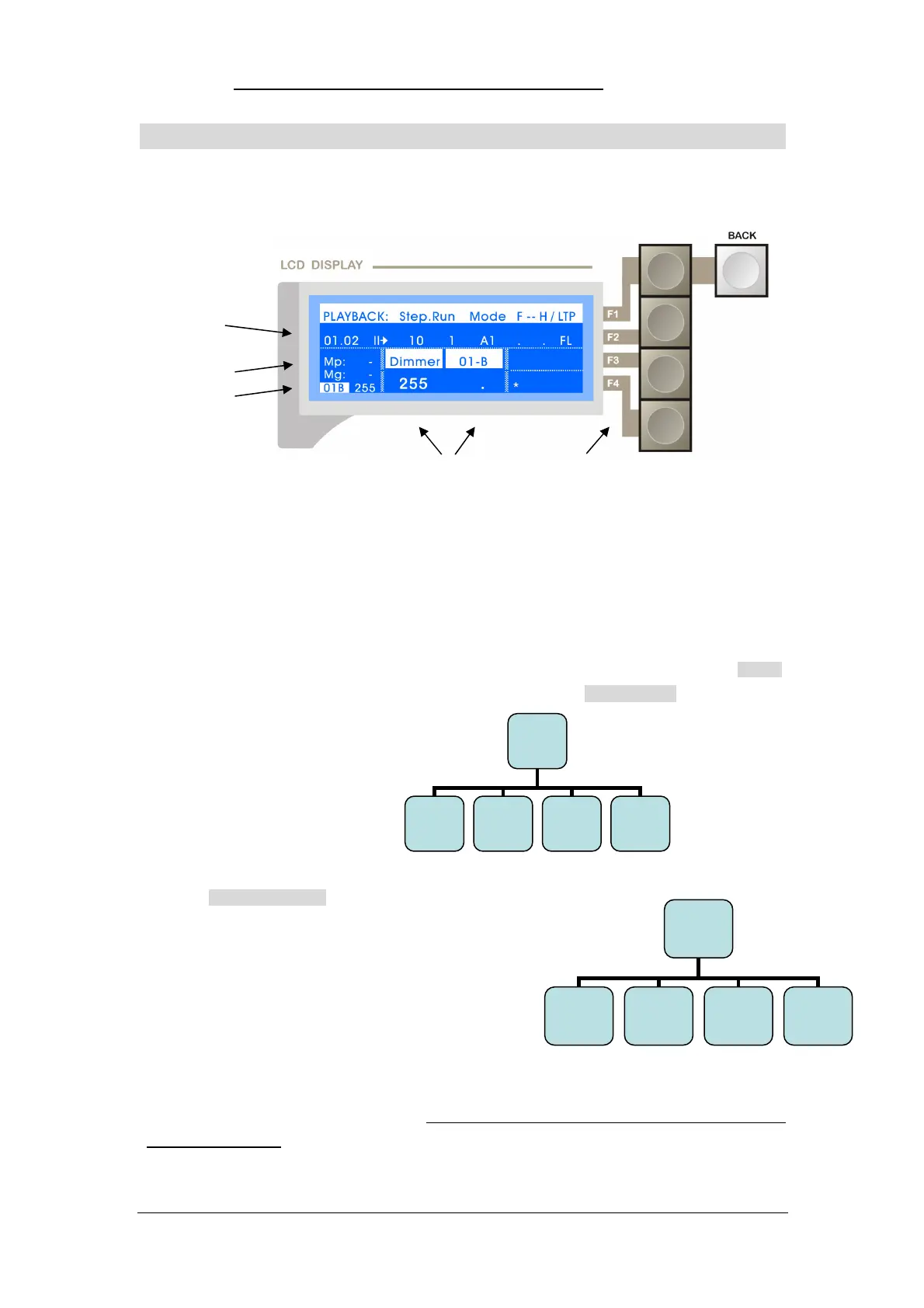
There are four Soft Keys: F1 / F2 / F3 / F4, which correspond to the items in the right side of LCD
screen, press a Soft Key to enter the corresponding sub-menu, press BACK to return to previous menu.
Press Main Menu key to return to site menu.
The Menu Item can be selected and modified by Cursor Keys; The selected item is
displayed with white background, the value can be modified by Key or Wheel A/B, the modified data
will be automatically saved after the operating menu is exited.
There are 2 Main Menus (PROGRAM / SETUP), this chapter will introduce the functions of SETUP,
press SETUP (indicator bright) to enter settings menu, the menu tree of SETUP MENU is as follows:
5.2 Library Setting
Path: SETUP Library
Different fixtures have different channels and attributes,
which require libraries to be identified by the console (1 library
corresponds to 1 kind of fixture). Library: contains the
information of channels and attributes. The attributes can be
controlled by attribute keys and Wheel A/B after the correct
library is patched to the fixture.
Library: There is a DVD-ROM in the carton, it contains the libraries of over 3 thousand fixtures, which
can be imported to the console from U-disk. (Libraries can be custom by <NetDO Library Software> in
PC or Android phone)
Wheel A/B’s value Soft Key
Menu Item
Master Faders’ value
Attribute Fader’s value
SETUP
Fixture
(F1)
Library
(F2)
Other...
(F4)
DataFile
(F3)
Library
NewModel
(F1)
Modify
(F2)
Import
(F4)
Delete
(F3)


 To Next Page