Net.DO Lighting Control Equipment Co.,Ltd http://www.netdo.com.cn
FOX1024s Moving Light Controller. PAGE: 24
Rotate Wheel B to set directions. Five directions: <-,->, < >, |<, >| (left, right, back and forth,
left pause, right pause)
8) Set Size / Distortion:
Press Size soft key, set shape size by Wheel A/B (for example: the size of circle), and the
shape distortion (for example: distort circle to be ellipse).
9) Set Spread/Symmetry:
Press Spread soft key, set spread value by Wheel A to make the location of every fixture
different in a shape.
For example: When use shape of Circle, it can create wave effect for Tilt and make the fixtures
move one after one. (The higher the spread value is, the bigger the offset will be, and v.v.)
Set Symmetry by Wheel B. For example: When the value is 5, it means every 5 fixtures will be
symmetric.
*TIPS: Some shapes are based on current attribute, for example: Circle use current Pan/Tilt location
as center, it means the whole shape will move when Pan/Tilt value is modified. And some are only
for fixtures with special attribute. For example: rainbow is just for fixtures with RGB/CMY channels.
8.2 Stop SHAPE
There are 3 ways of operation to stop shapes as follows:
Stop all shapes:
Press STOP key, all shapes will stop. Then Press PLAY key, the corresponding indicator will
be bright and all shapes will restore running.
Stop shapes of certain fixtures:
Steps: Select fixtures Press PLAY to enter SHAPE menu Press CLR Shape (F4) soft key
Restore shape running by pressing CLEAR key to clear fixtures selecting
Run a “FORCE-STOP” shape:
If some fixtures use “STOP” shape in a program, call that program to stop the running shape of
these fixtures.
8.3 Check shape of “Reference Fixture”
Select “Reference Fixture”, press PLAY to enter SHAPE menu; it will display the running shapes.
8.4 Skill in using shape
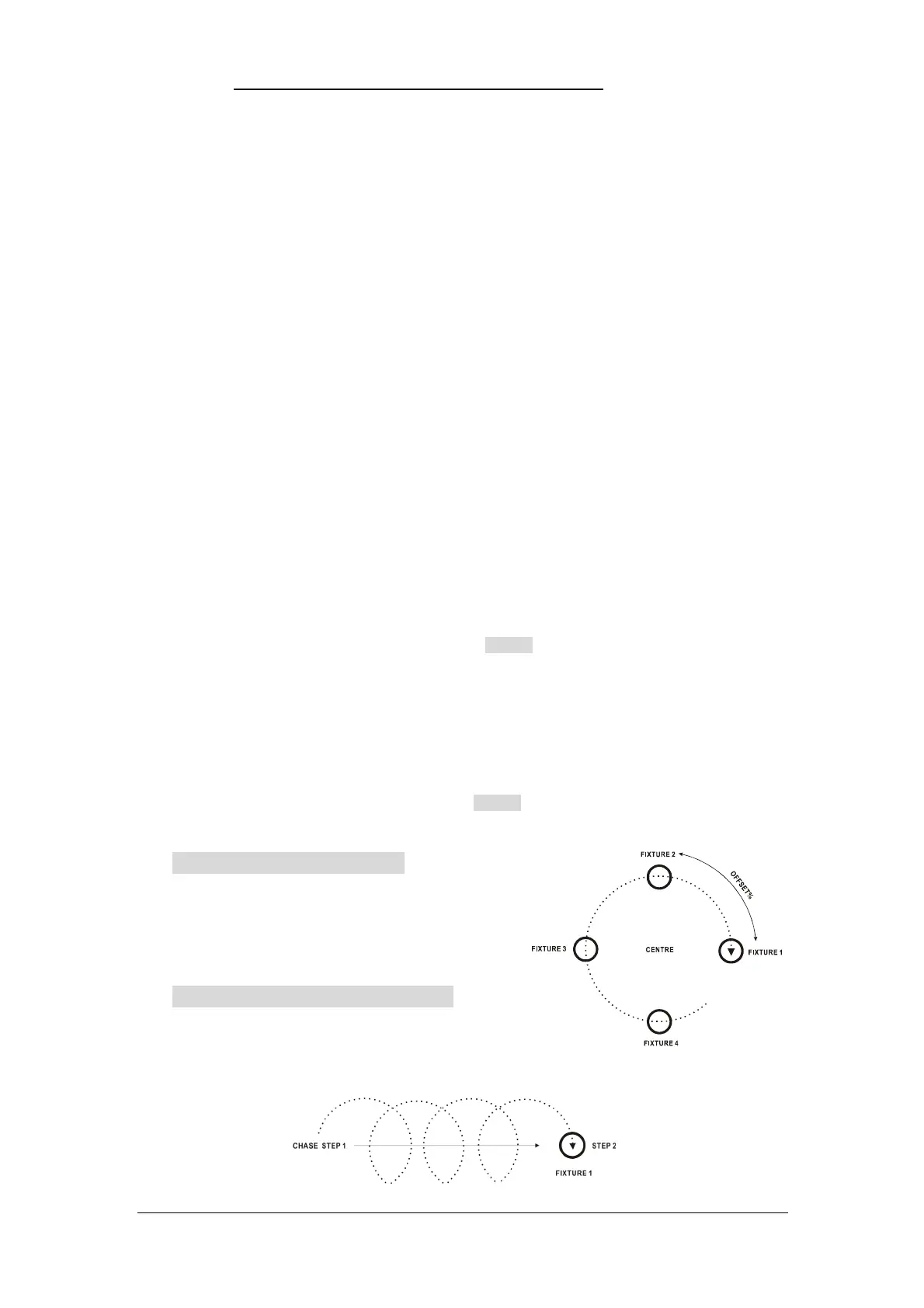
Example 1:Circle with 4 fixtures
1) Select 4 fixtures, set Pan/Tilt to make their spots
overlapped (the center of circle);
2) Call a shape; set the Type=Circle, Speed=40%,
Size=20%, Spread=25%.
Example 2:Move straight while circling
Program a “Multi-Step Program” (Chase) of 2
steps to make the fixtures move straight, then call the
same circle in both steps.


 To Next Page