Net.DO Lighting Control Equipment Co.,Ltd http://www.netdo.com.cn
FOX1024s Moving Light Controller. PAGE: 23
8. SHAPE
Shape-Generator(SHAPE) is greatly convenient in controling track & effect of fixtures, such as
Circle, Rainbow, Wave etc. SHAPE can also combine different shapes of multiple fixtures to show
various dynamic effects which can’t be easily achieved by Multi-Step Program. Take the SHAPE of circle
for example, the operation of making circle is already finished by the console, just leave the parameters
such as speed, size and direction to be set, which is more effective.
In the console there are many Shape-Generators, each one can be set for different effects such as
Circle, Rainbow or Wave etc., and parameters such as size, speed, direction, spread and symmetry etc.
Shapes can run together but up to 4 shapes can be superposed to 1 fixture at the same time.
Classification of SHAPE: (A~F)
A – Graphics Track
B -- X/Y Track
C – Color Change (3 colors channels)
D – Dimmer Change
E – Iris, Color wheels, Gobo wheels change
F -- Other
8.1 Edit and call SHAPE
SHAPE can be called in Manual-Run, Single-Step Program, Multi-Step Program and Scene.
Call SHAPE in Scene:
Just need to record data of manual-run which uses SHAPE into Single-Step-Program or Scene.
When program or Scene runs, the corresponding SHAPE will run automatically.
Call SHAPE in Chase:
Just add SHAPE into the Program Step in editing Multi-Step Program, when the program runs, the
corresponding SHAPE will run automatically.
Example of calling SHAPE in Manual-Run, operation is as follow:
1) Select fixtures firstly, it’s suggested to use
LOCATE to light up, and then set Colour,
Dimmer and Pan/Tilt location;
(the Pan/Tilt location is at the center of SHAPE)
2) Press PLAY key, the indicator will flash, which
means now it is in SHAPE menu.
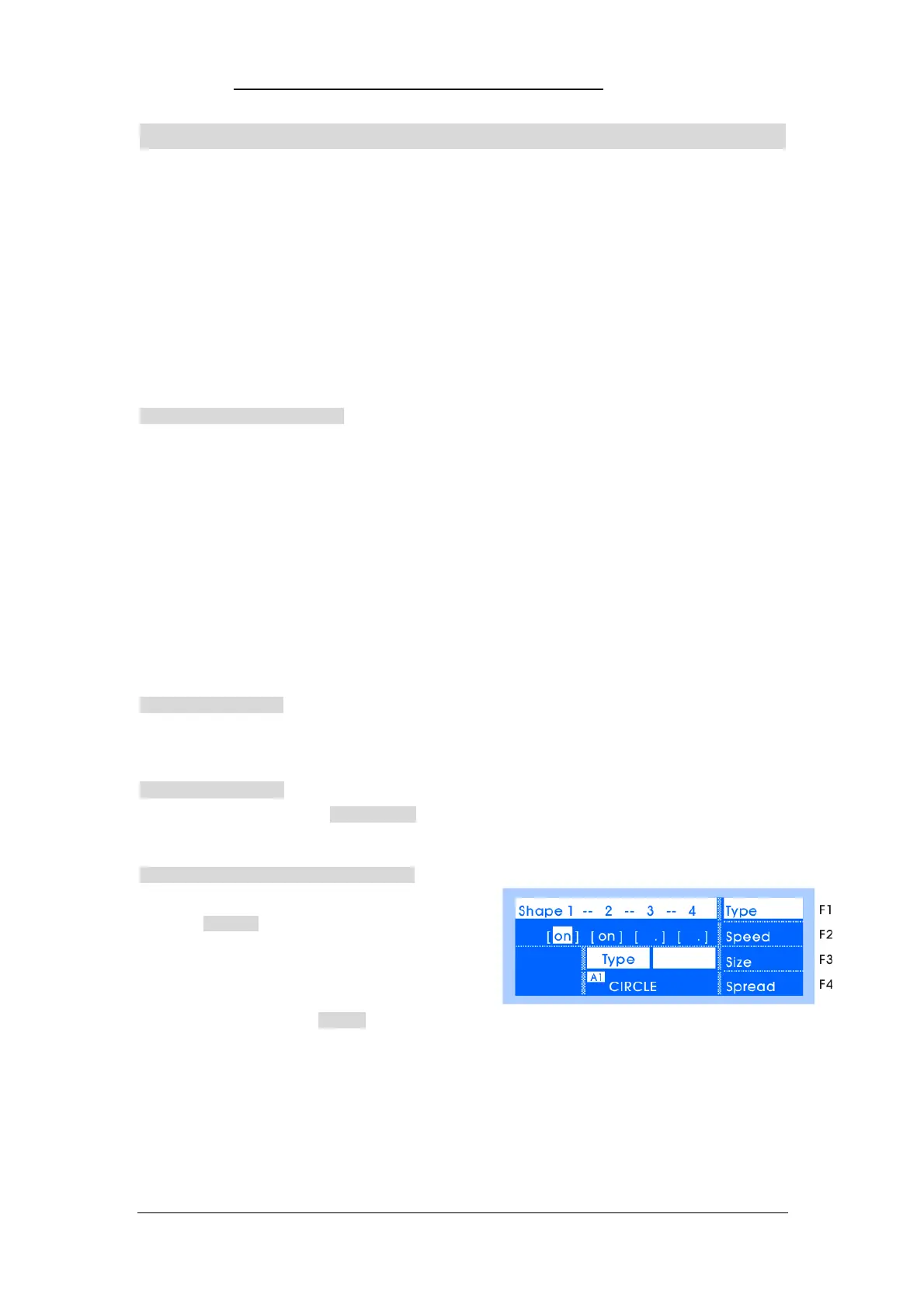
3) Press Edit... soft key to enter edit status, as shown on the right:
4) Select shape No. by Key. (totally 4 Numbers, 4 Shapes can be surperposed in 1 fixture)
5) Open shape by Key. (close by Key)
6) Select Shape:
Press Type soft key, select shape by Wheel A/B.
7) Set Speed / Direction:
Press Speed soft key; Rotate Wheel A to set running speed.


 To Next Page