BTS User Manual
Neware Technology Ltd.
http://www.newarebattery.com
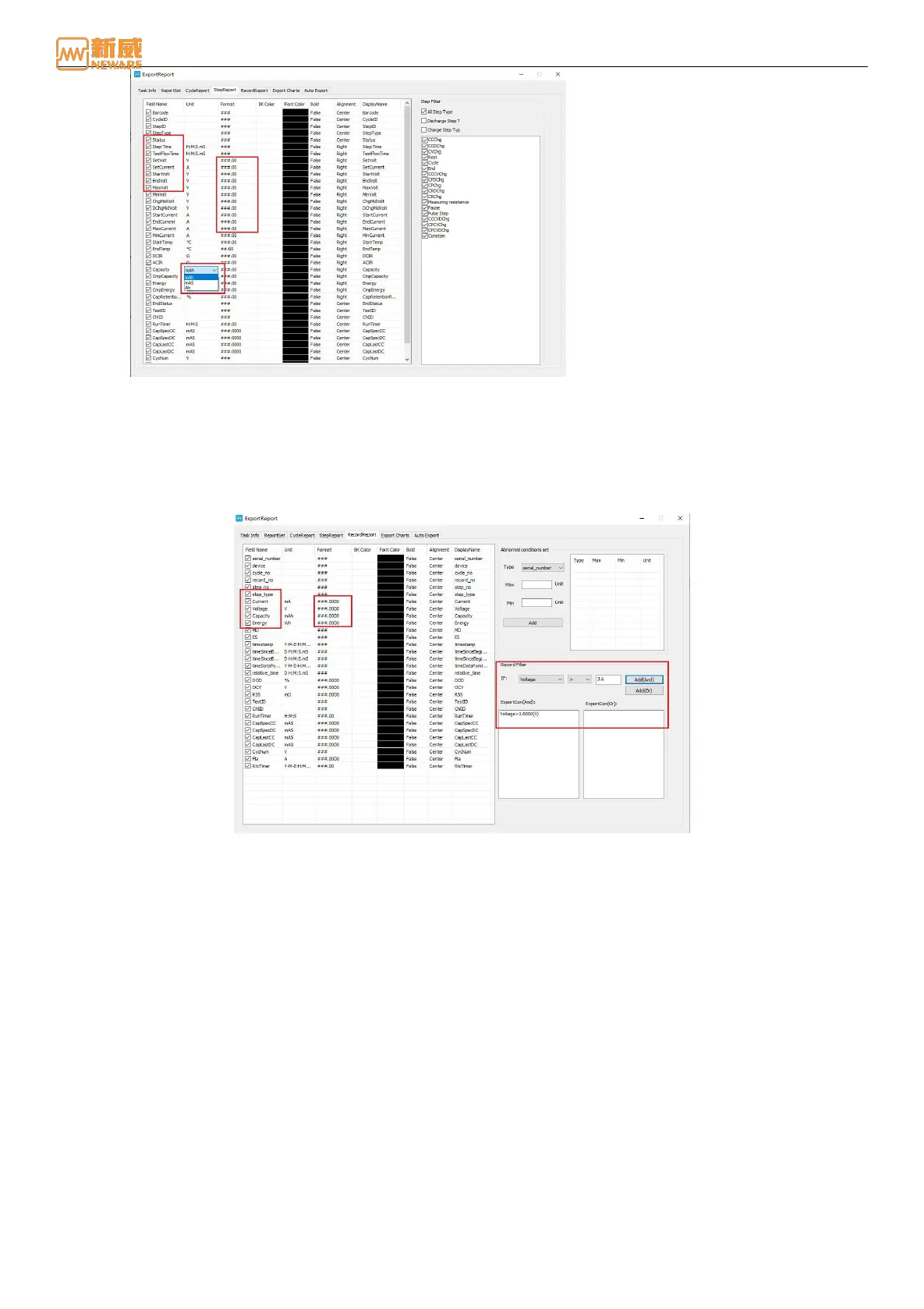
Figure 4-43 Step layer export configuration
Select data items (such as data serial number, step number, step type, step time, current, voltage, etc.) in the record layer
export configuration interface, and set the unit, value format, background color, font color, bold or not, and alignment style
of data items. Add abnormal point conditions, such as current upper and lower limits. Data exceeding the upper and lower
limits will be marked and recorded separately. Delete abnormal point conditions can be done by right-clicking to delete
them. Set the recording layer data filter, select the condition current/voltage/capacity/energy/temperature to determine the
add and/or.
Figure 4-44 Record layer export configuration interface
There are two ways to set the report export path. The first way is to modify the default report export path on the
client:D:\Neware\Reports\ Figure 4-45. The second method is to modify the path on the report export screen, as shown in
Figure 4-46.Name of the report export fileYou can insert the user name, battery batch number, battery model, test process,
device ID, unit ID, channel ID, and test ID as required. The default report name
is %Model%-%Batch%-%DevId%-%UnitId%%Chl%-%TestId%.xls (Battery model-Battery Lot Number-Device ID-Unit
ID-Channel ID-Test ID.xls). Figure 4-47is the report export directory and name Settings box.
The report can be displayed in two ways: normal display and coordinate inversion, that is, the form data title bar is above or
to the left of the form.



 To Next Page