Saturation, and Hue settings by scrolling up or down to select
a line and then right or left (+/-) to change the value of that
line item. This is entirely optional.
If you do choose to modify the control, it is not yet a Custom
Picture Control, since you haven’t saved it under a new name.
Instead, it’s merely a modified Nikon Picture Control.
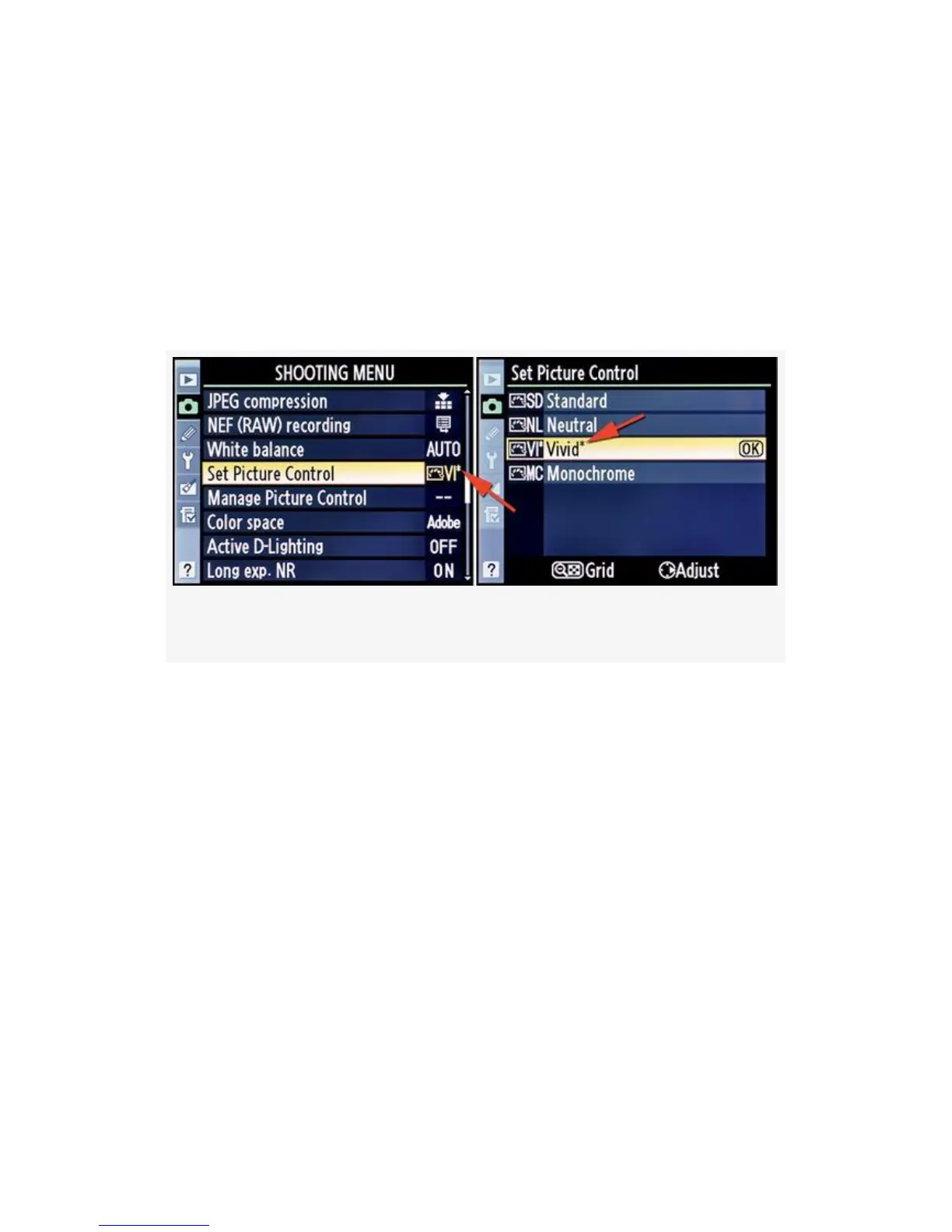
Figure 3-20. An adjusted Nikon Picture Control
We’ll discuss how to name and save your own Custom
Picture Controls in the upcoming section, Manage Picture
Control.
Figure 3-20 shows an asterisk after the Vivid control (VI* -
Vivid*) in both Shooting Menu screens (see red arrows). This
asterisk appears after you have made a modification to any of
the Picture Control’s inner settings, such as Sharpening. The
asterisk will go away if you set the control back to its factory
default configuration.
If Sharpening, Contrast, and Brightness are grayed out, it
means that your D300(S) has Active D-Lighting enabled.
When enabled, Active D-Lighting takes over these three
adjustment items and won’t allow you to modify them. We’ll
159



 To Next Page