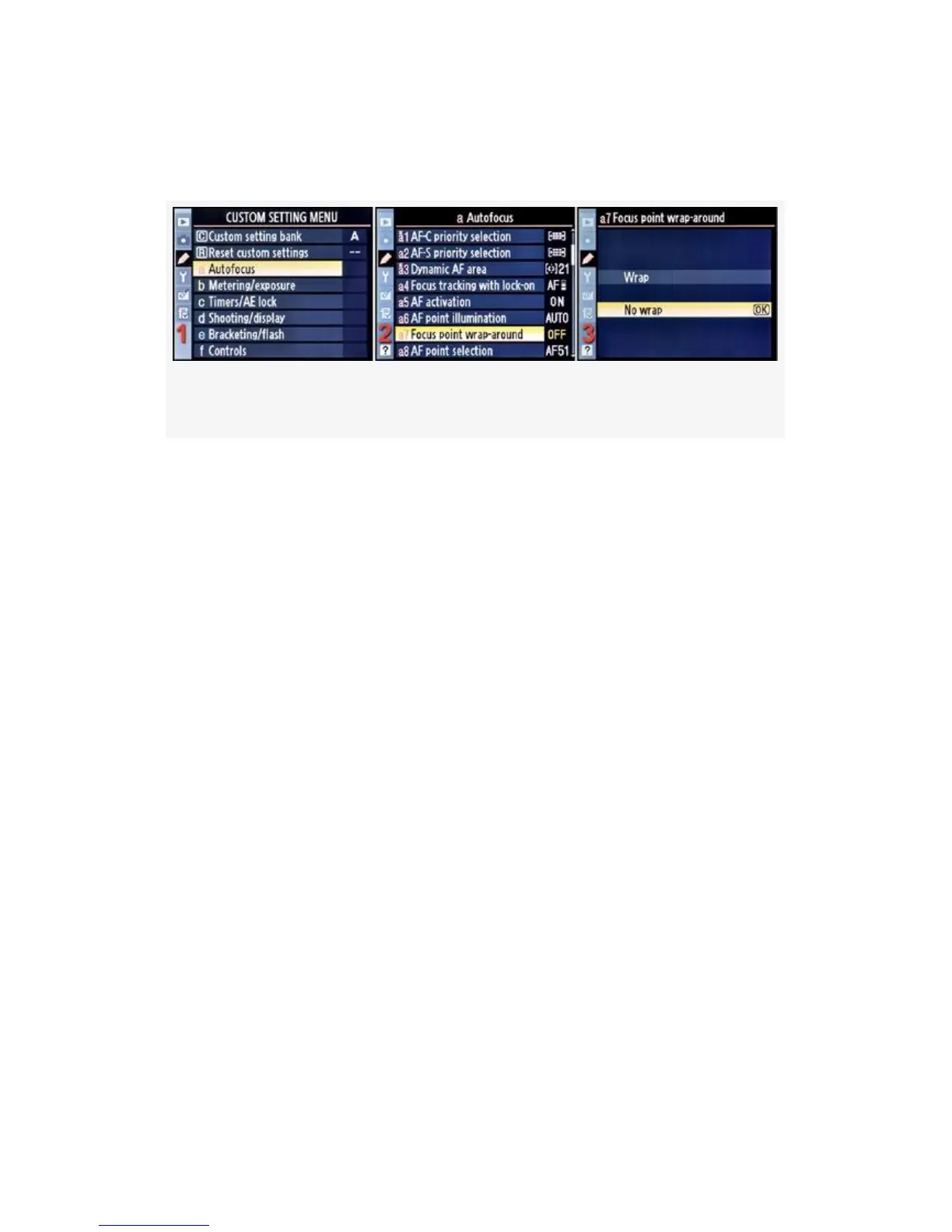
Here are the screens and steps used to configure Focus point
wrap-around (see Figure 4-12):
Figure 4-12. Focus point wrap-around
1. Select a Autofocus from the Custom Setting Menu and
scroll to the right (see Figure 4-12, image 1).
2. Highlight Focus point wrap-around and scroll to the right
(see Figure 4-12, image 2).
3. Choose one of the two choices from the menu. In
Figure 4-12, image 3, No wrap has been selected.
4. Press the OK button to lock in the setting.
Here is a description of the two choices:
▪ Wrap – This setting allows the selected AF point to
scroll off of the Viewfinder screen and then reappear on
the other side.
▪ No wrap (default) – If you scroll the AF point to the
edge of the screen, it stops there! You’ll have to use the
Multi Selector to move the point in the opposite
direction, back toward the middle.
My Recommendation: Wrapping the AF point around from
one side to the other drives me bonkers. I don’t like it on my
computer screen or in my camera’s Viewfinder. When the AF
275



 To Next Page