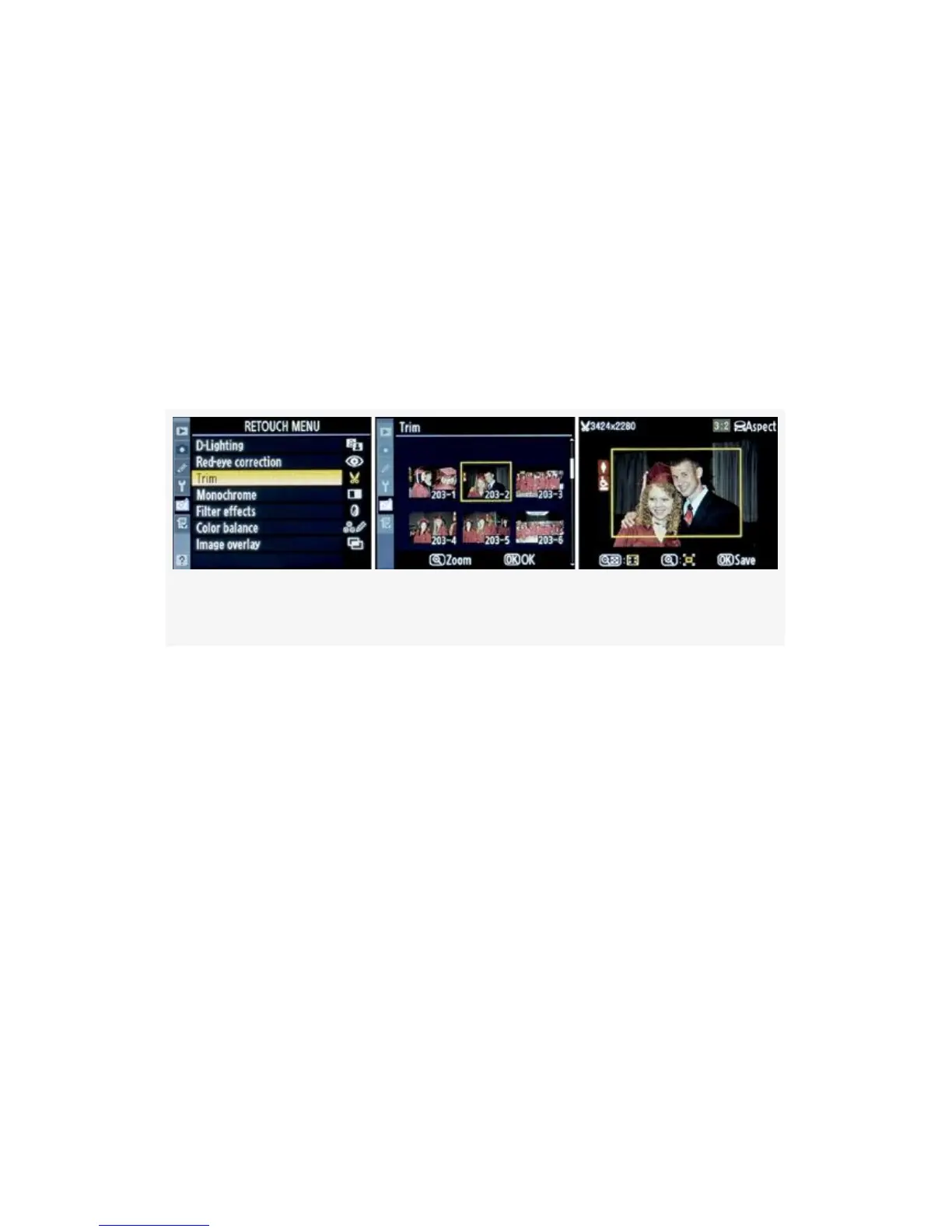
The Trim function allows you to crop an image in-camera,
change its aspect ratio, and save the file as a new image. Your
original image is not modified.
This is a useful function if you need to cut out, or crop, the
most useful area of an image to remove distracting elements
from the background.
Here are the screens and steps to Trim an image in-camera
(see Figure 6-5):
Figure 6-5. Trim screens
1. Select the Trim function from the Retouch Menu and
scroll to the right (see Figure 6-5, image 1).
2. Select the image you want to modify (see Figure 6-5,
image 2). Press the OK button when you have selected
your target image.
3. You’ll now be presented with a screen that has a crop
outlined in yellow (see Figure 6-5, image 3). Use the
checkered Thumbnail/playback zoom out button to
create a deeper crop or the Playback zoom in button for a
lesser crop. Use the Multi Selector to move the yellow
selection rectangle in any direction within the frame until
you find your best crop.
537



 To Next Page