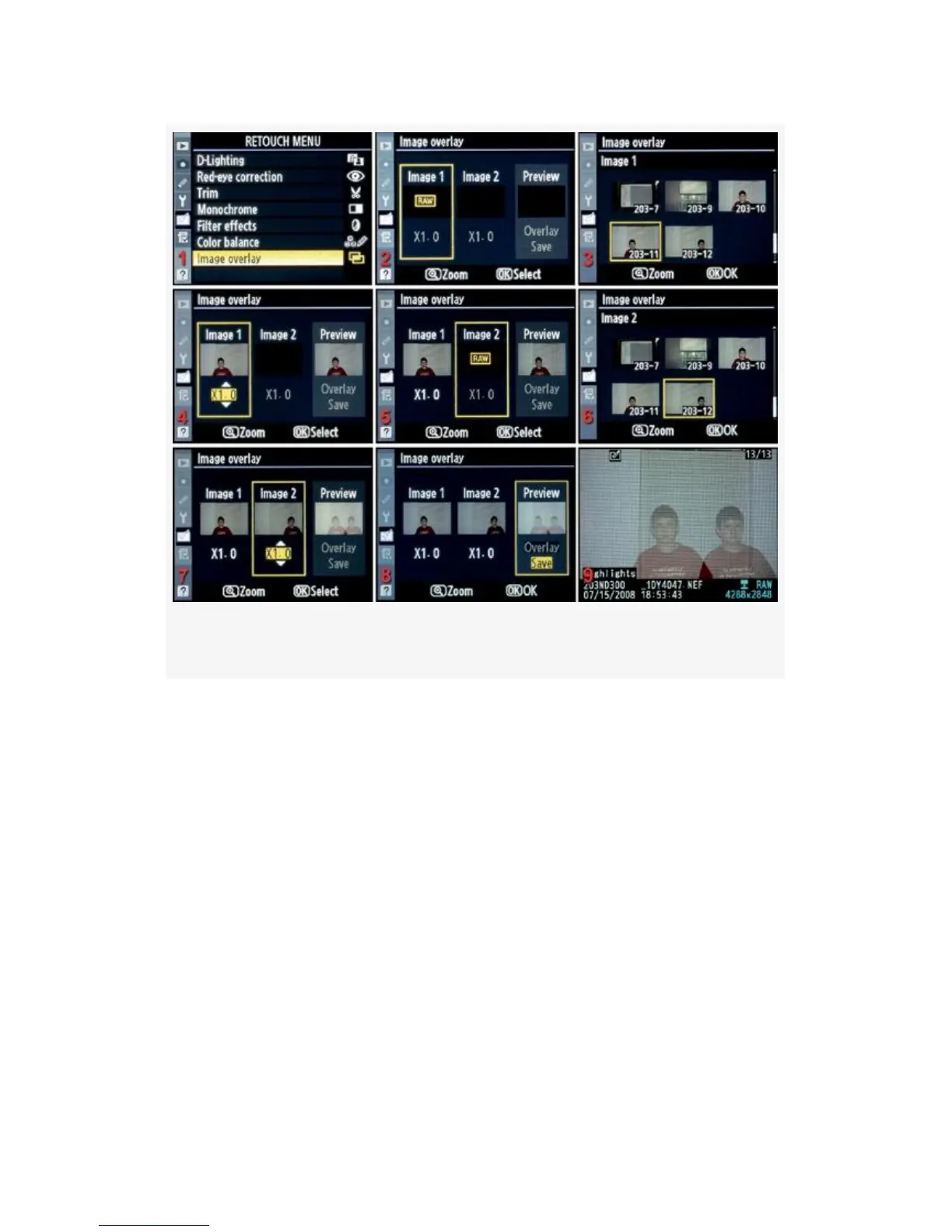
Figure 6-9. Image overlay screens
1. Select Image overlay from the Retouch Menu and scroll
to the right (see Figure 6-9, image 1).
2. Insert the first RAW image in the Image 1 box (outlined
in yellow) by pressing the OK button and selecting an
image from the selection screen. Press the OK button
again to return to the combination screen (see Figure 6-9,
images 2–4). You can vary the “gain” of the first image
by using the Multi Selector to scroll up or down in the
X1.0 field seen in Figure 6-9, image 4. The X1.0 setting
is variable between X0.1 and X2.0. It lets you control
how bright or dark (dense) an image is so that it can
more closely match the density of the other image in the
overlay. X1.0 is normal image density.
545



 To Next Page