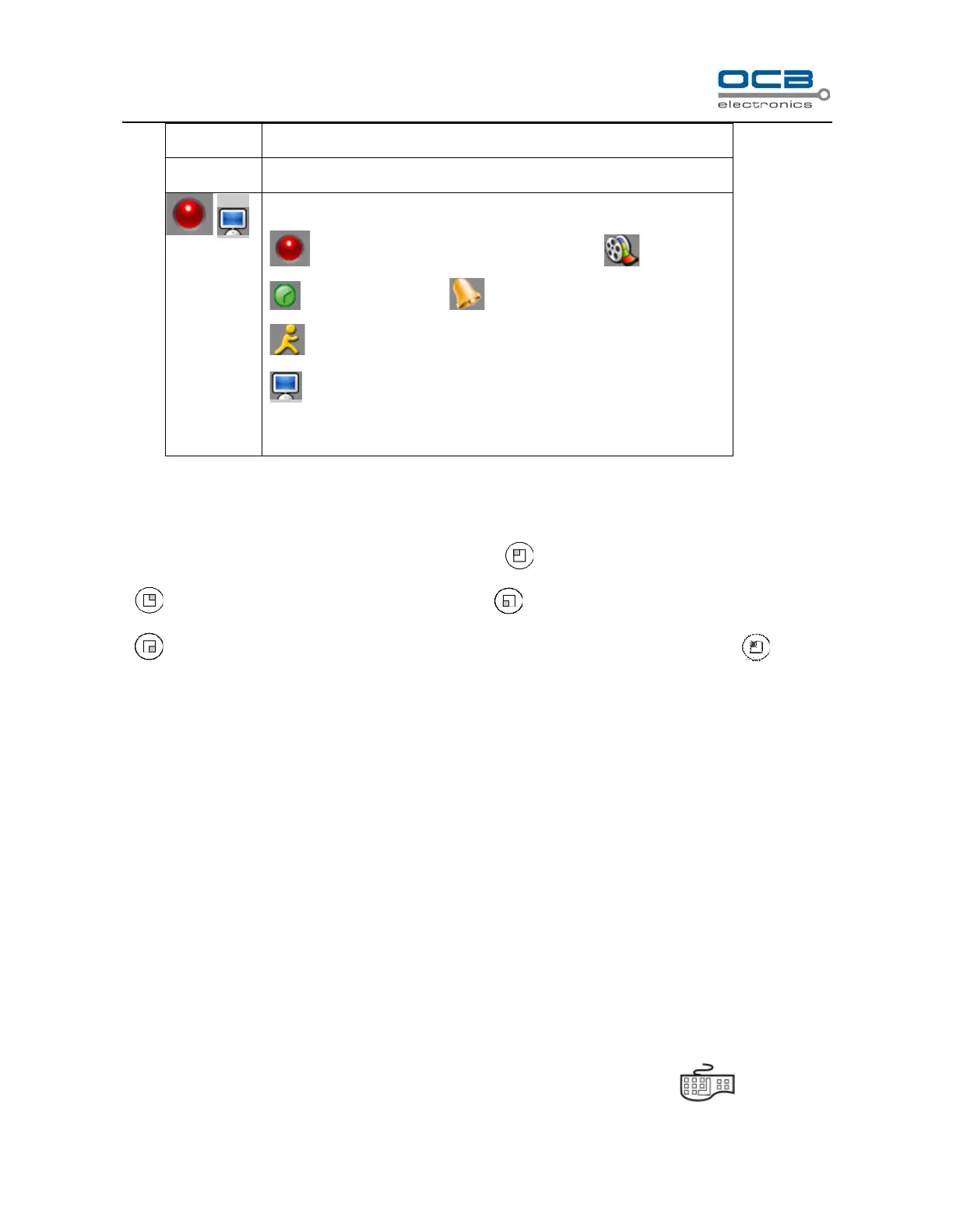
Record status and remote preview switch automatically.
---the current channel is recording manually --- prerecord
---timing recording ---alarm recording
---motion detection recording
---the channel is under remote preview
×---the channel is neither under recording nor preview remotely
Screen Switch
Under surveillance mode, system default is 4-screen, press to have the first split screen full screen, press
to have the second split screen full screen, press to have the third split screen full screen, press
to have the forth split screen full screen. When the first split screen is the full screen, press to return
to 4-screen, so do the other 3 buttons.
Screen Circular Monitor
Enter “Main Menu → Advanced → General”, select circular monitor “ON”, set circular monitor interval (interval
of circle monitor), press “OK” the system will start circular monitor. Default system configuration: OFF.
“Auto Switch” will show on status bar when auto circular is activated.
Section 3 Login and Logout
System Login
Press any key of front panel, system will pop-on the login interface as shown in Fig. 12.
Please select a user in “User Login”, then move cursor to password input box and press on front panel
to get into input interface in which to input the password. Language can also be selected in this dialogue box.



 To Next Page